> For the complete documentation index, see [llms.txt](https://docs.cybus.io/llms.txt). Markdown versions of documentation pages are available by appending `.md` to page URLs; this page is available as [Markdown](https://docs.cybus.io/1-10-2/documentation/industry-protocol-details/custom-connectors/deploying-custom-connectors.md).
# Deploying Custom Connectors
Since a custom connector is based on a pre-built Docker image, you must pass the image tag to the build command. In the code example, the recent BASEIMAGE\_VERSION tag is 1.1.1.
1. To start and deploy your custom connector, write a `docker-compose.yml` file. The following code example starts the agent with a server:
{% code lineNumbers="true" %}
```yaml
docker-compose build --build-arg BASEIMAGE_VERSION=1.1.1
```
{% endcode %}
{% code lineNumbers="true" %}
```yaml
version: '2.4'
services:
# Run the example server
server:
build: .
network_mode: host # Using host network
entrypoint: ''
command: sh -c 'cd /app/src/protocols/custom/utils && node runServer.js'
agent:
build: .
network_mode: host # Using host network
volumes:
- agentData:/data
environment:
CYBUS_MQTT_HOST: localhost # Asuming Cybus Connectware to be reachable on local system
CYBUS_AGENT_MODE: distributed
CYBUS_AGENT_NAME: CustomConnectorAgent
CYBUS_LOG_LEVEL: info
volumes:
agentData:
```
{% endcode %}
2. To start your custom connector, use the following code:
{% code lineNumbers="true" %}
```yaml
docker-compose up -d
```
{% endcode %}
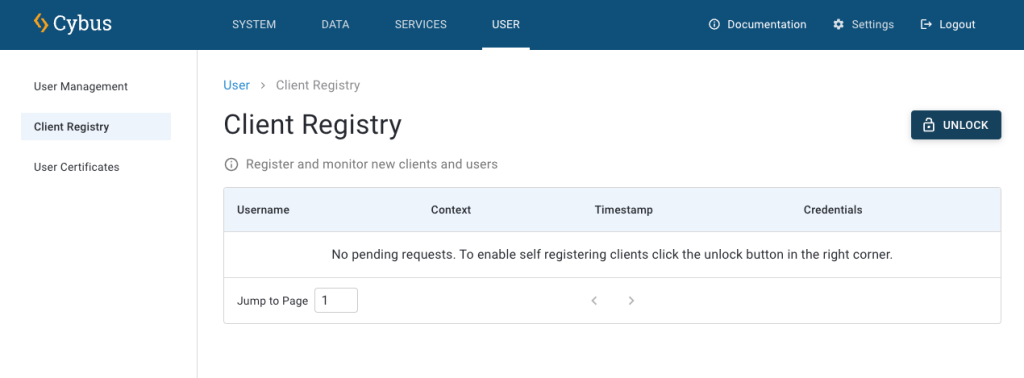
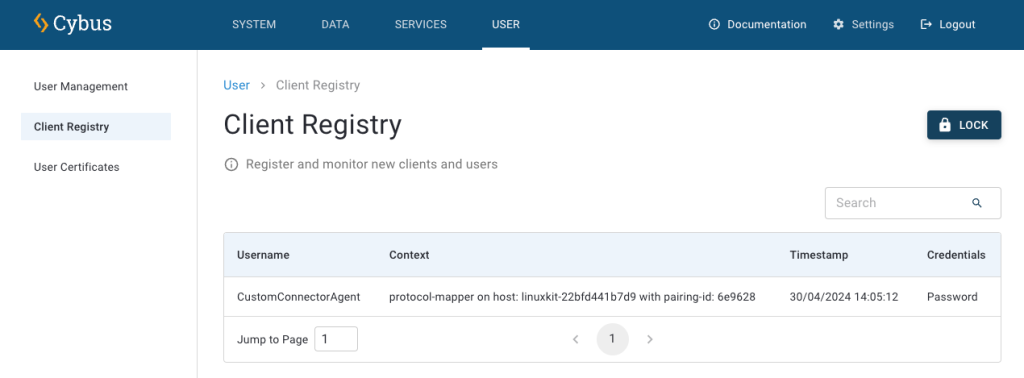
3. To register the custom connector as an agent in Connectware, log into Connectware and select **User** > **Client Registry**.
4. Click **Unlock** to allow the agent to register with Connectware.
5. Once the client is registered, click it.
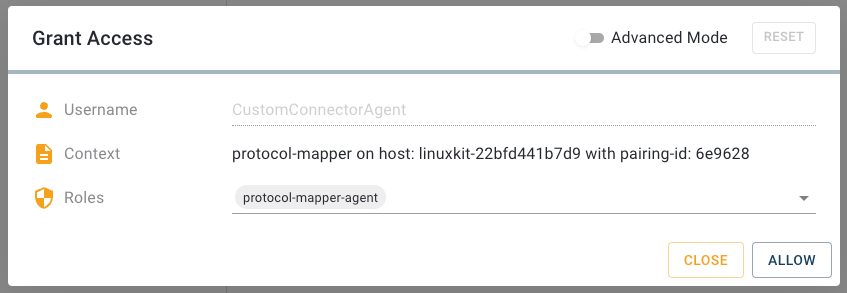
6. In the **Grant Access dialog**, click **Allow**. By default, the default permissions are assigned to the client.
**Result:** You can now use your custom connector.
---
# Agent Instructions
This documentation is published with GitBook. GitBook is the documentation platform designed so that both humans and AI agents can read, navigate, and reason over technical content effectively. Learn more at gitbook.com.
## Querying This Documentation
If you need additional information that is not directly available in this page, you can query the documentation dynamically by asking a question.
Perform an HTTP GET request on the current page URL with the `ask` query parameter, and the optional `goal` query parameter:
```
GET https://docs.cybus.io/1-10-2/documentation/industry-protocol-details/custom-connectors/deploying-custom-connectors.md?ask=&goal=
```
`ask` is the immediate question: it should be specific, self-contained, and written in natural language.
`goal` is optional and describes the broader end goal you are ultimately trying to accomplish on behalf of the user. GitBook uses it to tailor the answer towards what is most useful for that goal.
The response will contain a direct answer to the question and relevant excerpts and sources from the documentation.
Use this mechanism when the answer is not explicitly present in the current page, you need clarification or additional context, or you want to retrieve related documentation sections.