> For the complete documentation index, see [llms.txt](https://docs.cybus.io/llms.txt). Markdown versions of documentation pages are available by appending `.md` to page URLs; this page is available as [Markdown](https://docs.cybus.io/1-11-0/documentation/security/tls-certificates/ca-certificates.md).
# CA Certificates
Learn about Certificate authority (CA) configuration and trust management.
Certificate Authority (CA) certificates are used to validate other certificates. Connectware uses a certificate system that includes both built-in Cybus CA certificates and any custom CA certificates you choose to add. These certificates establish trust relationships between different systems and verify the authenticity of connections.
## CA Certificate Types
### Default Cybus CA Certificates
Connectware comes with built-in Cybus CA certificates that are pre-installed and managed by the system. These provide the baseline security infrastructure for Connectware operations.
{% hint style="info" %}
In production environments, we recommend that you use a custom CA certificate that your organization manages and has authorized.
{% endhint %}
### Custom CA Certificates
Custom CA certificates are user-provided Certificate Authority certificates that you add to the system to establish trust for secure communications with external systems. These certificates allow Connectware to authenticate and verify devices, clients, or servers that use certificates signed by a non-default or custom CA, rather than relying solely on the built-in Cybus CA.
By adding custom CA certificates, you can integrate your own Public Key Infrastructure (PKI) to ensure that Connectware can recognize and trust certificates issued by external CAs. This increases security and flexibility for specific industry use cases or corporate policies.
{% hint style="info" %}
In production environments, we recommend that you use a custom CA certificate that your organization manages and has authorized.
{% endhint %}
## Adding Custom CA Certificates
You can add custom CA certificates to Connectware via the Admin UI and via the `certs` volume.
{% hint style="info" %}
All certificate and key files must be in PEM format.
{% endhint %}
### Adding Custom CA Certificates via the Admin UI
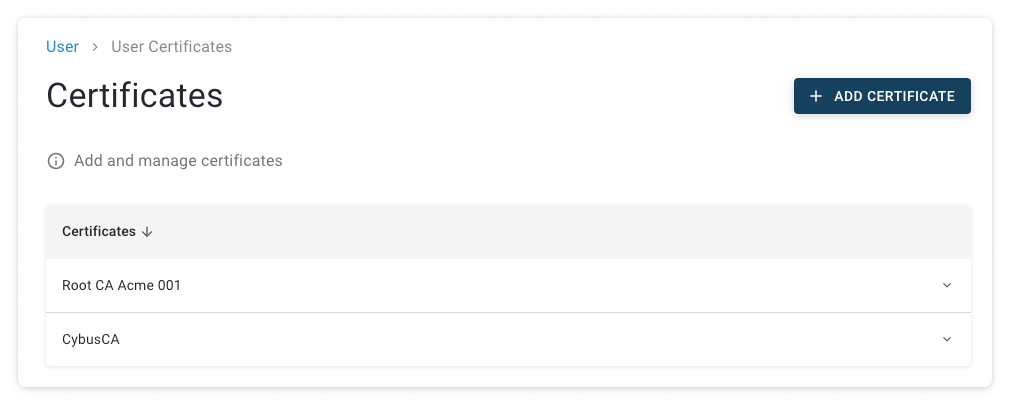
You can add your custom CA certificate to Connectware via the Admin UI. When you add a certificate, a backup of the current certificates is created. The last backup will be overwritten with the newly created backup and then the uploaded certificate will be appended to the current certificate chain.
1. Select **User** > **User Certificates**.
2. In the **Certificates** view, click **Add Certificate**. See [Certificates View](/1-11-0/documentation/security/tls-certificates/ca-certificates/certificates-view.md).
3. In the file browser, select your certificate file and click **Open**.
4. [Restart Connectware](/1-11-0/documentation/installation-and-upgrades/restarting-connectware.md) to apply the changes.
### Adding Custom CA Certificates via the Certs Volume
You can add your custom CA certificate to Connectware via the `certs` volume.
**Prerequisites**
The following files are available:
* The `cybus_ca.crt` from Connectware.
* The `ca-chain.pem` CA certificate chain in PEM format.
* The `server.crt` server certificate for Connectware in PEM format, signed by your custom CA.
* The server.key matching `server.crt`.
* Connectware has a planned maintenance downtime.
{% tabs %}
{% tab title="Kubernetes" %}
#### Adding Custom CA Certificates via the Certs Volume (Kubernetes)
1. Append your `ca-chain.crt` to `cybus_ca.crt`:
{% code lineNumbers="true" %}
```bash
cat ca-chain.pem >> cybus_ca.crt
```
{% endcode %}
2. Upload the modified `cybus_ca.crt` to Connectware. Make sure to specify the Connectware namespace:
{% code lineNumbers="true" %}
```bash
namespace=
pod=$(kubectl -n ${namespace} get pod -o name -lapp.kubernetes.io/name=auth-server | head -1 | sed 's/pod\///g');
kubectl -n ${namespace} cp -c auth-server cybus_ca.crt $pod:/connectware_certs/cybus_ca.crt
kubectl -n ${namespace} exec $pod -c auth-server -- chown -R root:root /connectware_certs
kubectl -n ${namespace} exec $pod -c auth-server -- chmod 664 /connectware_certs/cybus_ca.crt
```
{% endcode %}
3. [Restart Connectware](/1-11-0/documentation/installation-and-upgrades/restarting-connectware.md) to apply the changes.
{% endtab %}
{% tab title="Docker" %}
#### Adding CA Certificates via the Certs Volume (Docker)
1. Append your `ca-chain.crt` to `cybus_ca.crt`:
{% code lineNumbers="true" %}
```bash
cat ca-chain.pem >> cybus_ca.crt
```
{% endcode %}
2. Upload the modified `cybus_ca.crt` to Connectware:
{% code lineNumbers="true" %}
```bash
# Get the container ID or name using labels
container_id=$(docker container ls -q -f "label=io.cybus.connectware=core" -f "label=com.docker.compose.service=auth-server")
# Copy the modified CA certificate
docker cp cybus_ca.crt $container_id:/connectware_certs/cybus_ca.crt
# Set proper ownership and permissions
docker exec $container_id chown -R root:root /connectware_certs
docker exec $container_id chmod 664 /connectware_certs/cybus_ca.crt
```
{% endcode %}
3. [Restart Connectware](/1-11-0/documentation/installation-and-upgrades/restarting-connectware.md) to apply the changes.
{% endtab %}
{% endtabs %}
## Removing CA Certificates
You must have at least two CA certificates in Connectware to remove a certificate, as one certificate must always remain in the system.
1. Select **User** > **User Certificates**.
2. In the certificates list, click the arrow next to the certificate that you want to remove. See [Certificates View](/1-11-0/documentation/security/tls-certificates/ca-certificates/certificates-view.md).
3. Click **Remove Certificate**.
4. [Restart Connectware](/1-11-0/documentation/installation-and-upgrades/restarting-connectware.md) to apply the changes.
---
# Agent Instructions
This documentation is published with GitBook. GitBook is the documentation platform designed so that both humans and AI agents can read, navigate, and reason over technical content effectively. Learn more at gitbook.com.
## Querying This Documentation
If you need additional information that is not directly available in this page, you can query the documentation dynamically by asking a question.
Perform an HTTP GET request on the current page URL with the `ask` query parameter, and the optional `goal` query parameter:
```
GET https://docs.cybus.io/1-11-0/documentation/security/tls-certificates/ca-certificates.md?ask=&goal=
```
`ask` is the immediate question: it should be specific, self-contained, and written in natural language.
`goal` is optional and describes the broader end goal you are ultimately trying to accomplish on behalf of the user. GitBook uses it to tailor the answer towards what is most useful for that goal.
The response will contain a direct answer to the question and relevant excerpts and sources from the documentation.
Use this mechanism when the answer is not explicitly present in the current page, you need clarification or additional context, or you want to retrieve related documentation sections.