> For the complete documentation index, see [llms.txt](https://docs.cybus.io/llms.txt). Markdown versions of documentation pages are available by appending `.md` to page URLs; this page is available as [Markdown](https://docs.cybus.io/2-0-0/documentation/monitoring/data-explorer.md).

# Data Explorer

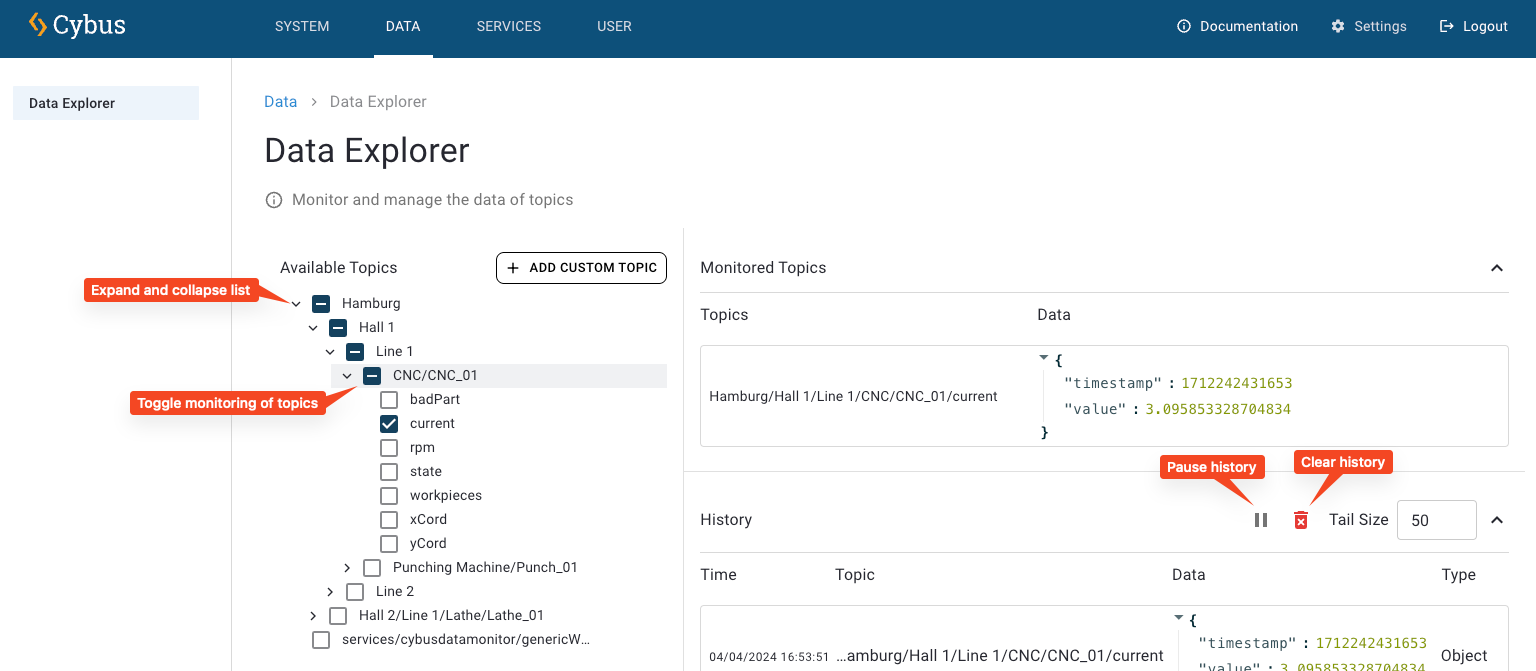
The **Data Explorer** provides a centralized interface to visualize, monitor, and troubleshoot MQTT messages in Connectware. Messages are organized into topics, enabling structured data flow between publishers and consumers.

For monitoring the MQTT topics of a single service, use the [Live Data](/2-0-0/documentation/monitoring/live-data.md) tab.

<figure><img src="/files/SxCgOOIIR4El5IgMPFSF" alt="Screenshot of the Data Explorer main interface"><figcaption></figcaption></figure>

{% hint style="danger" %}
Shared subscriptions are disabled in the Data Explorer to ensure stable operation for all clients connected to the same topics.
{% endhint %}

## Data Explorer at a Glance

* To open the Data Explorer, click **Data** in the navigation panel.

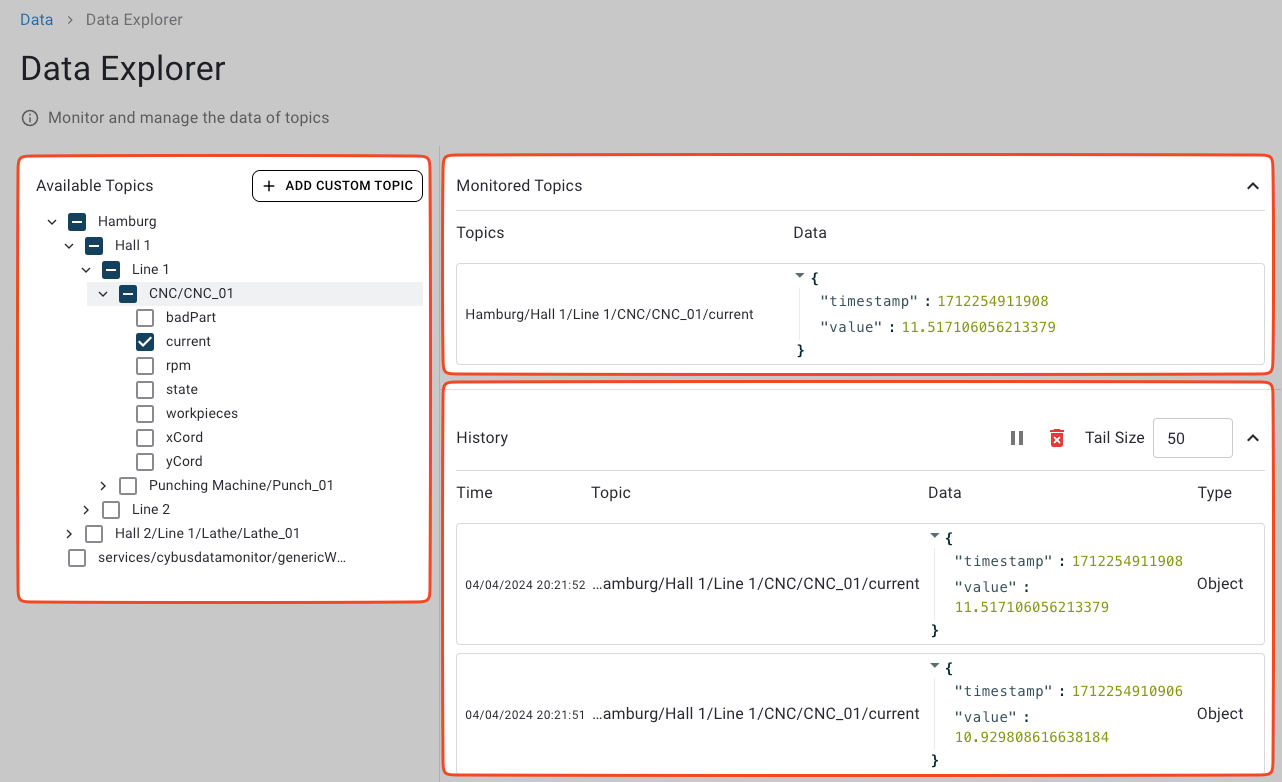
The Data Explorer is divided into the following sections:

* **Available Topics** (left): Browse the topic tree and choose what to monitor.
* **Monitored Topics** (right): See the latest values for your selected topics.
* **History** (bottom): A log of updates received for the monitored topics.

<figure><img src="/files/1PWl37S0tHKo6xpHeNmU" alt="Screenshot highlighting Data Explorer sections"><figcaption><p>Overview of Data Explorer sections: Available Topics, Monitored Topics, and History.</p></figcaption></figure>

### Copying Topic Data to the Clipboard

The data values displayed in the **Monitored Topics** and in the **History** section correspond to the data type of their topic.

* Numbers and strings appear as plain text. Select and copy them as usual.
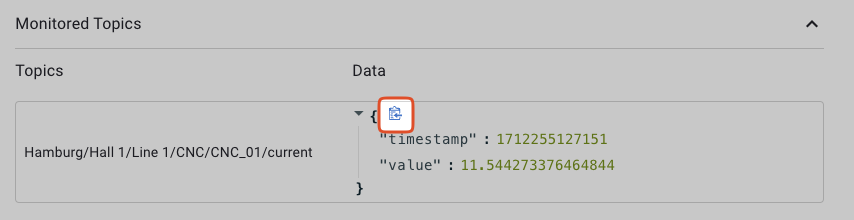
* JSON objects show a clipboard icon on hover. Click it to copy the JSON to your clipboard.

<figure><img src="/files/8L5UzrycYp0nkwO8SBDy" alt="Screenshot showing clipboard icon for copying JSON data"><figcaption><p>Clipboard icon appears for JSON objects to enable easy copying.</p></figcaption></figure>

## Available Topics

The **Available Topics** section displays all MQTT topics that are available in Connectware in a hierarchical structure. The base topics are at the highest level. Click the down arrows to expand the topic structure.

Topics are only shown if they have at least one active subscription. Topics that are not linked to a Connectware resource are also displayed.

Wildcard topics (**+**) are displayed in the topic tree without showing actual topic names.

<figure><img src="/files/k6xfj7jdmO8gd4mK6Xxh" alt="Screenshot of Available Topics tree structure"><figcaption><p>Available Topics section showing hierarchical topic tree.</p></figcaption></figure>

## Monitored Topics

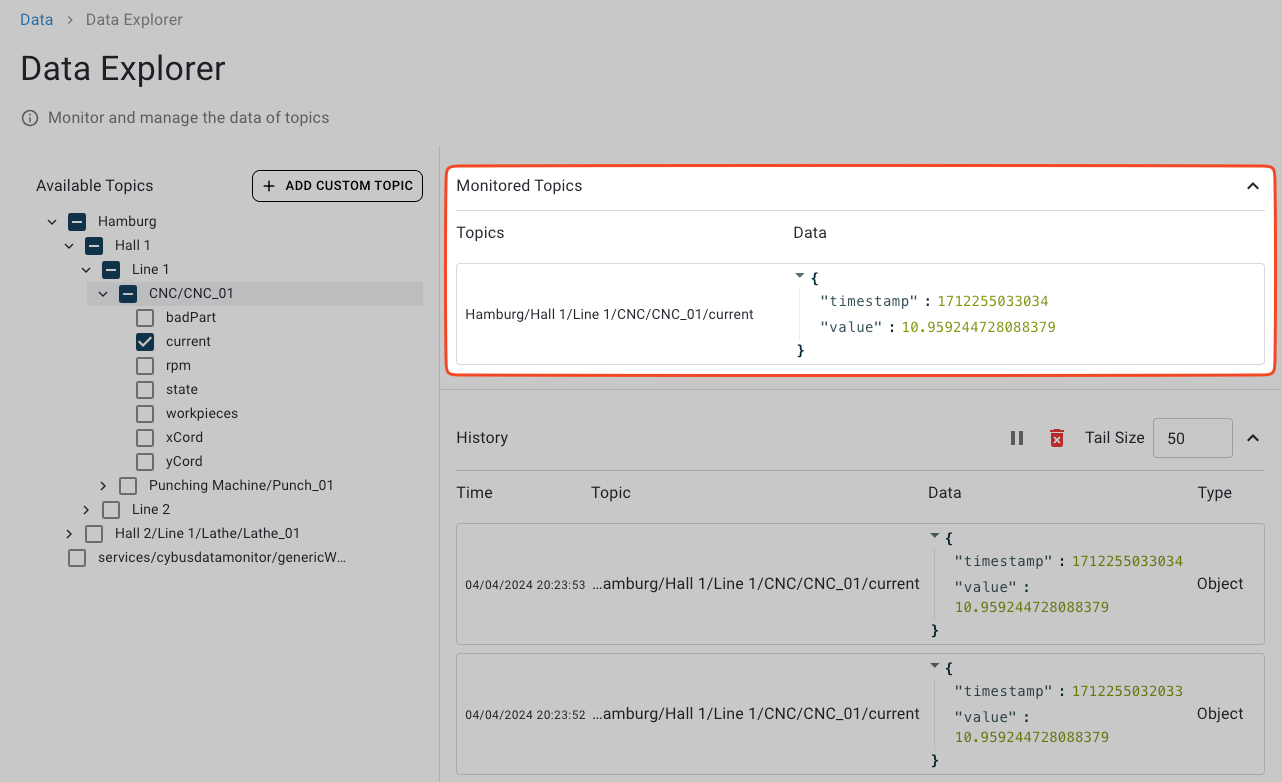
The **Monitored Topics** section always shows the latest payload per topic. Each time a new message arrives, the corresponding value is updated.

By default, 25 topics are displayed.

* To show more topics, click **Show the Next 25** at the end of the monitored topics list.

<figure><img src="/files/jVT5nUi3Kq5AL6HAX9ex" alt="Screenshot of Monitored Topics section"><figcaption><p>Monitored Topics section displaying latest values for selected topics.</p></figcaption></figure>

### Adding or Removing Topics from the Monitored Topics List

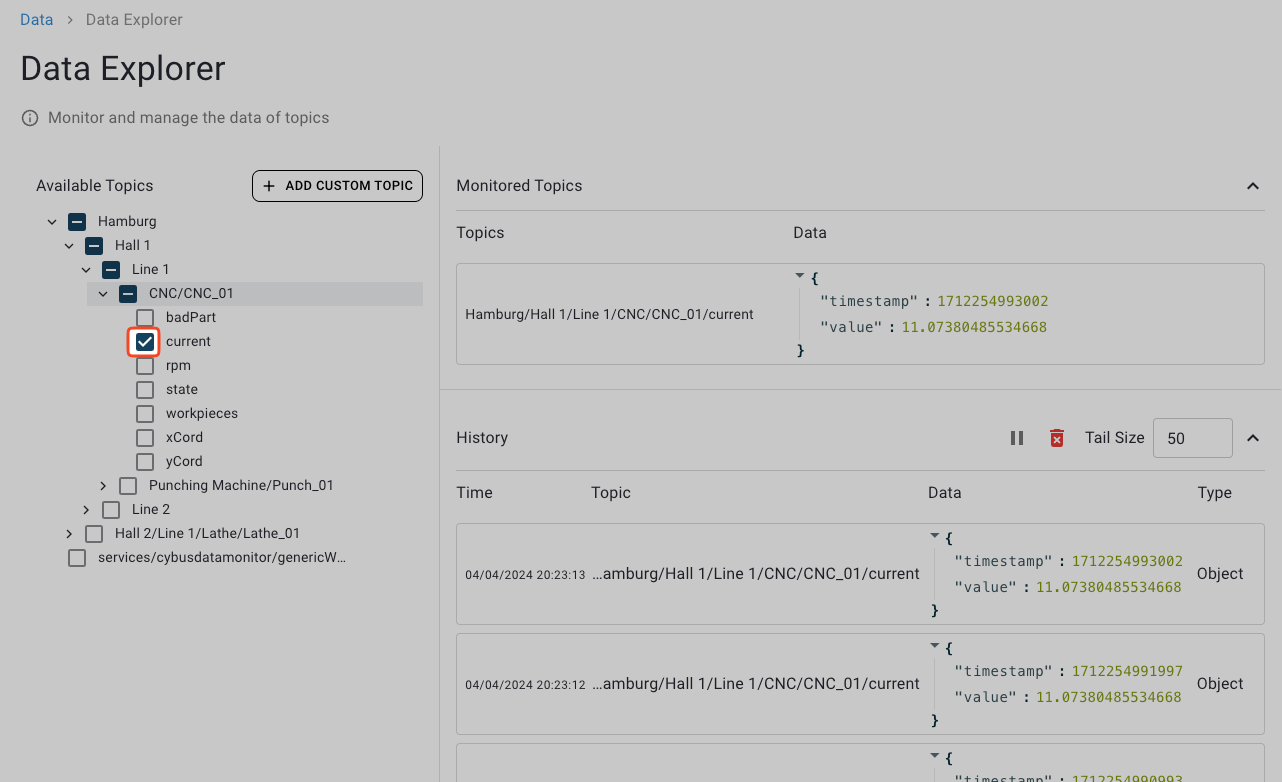
* To add a topic to the monitored topics list, check the corresponding checkbox in the **Available Topics** section.
* To remove a topic from the monitored topics list, uncheck the corresponding checkbox in the **Available Topics** section.

## History

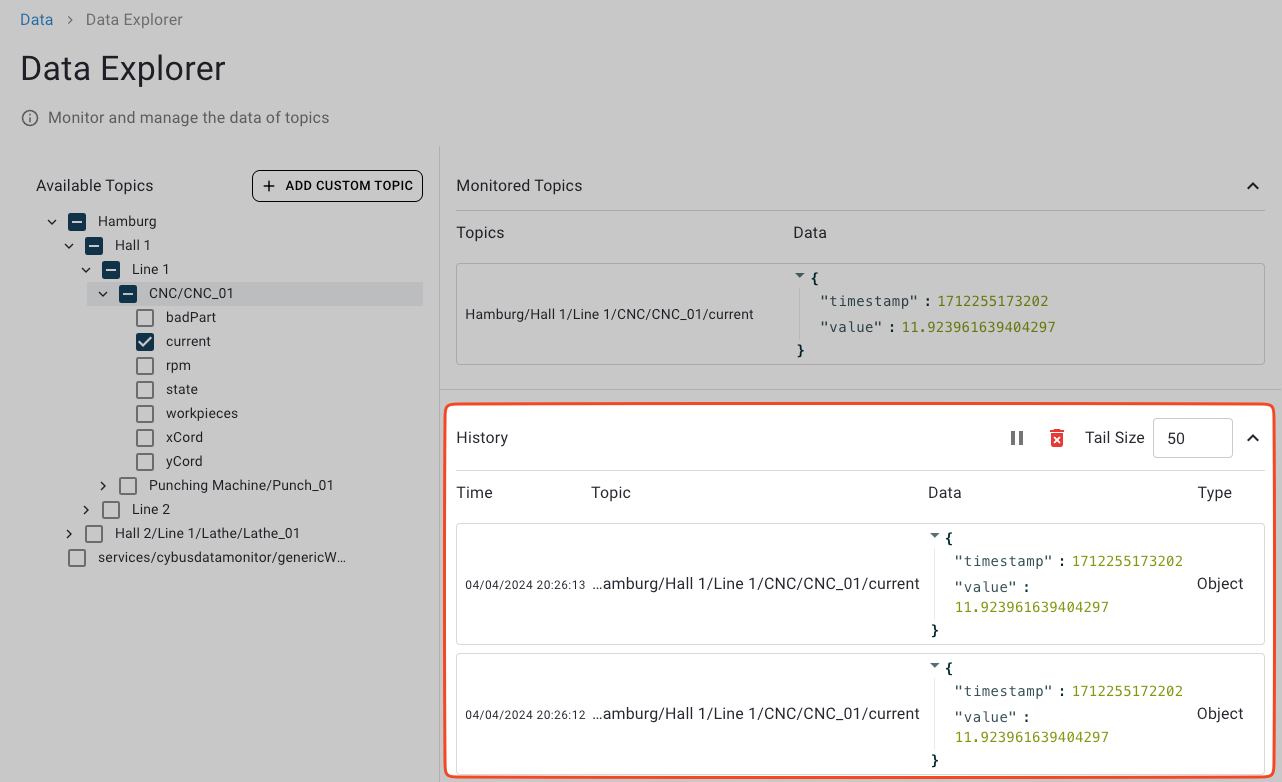
The **History** section allows you to view logs of all updates from the currently monitored topics. Every time an update to a monitored topic is available, a new log line will be appended to the history.

<figure><img src="/files/x7hwHAhxiBT8Wa8mtFUS" alt="Screenshot of History log section"><figcaption><p>History section showing log of monitored topics.</p></figcaption></figure>

### Pausing or Resuming Log Updates

You can pause the log updates to inspect specific log lines.

* To temporarily stop live updates, click the **Pause** icon in the top-right of the **History** section. Click again to resume.

### Clearing the Log

* To remove all recorded log lines, click the **Trash** icon in the top-right of the History section.

### Displaying More or Fewer Log Lines

* To set how many of the most recent log entries the **History** section should display, set the **Tail Size** value.


---

# Agent Instructions
This documentation is published with GitBook. GitBook is the documentation platform designed so that both humans and AI agents can read, navigate, and reason over technical content effectively. Learn more at gitbook.com.

## Querying This Documentation
If you need additional information that is not directly available in this page, you can query the documentation dynamically by asking a question.

Perform an HTTP GET request on the current page URL with the `ask` query parameter, and the optional `goal` query parameter:

```
GET https://docs.cybus.io/2-0-0/documentation/monitoring/data-explorer.md?ask=<question>&goal=<endgoal>
```

`ask` is the immediate question: it should be specific, self-contained, and written in natural language.
`goal` is optional and describes the broader end goal you are ultimately trying to accomplish on behalf of the user. GitBook uses it to tailor the answer towards what is most useful for that goal.

The response will contain a direct answer to the question and relevant excerpts and sources from the documentation.

Use this mechanism when the answer is not explicitly present in the current page, you need clarification or additional context, or you want to retrieve related documentation sections.