> For the complete documentation index, see [llms.txt](https://docs.cybus.io/llms.txt). Markdown versions of documentation pages are available by appending `.md` to page URLs; this page is available as [Markdown](https://docs.cybus.io/2-0-2/documentation/user-management/roles.md).
# Roles
Define permission groups based on job functions and responsibilities.
In Connectware, roles are a group of permissions that can be assigned to multiple users. This simplifies user management by allowing administrators to define standard permission sets based on job functions or responsibilities, rather than configuring permissions individually for each user.
## Roles View
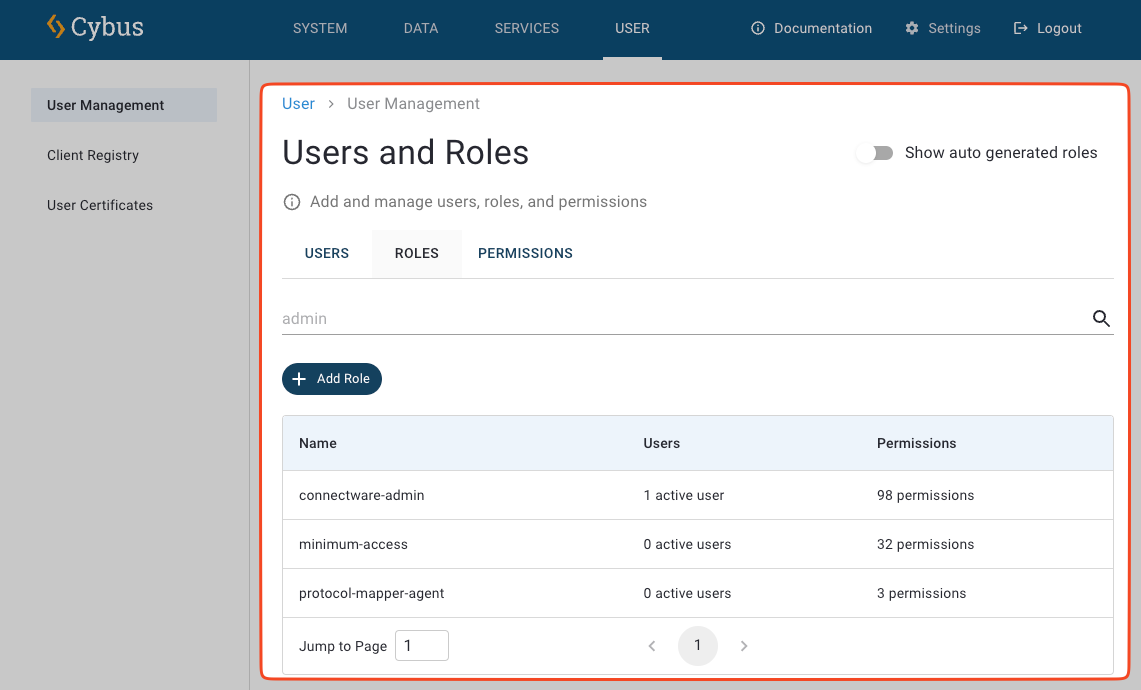
The **Roles View** provides a comprehensive dashboard of all defined roles in your Connectware system and their associated permissions. This makes it easy to audit your access control structure and identify which permissions are assigned to each role.
* To open the **Users View**, click **User** and click the **Roles** tab.
In this view, you can quickly identify:
* All available roles in the system.
* The specific permissions assigned to each role.
* Which roles might need modifications based on your security requirements.
## Creating New Roles and Permissions
Creating roles allows you to define permission sets once and apply it to multiple users.
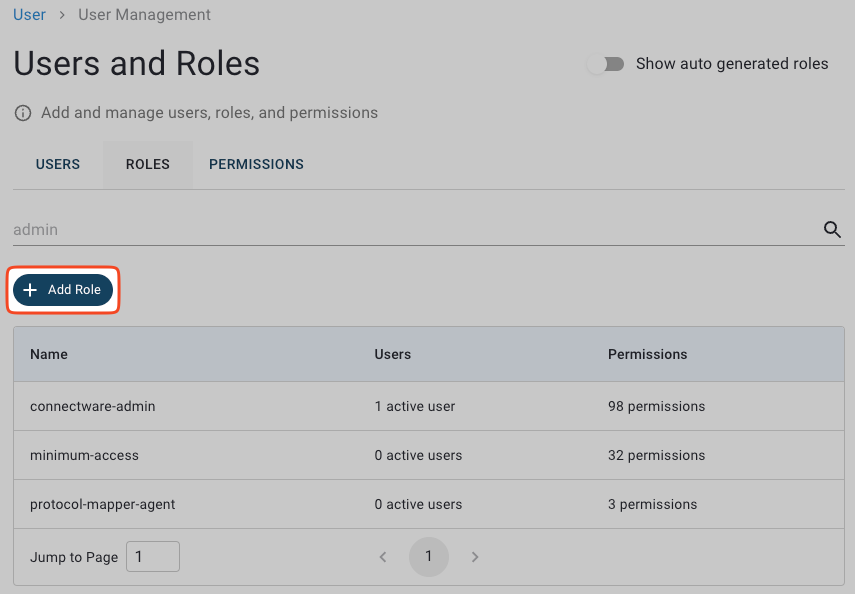
1. In the **Roles View**, click **Add Role** to open the **Create Role** dialog.
2. Enter a name for the new role.
3. Optional: To assign a set of pre-defined permissions to the user, click the **Copy Permissions** field, select a permission, and click **Add**. You can repeat this step to assign multiple permission sets.
4. Optional: To assign individual permissions, click the **+** button to open the **Add Permission** dialog.
* Select the permission type: **HTTP** for accessing the REST API using HTTP clients or **MQTT** for accessing MQTT topics on CybusMQ.
* In the **Endpoint** field, enter the resource path, which follows MQTT topic conventions. The specified topic can be a single topic or a wildcard. HTTP permissions for the resource path follow an MQTT topic structure. This means that you can use wildcards (**#** and **+**) in valid expressions, and paths must start with a leading slash (**/**).
* Select the access type: **read**, **write**, or **both**.
* Click **Add** to add the permission.
5. Click **Create**. The dialog will close and the new role will be added to the overview table.
## Changing Role Names
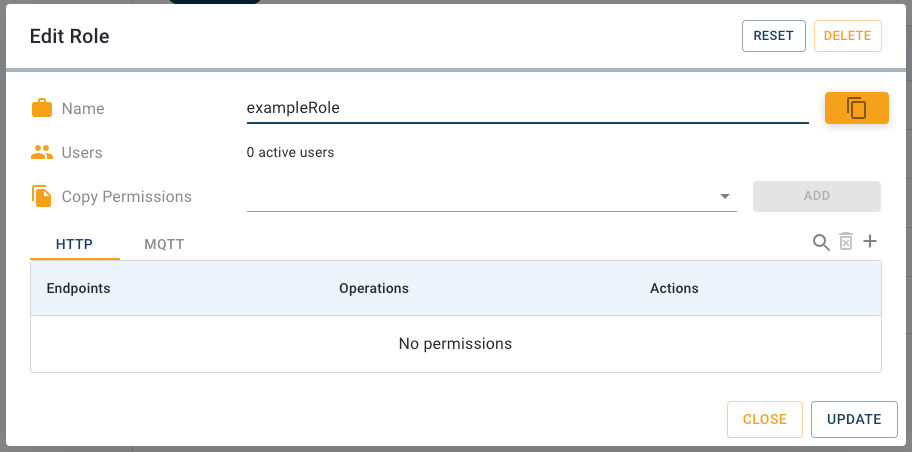
1. In the **Roles View**, click a role to open the **Edit Role** dialog.
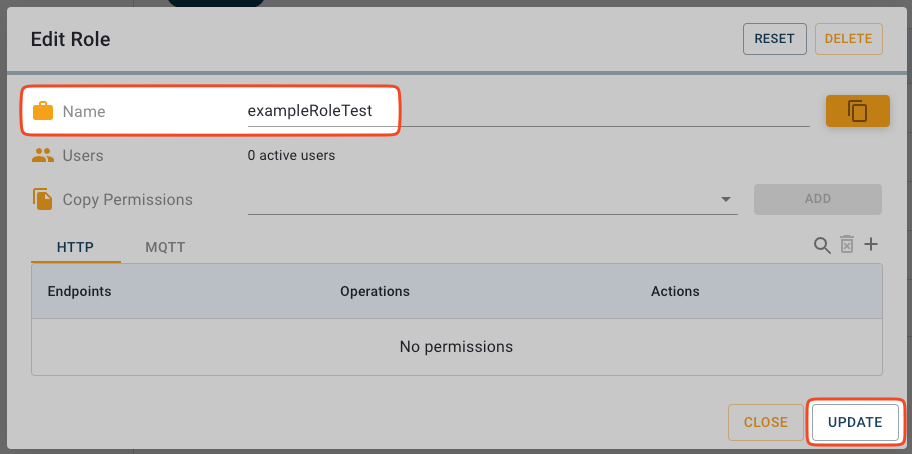
2. In the **Edit Role** dialog, enter a new role name in the **Name** field.
3. To apply the changes, click **Update**. The dialog will close and the role name will be updated.
## Deleting Roles
1. In the **Roles View**, click the role that you want to delete to open the **Edit Role** dialog.
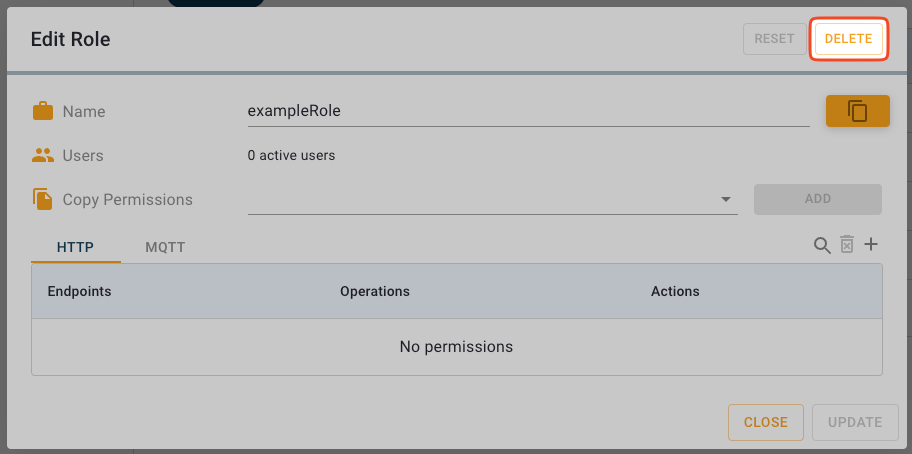
2. Click the **Delete** button in the top right of the **Edit Role** dialog.
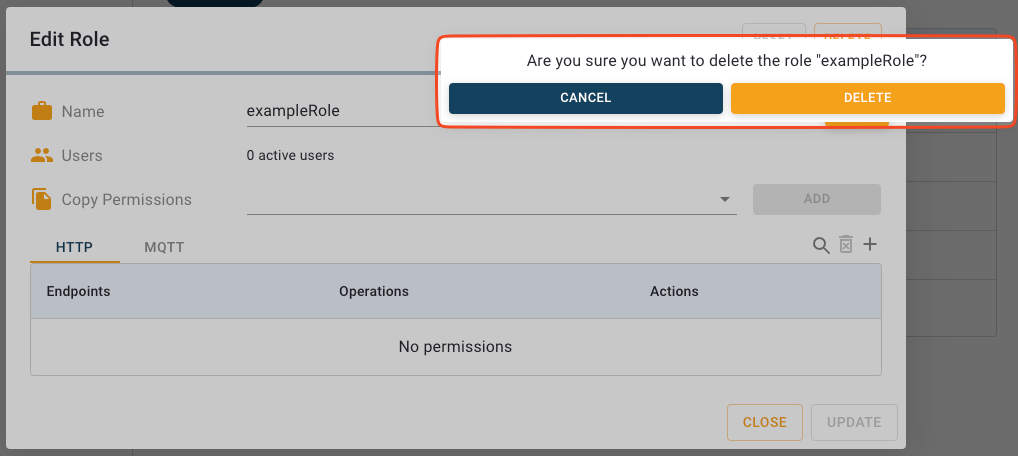
3. Click **Delete** again to confirm. The user is deleted.
---
# Agent Instructions
This documentation is published with GitBook. GitBook is the documentation platform designed so that both humans and AI agents can read, navigate, and reason over technical content effectively. Learn more at gitbook.com.
## Querying This Documentation
If you need additional information that is not directly available in this page, you can query the documentation by asking a question.
Perform an HTTP GET request on the following URL with the `ask` and `goal` query parameters:
```
GET https://docs.cybus.io/2-0-2/documentation/user-management/roles.md?ask=&goal=
```
`ask` is the immediate question: it should be specific, self-contained, and written in natural language.
`goal` is what the user is ultimately trying to achieve, the reason they need the answer. Sharing it helps GitBook give you a better, more relevant answer. A goal is most helpful when it describes the outcome the user wants rather than restating the question. For example, with `ask=how do I create an API token`, a goal like `automate deployments from our CI pipeline` lets GitBook tailor the answer to that use case.
The response will contain a direct answer to the question and relevant excerpts and sources from the documentation.
Use this mechanism when the answer is not explicitly present in the current page, you need clarification or additional context, or you want to retrieve related documentation sections.