# Licensing
Connectware requires a valid license key to operate. Each license key is uniquely tied to your instance and enables specific features based on your subscription. This section covers everything you need to know about obtaining, managing, and implementing your Connectware license.
For more information about available Connectware licenses, visit the [Cybus website](https://www.cybus.io/en/product/licenses/).
## License View
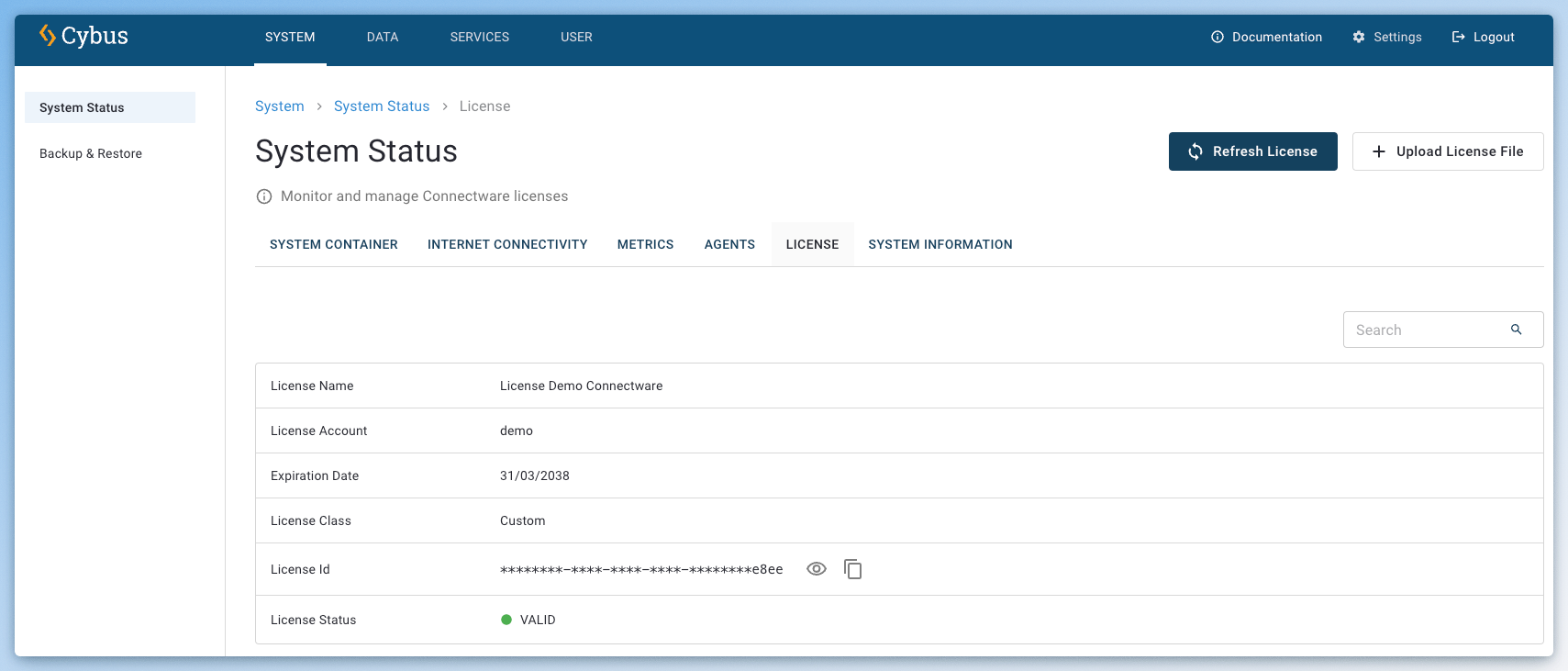
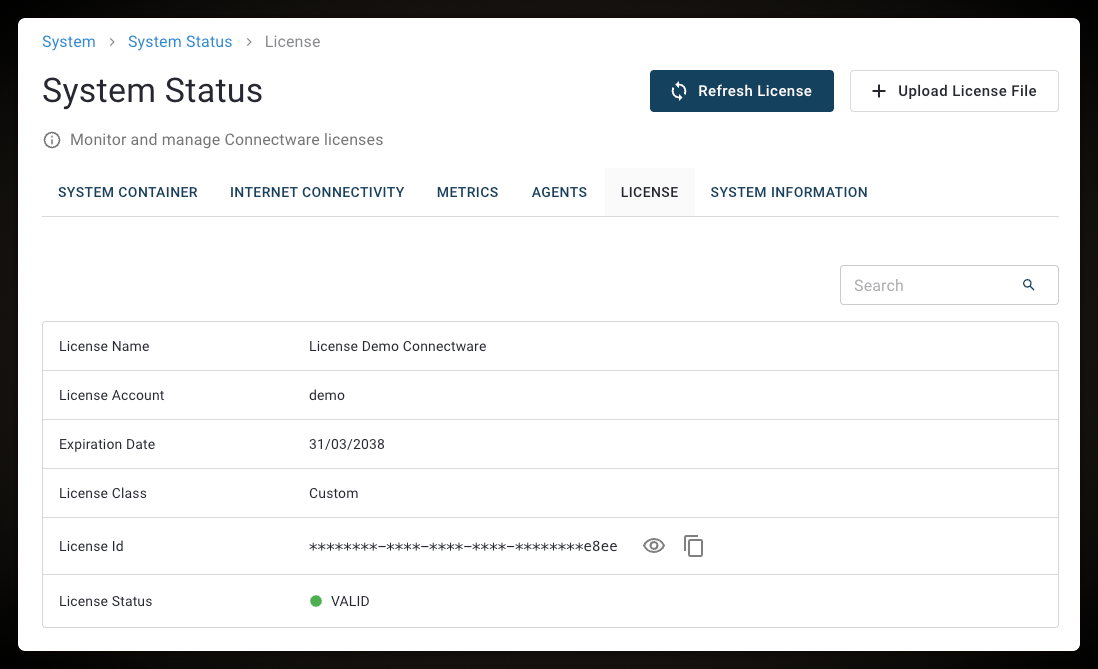
The **License View** displays information of your active Connectware license. Each time you start Connectware, the license is automatically validated over the Internet. If your Connectware installation does not have Internet access, you can upload a valid license file manually.
* To open the **License View**, select **System** > **System Status**, and click the **License** tab.
The following information are available:
* **License Name**
* **License Account**
* **Expiration Date**
* **License Class**
* **License ID**
* **License Status**
You can manually [refresh your license](#manually-refreshing-licenses-in-connectware) via the **Refresh License** button. You can [upload a new license file](#uploading-license-files-to-connectware) via the **Upload License File** button.
## Acquiring License Keys
The [Cybus Portal](https://portal.cybus.io/) allows you to generate and manage license keys for your Connectware installations. This guide walks you through accessing the portal and generating new license keys. Once generated, you'll use this key during the Connectware installation process.
**Prerequisites**
* Access to the Cybus Portal. Contact our [Sales team](mailto:sales@cybus.io) to obtain portal credentials if needed.
**Procedure**
1. Go to the [Cybus Portal](https://portal.cybus.io/).
2. Enter your **Username** and **Password**, and click **Sign in**.
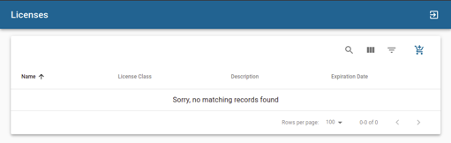
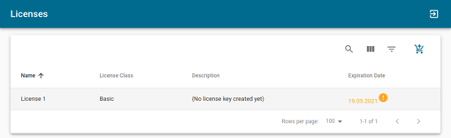
3. Click **Licenses** in the menu to view all your available Connectware licenses.
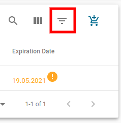
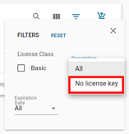
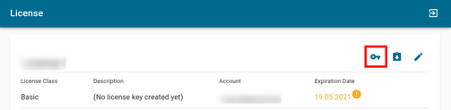
4. To obtain a new license key, click a license. We recommend to look for licenses marked as **No license key created yet**. You can use the **No license key** filter option to show only licenses without keys.
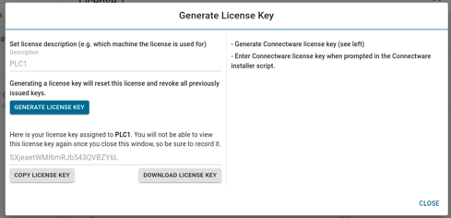
4. Click **Download License Key** in the upper right corner.
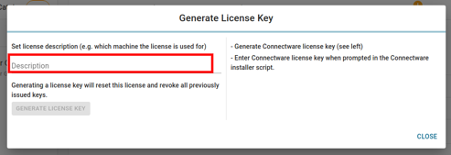
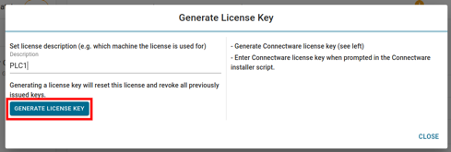
5. Add a description for your license and click **Generate License Key**.
{% hint style="info" %}
Your new license key will appear on screen. Make sure to copy and save it somewhere secure, as you won't be able to view it again after closing this window. If you lose the key, you'll need to generate a new one, which will invalidate the previous key - even if it's already in use.
{% endhint %}
**Result**: Once you have your license key safely stored, you can proceed with Connectware installation.
## Online License Validation
Connectware automatically validates your license during startup if it can reach the [Cybus Portal](https://portal.cybus.io/)) backend (`graphql-server.cybus.io`). When this connection is available, license updates occur automatically in the background. If the server cannot be reached, you must [manually update](#manually-refreshing-licenses-in-connectware) your Connectware license by uploading a new license file.
## Offline License Activation
If Connectware is not connected to the Internet, you must activate your license manually through an offline process. This requires:
1. Downloading a license file from the [Cybus Portal](https://portal.cybus.io/) via one of the following options:
* [Downloading License Files via Installer Script](#downloading-license-files-via-installer-script)
* [Downloading License File via Cybus Portal Website](#downloading-license-file-via-cybus-portal-website)
2. Uploading the license file into your offline Connectware installation.
### Downloading License Files
You can download license files via the installer script or via the [Cybus Portal](https://portal.cybus.io/).
#### Downloading License Files via Installer Script
If you installed Connectware using the `connectware-online-installer.sh` script, you can use the same script to download your license file by adding the `--download-license-file` command.
To download the license file, you'll need either:
1. Your original license key, which can be passed directly as a command-line option.
2. The path to your existing Connectware installation directory.
Once executed, the script will download your license file and display its filename. You can then use this file to activate your offline Connectware installation.
**Procedure**
* To download the license via the script with the license key (e.g. `ABCABCABC`,), do the following:
{% code lineNumbers="true" %}
```
./connectware-online-installer.sh --download-license-file -k ABCABCABC
```
{% endcode %}
* To download the license via the script using the Connectware installation directory (e.g. `/opt/connectware`), do the following:
{% code lineNumbers="true" %}
```
./connectware-online-installer.sh --download-license-file -d /opt/connectware
```
{% endcode %}
**Next step**: Transfer the downloaded license file to your Connectware host machine for activation. See [Uploading License Files to Connectware](#uploading-license-files-to-connectware).
#### Downloading License Files via the Cybus Portal
**Prerequisites**
* Login credentials for the [Cybus Portal](https://portal.cybus.io/).
* A running instance of Connectware that you want to activate.
* A valid license key that matches the one used during installation.
**Procedure**
1. Log in to portal.cybus.io. If you don't have login credentials, contact [sales@cybus.io](mailto:sales%40cybus.io).
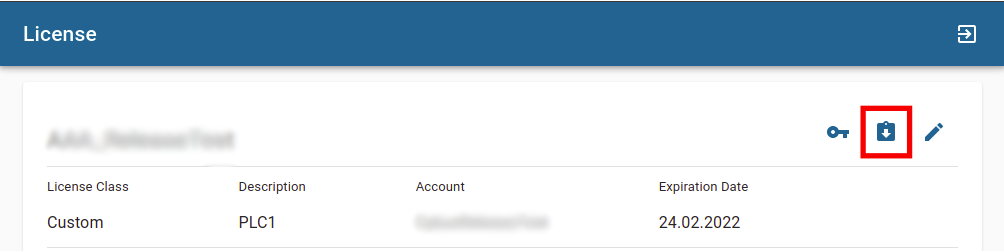
2. Click **Licenses** and select your license.
3. Click the **Download License File** icon.
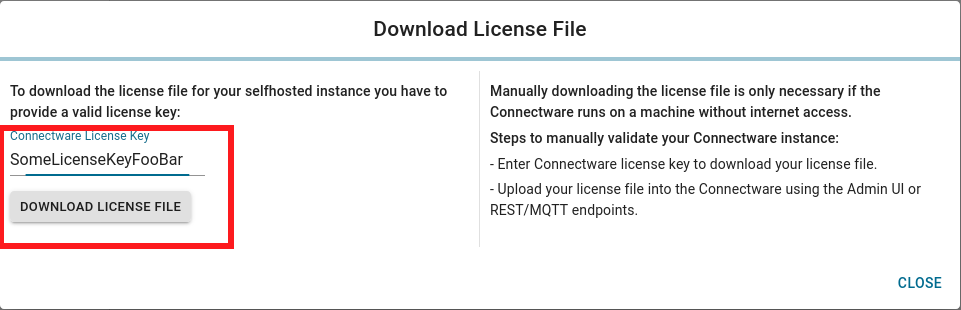
3. In the **Download License File** dialog, do the following:
1. In the **Connectware License Key** field, enter the license key of your Connectware instance.
2. Click **Download License File**.
**Next step**: Transfer the downloaded license file to your Connectware host machine for activation. See [Uploading License Files to Connectware](#uploading-license-files-to-connectware).
### Uploading License Files to Connectware
You can activate your Connectware installation by uploading your license file through either:
1. The `Cybus Connectware License Check` dialog at Connectware startup
2. The `Upload License File` option in Connectware
3. A REST endpoint with a command line client
4. Adding the license file via the `CYBUS_LICENSE_FILE` environment variable
#### Uploading License Files at the First Connectware Startup
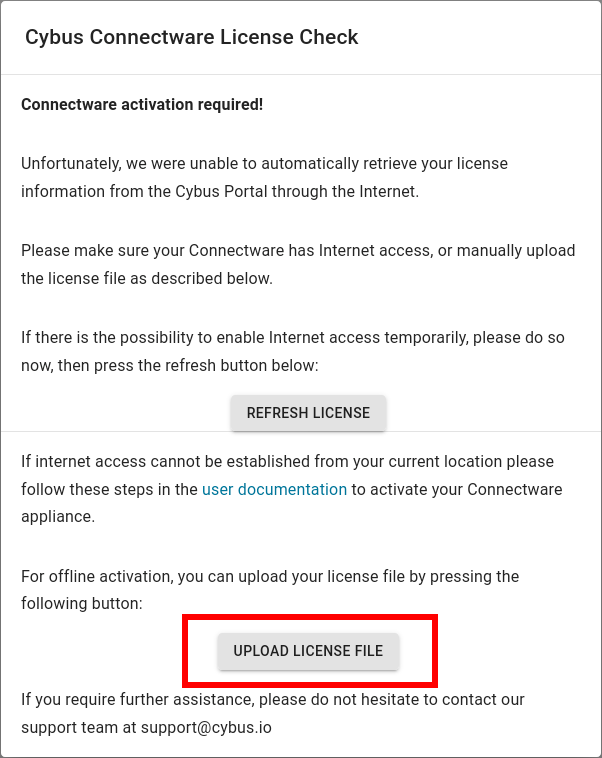
When you first access a not yet activated Connectware through your web browser, the `Cybus Connectware License Check` dialog opens.
1. In the **Cybus Connectware License Check** dialog, click **Upload License File**.
2. Select the license file you [downloaded earlier](#downloading-license-files).
**Result**: After a refresh the license file has been uploaded and validated. Your Connectware is now ready for productive use.
#### Updating your Connectware License
If your Connectware instance has already a running license that you want to update, you can do this via the Connectware user interface.
1. On the navigation panel, click **System**.
2. On the **System Status View**, click the **License** tab.
3. Click **Upload License File** and select the license file that you want to upload.
**Result**: After a refresh the license file has been uploaded and validated. Your Connectware is now ready for productive use.
#### Uploading Licenses via REST API
You can upload your license using a REST API call from the command line. This method requires a REST client - we recommend using `curl`.
Here's how to make the request:
{% code lineNumbers="true" %}
```yaml
curl -X PUT --insecure -u : -d 'payload=' https://:443/api/system/licensefile
```
{% endcode %}
Key details for the request:
* Replace `:` with your credentials
* Insert your license file content as the `payload` value
* Update `` to your server's address
* The endpoint is available at `/api/system/licensefile`
You can use this method both for initial license activation and for subsequent license updates.
#### Setting Up Your License Using Environment Variables
You can configure your license by setting the `CYBUS_LICENSE_FILE` environment variable in the `system-control-server` service.
To do this, you need the license file that you have downloaded via [one of these options](#downloading-license-files).
**Example**
Here's how to configure your `docker-compose.yml` file:
{% code lineNumbers="true" %}
```yaml
# [...]
system-control-server:
environment:
CYBUS_LICENSE_FILE: 'Zm9vYmFyZm9vYmFyZm9vYmFyZm9vYmFyZm9vYmFyZm9v...'
CYBUS_REGISTRY_PASS: ${CYBUS_REGISTRY_PASS}
NODE_ENV: production
hostname: system-control-server
image: registry.cybus.io/cybus/system-control-server:1.0.58
# [...]
```
{% endcode %}
## Manually Refreshing Licenses in Connectware
You may need to manually refresh if your license has been upgraded on the [Cybus Portal](https://portal.cybus.io/) but the changes are not reflected in Connectware.
**Prerequisites**
* Internet connectivity is required for both automatic and manual license management.
**Procedure**
1. On the navigation panel, click **System**.
2. On the **System Status View**, click the **License** tab.
3. Click **Refresh License** to sync with the Cybus Portal.
## License Information via REST API
The system status API allows you to retrieve information about your license. For more information, see [System Status (API)](https://docs.cybus.io/2-0-4/reference/api-reference/api-definition-3).