# Node-RED Workbench

The Connectware Workbench is a built-in Node-RED environment designed for rapid prototyping and testing. This feature provides an accessible, visual programming interface for developing connectivity workflows without extensive coding.

## Prototyping vs. Production Environment

{% hint style="warning" %}
The built-in Node-RED Workbench is designed for prototyping and testing purposes only. For production environments, deploy Node-RED as a dedicated service using a service commissioning file.
{% endhint %}

For production environments, create a service commissioning file that installs Node-RED as a dedicated [Cybus:Container resource](https://docs.cybus.io/2-0-6/documentation/services/service-commissioning-files/resources/cybus-container). This approach provides full control over versioning, lifecycle management, and isolation of your Node-RED instance.

## Accessing the Node-RED Workbench

To access the Node-RED Workbench:

1. On the navigation panel, click **Services**.
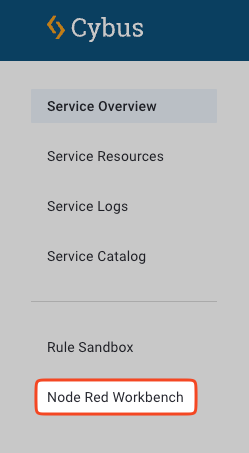
2. In the sidebar, click **Node Red Workbench**.

<figure><img src="https://639096190-files.gitbook.io/~/files/v0/b/gitbook-x-prod.appspot.com/o/spaces%2FfDpOJO2upcq5EpoSahvK%2Fuploads%2Fgit-blob-378fa0a48c2d7fc89043deac2db2a521f7e61bb0%2Fmenu_item_workbench.png?alt=media" alt="Menu navigation to access the Node-RED Workbench"><figcaption><p>Accessing the Node-RED Workbench through the sidebar menu</p></figcaption></figure>

3. The Node-RED editor will open in a new browser tab.

## Connecting Node-RED to the Connectware API

When creating flows that interact with the Connectware API:

### Connection Parameters

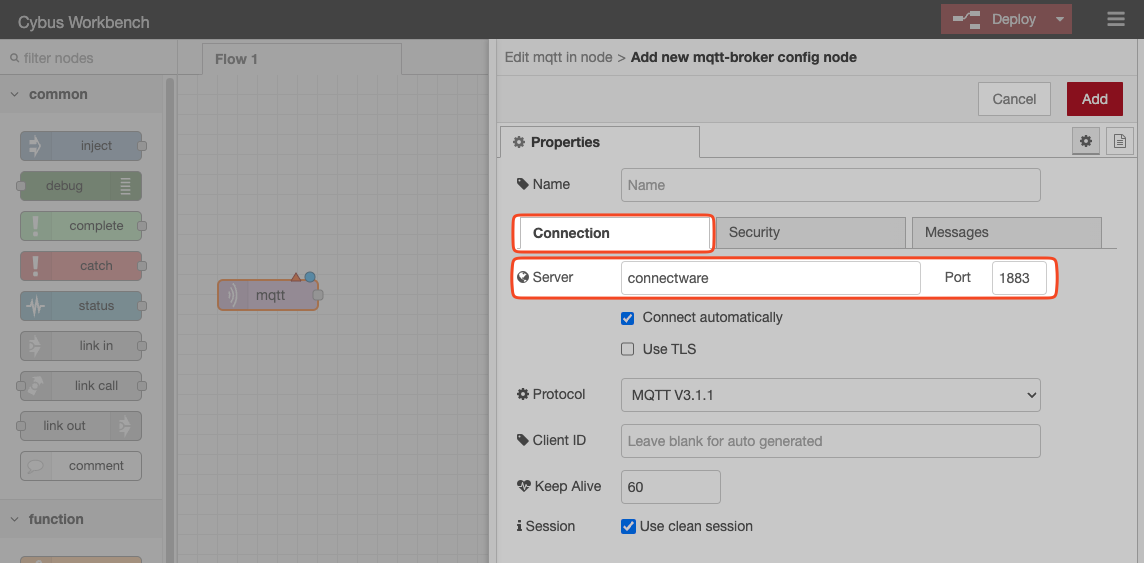
* Use `connectware` as the server name for both:
  * MQTT connections (port 1883)
  * HTTPS connections (port 443)

<figure><img src="https://639096190-files.gitbook.io/~/files/v0/b/gitbook-x-prod.appspot.com/o/spaces%2FfDpOJO2upcq5EpoSahvK%2Fuploads%2Fgit-blob-575f8a89d817346775e1318e165f7225be3a106d%2Fnodered-mqtt-server.png?alt=media" alt="Node-RED MQTT connection configuration"><figcaption><p>Configuring MQTT connection to Connectware using the server name "connectware"</p></figcaption></figure>

### Authentication

When subscribing to or publishing on the Connectware server:

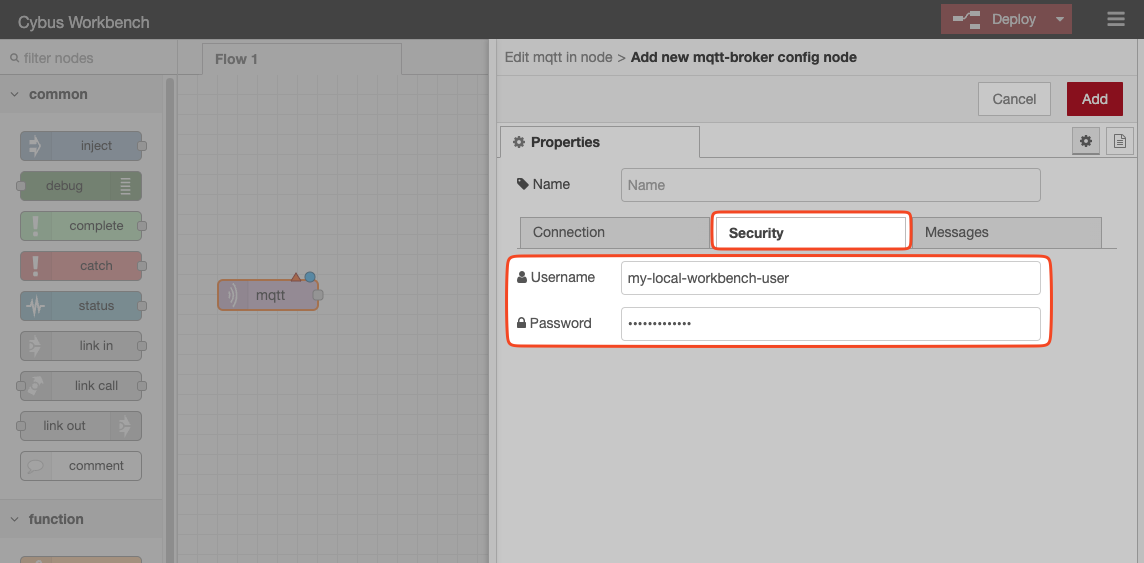
1. Configure the appropriate `username` and `password` in your Node-RED nodes.
2. Ensure the user account has sufficient permissions or roles to access the required topics.

<figure><img src="https://639096190-files.gitbook.io/~/files/v0/b/gitbook-x-prod.appspot.com/o/spaces%2FfDpOJO2upcq5EpoSahvK%2Fuploads%2Fgit-blob-2686dae0cd451e368ef10b24b10eafb4e75afaae%2Fnodered-username.png?alt=media" alt="Node-RED authentication configuration"><figcaption><p>Setting up authentication credentials for Connectware access</p></figcaption></figure>

For more information on managing user permissions, see [User Management](https://docs.cybus.io/2-0-6/documentation/user-management).

## Working with Node-RED

For comprehensive guidance on using Node-RED, refer to the official [Node-RED documentation](https://nodered.org/docs).

## Node-RED Projects

Node-RED Workbench supports Node-RED projects to integrate with Git repositories, allowing you to store and version your flows.

{% hint style="warning" %}
Node-RED projects are only available for Docker deployments and not for Kubernetes deployments.
{% endhint %}

Projects allow you to:

* Store flows in external Git repositories.
* Implement version control for your flows.
* Collaborate with team members on flow development.
* Manage multiple flow projects within the same Workbench.

For detailed information about Node-RED projects, refer to the [Node-RED Projects documentation](https://nodered.org/docs/user-guide/projects/).

### Enabling Node-RED Projects (Docker)

By default, Node-RED projects in Connectware are disabled. To enable Node-RED projects:

1. Open the `.env` file.
2. Set the `CYBUS_WORKBENCH_PROJECTS_ENABLED` variable to `true`.

{% code lineNumbers="true" %}

```yaml
# Workbench Configuration
CYBUS_WORKBENCH_PROJECTS_ENABLED=true
```

{% endcode %}

3. Restart the Connectware instance for the changes to take effect. See [Restarting Connectware](https://docs.cybus.io/2-0-6/documentation/installation-and-upgrades/restarting-connectware).

**Result:** Once enabled, you will see additional project management options in your Node-RED interface.