# Users

In Connectware, users are a known identity (person or software/hardware agent) with associated data permissions and/or administrative access. This chapter guides you through the user management in Connectware, from creating new users to assigning permissions.

Each permission represents a specific access right to a resource, whether it is an MQTT topic or an HTTP endpoint, with clearly defined read and/or write capabilities.

{% hint style="info" %}
Before creating individual users, establish a clear role-based access control strategy by defining roles that correspond to job functions within your organization. This approach simplifies user management and ensures consistent application of security policies.
{% endhint %}

During installation, Connectware creates a default administrator user to ensure immediate system access. This user is named `admin` and has the `connectware-admin` role assigned to provide comprehensive permissions. For more information, see [Default Admin User](https://docs.cybus.io/2-0-6/documentation/user-management/users/default-admin-user).

## Users View

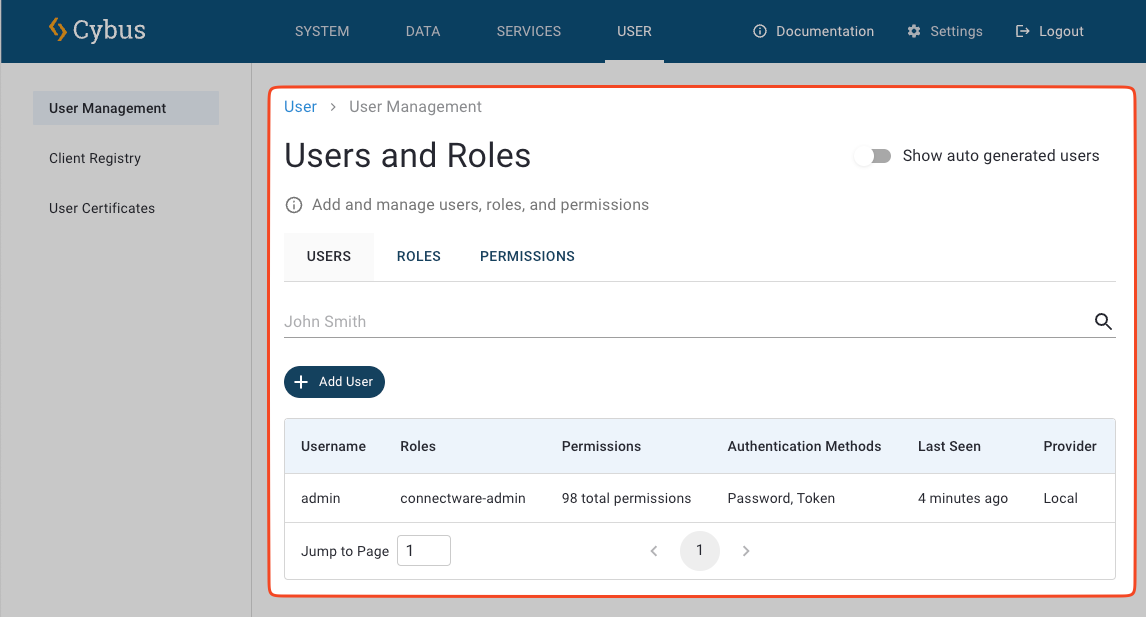
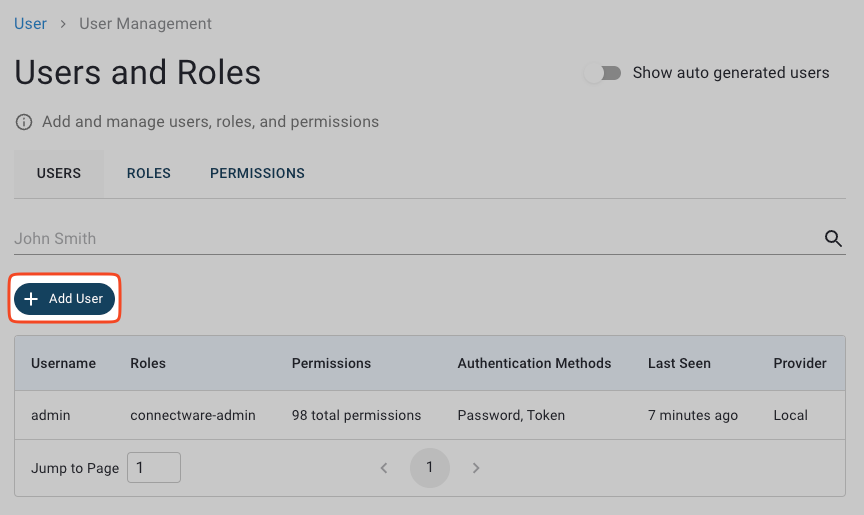
The **Users View** provides a comprehensive view of all users in Connectware, including their assigned roles and permissions.

* To open the **Users View**, click **User** in the navigation panel.

<figure><img src="https://639096190-files.gitbook.io/~/files/v0/b/gitbook-x-prod.appspot.com/o/spaces%2FfDpOJO2upcq5EpoSahvK%2Fuploads%2Fgit-blob-11a6b5e87fe1bea28c89a20fc53637448ae43872%2Fusers_and_roles_view.png?alt=media" alt=""><figcaption></figcaption></figure>

## Adding New Users

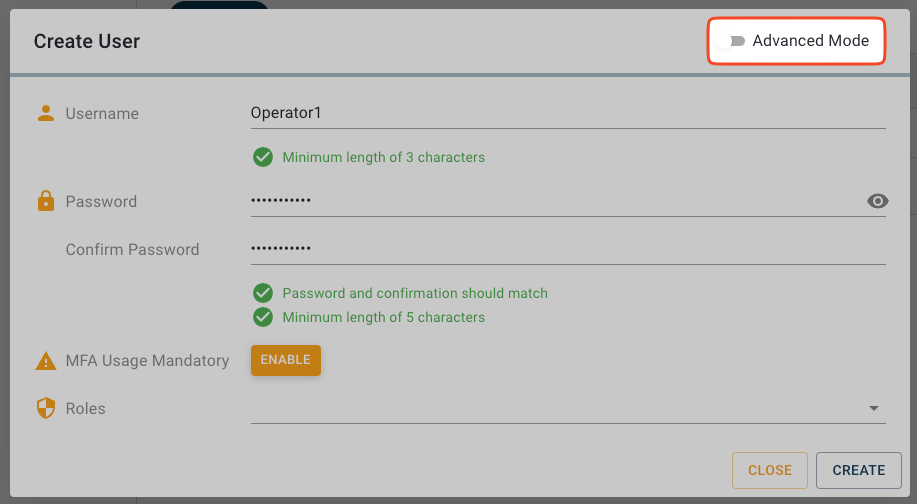
1. In the **Users View**, click **Add User** to open the **Create User** dialog.

<figure><img src="https://639096190-files.gitbook.io/~/files/v0/b/gitbook-x-prod.appspot.com/o/spaces%2FfDpOJO2upcq5EpoSahvK%2Fuploads%2Fgit-blob-bc4d06e4ae088f8e7c76b457542c01feff2981a3%2Fusers_add.png?alt=media" alt=""><figcaption></figcaption></figure>

2. Do one of the following:
   * To add users with pre-defined roles quickly, use the [default mode](#default-mode).
   * To define roles and permissions more granularly, use the [advanced mode](#advanced-mode).

### Default Mode

1. In the **Create User** dialog, enter the username, password, and password confirmation.
2. Optional: To assign a set of pre-defined roles to the user, click the **Roles** field and select a role. You can repeat this step to assign multiple roles.
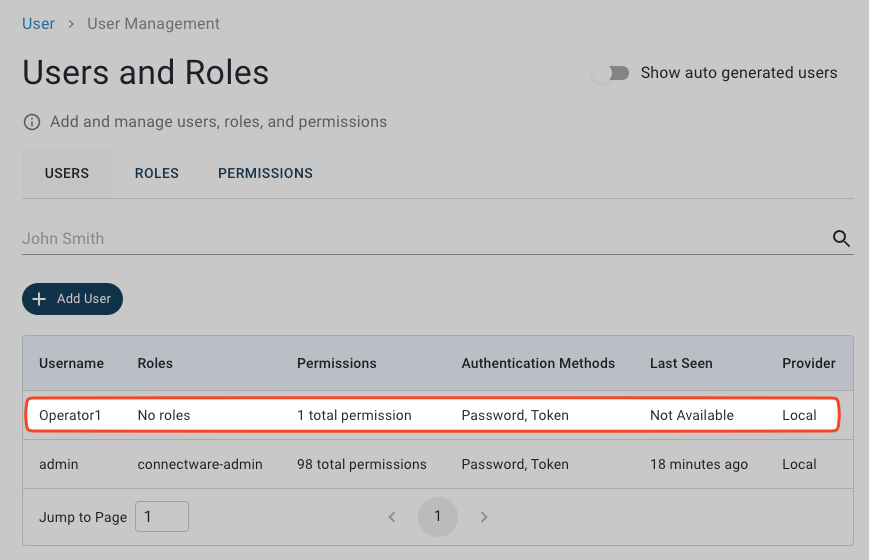
3. Click **Create**. The dialog will close, and the new user will appear in the overview table.

### Advanced Mode

In the advanced mode, you can assign a set of pre-defined roles to the user and/or individual permissions.

{% hint style="info" %}
We recommend to manage permissions through roles rather than individual user permissions for easier maintenance. For more information, see [Roles](https://docs.cybus.io/2-0-6/documentation/user-management/roles).
{% endhint %}

1. In the **Create User** dialog, enter the username, password, and password confirmation.
2. Activate **Advanced Mode**.

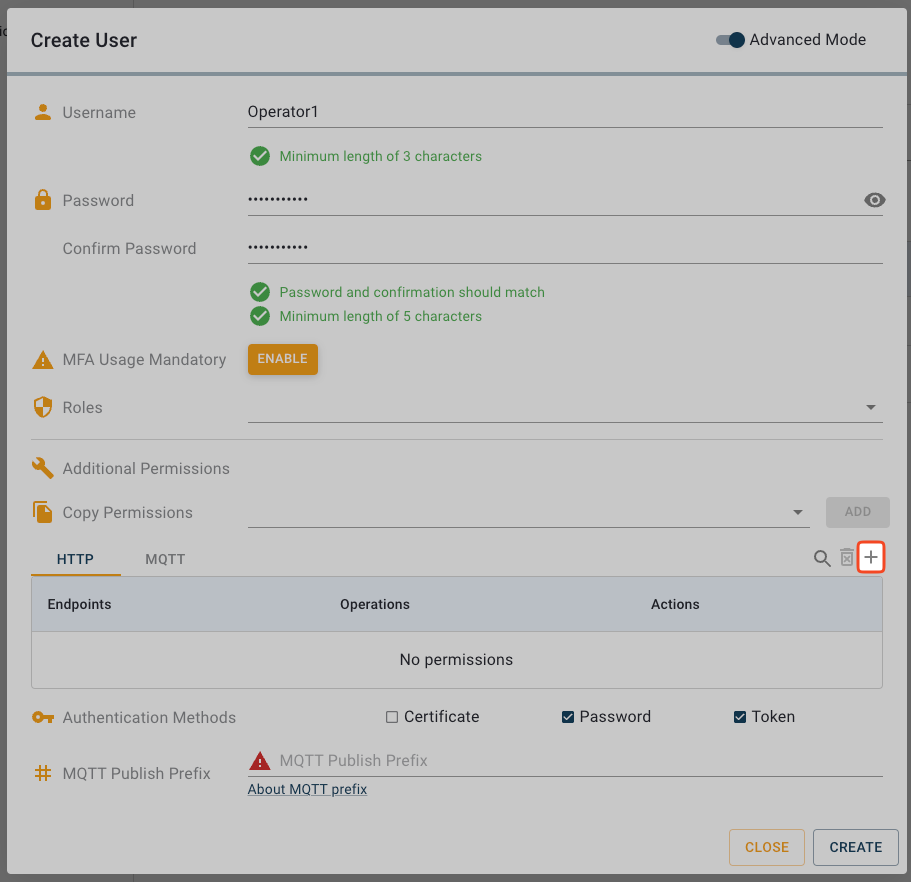
<figure><img src="https://639096190-files.gitbook.io/~/files/v0/b/gitbook-x-prod.appspot.com/o/spaces%2FfDpOJO2upcq5EpoSahvK%2Fuploads%2Fgit-blob-f1e236570564d281a4b159cfc9b5285da67d0a89%2Fusers_create_advanced_mode.png?alt=media" alt="Advanced Mode in Create User dialog"><figcaption><p>Advanced Mode in Create User dialog</p></figcaption></figure>

3. Optional: To assign a set of pre-defined roles to the user, click the **Roles** field, select a role, and click **Add**. You can repeat this step to assign multiple roles.
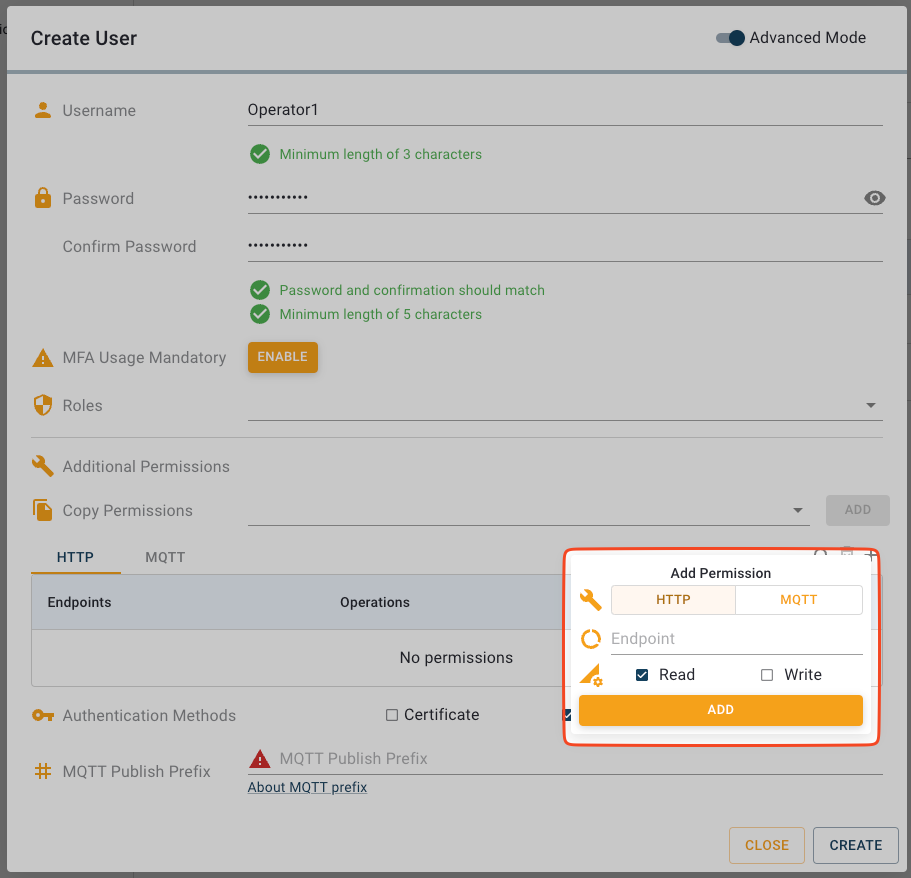
4. Optional: To assign individual permissions, click the **+** button to open the **Add Permission** dialog.
   * Select the permission type: **HTTP** for accessing the REST API using HTTP clients or **MQTT** for accessing MQTT topics on CybusMQ.
   * In the **Endpoint** field, enter the resource path, which follows MQTT topic conventions. The specified topic can be a single topic or a wildcard. HTTP permissions for the resource path follow an MQTT topic structure. This means that you can use wildcards (**#** and **+**) in valid expressions, and paths must start with a leading slash (**/**).
   * Select the access type: **read**, **write**, or **both**.
   * Click **Add** to add the permission.

<figure><img src="https://639096190-files.gitbook.io/~/files/v0/b/gitbook-x-prod.appspot.com/o/spaces%2FfDpOJO2upcq5EpoSahvK%2Fuploads%2Fgit-blob-c5b45ff0f91afd92fe0a4a73b2210e468571690b%2Fusers_create_advanced_add_permission.png?alt=media" alt="Add Permission button"><figcaption><p>Add Permission button</p></figcaption></figure>

<figure><img src="https://639096190-files.gitbook.io/~/files/v0/b/gitbook-x-prod.appspot.com/o/spaces%2FfDpOJO2upcq5EpoSahvK%2Fuploads%2Fgit-blob-94d4e5329ae614e7706de50cd3aea0eadda8e402%2Fusers_create_advanced_add_permission_modal.png?alt=media" alt="Add Permission modal"><figcaption><p>Add Permission modal</p></figcaption></figure>

5. Click **Create**. The dialog will close, and the new user will appear in the overview table.

## Deleting Users

You can delete users that are no longer needed.

{% hint style="warning" %}
Deleting a user is permanent and cannot be undone. Before proceeding, ensure that you have backed up any important user-specific configurations or transferred necessary permissions to other users.
{% endhint %}

1. In the navigation panel, click **User**.
2. In the **Users View**, click the user that you want to delete. This opens the **Edit User** dialog.

<figure><img src="https://639096190-files.gitbook.io/~/files/v0/b/gitbook-x-prod.appspot.com/o/spaces%2FfDpOJO2upcq5EpoSahvK%2Fuploads%2Fgit-blob-c7d147865056769f4ac2e59d4123bcb3c2098ef0%2Fusers_select.png?alt=media" alt=""><figcaption></figcaption></figure>

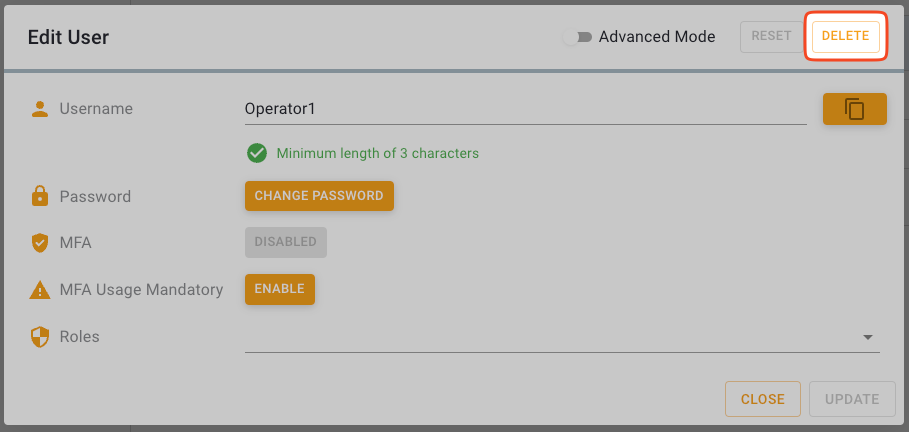
3. Click the **Delete** button in the top right of the **Edit User** dialog.

<figure><img src="https://639096190-files.gitbook.io/~/files/v0/b/gitbook-x-prod.appspot.com/o/spaces%2FfDpOJO2upcq5EpoSahvK%2Fuploads%2Fgit-blob-f7caae6274918d21185d9cbdfcce7149774ce94d%2Fusers_update_delete.png?alt=media" alt="Delete button"><figcaption><p>Delete button</p></figcaption></figure>

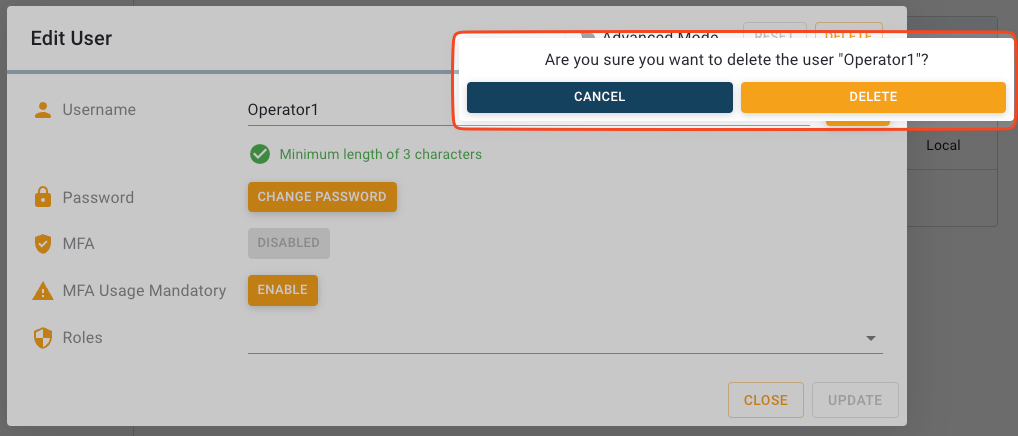
4. Click **Delete** again to confirm. The user will be deleted.

<figure><img src="https://639096190-files.gitbook.io/~/files/v0/b/gitbook-x-prod.appspot.com/o/spaces%2FfDpOJO2upcq5EpoSahvK%2Fuploads%2Fgit-blob-781b56a2f50f07ced03a74e5fac6ef3450ce9561%2Fusers_delete_dialog.png?alt=media" alt="Delete confirmation"><figcaption><p>Delete confirmation</p></figcaption></figure>

## Changing User Names

2. In the **Users View**, click the user that you want to edit. This opens the **Edit User** dialog.
3. In the **Edit User** dialog, enter a new username in the **Username** field.
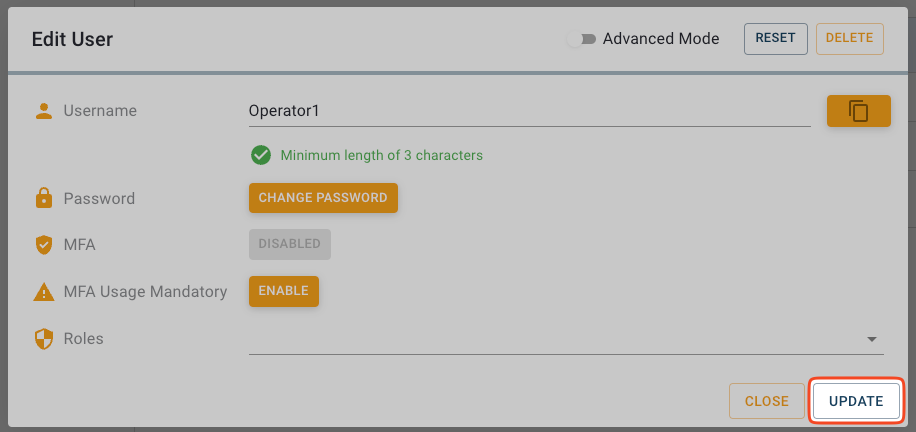
4. Click **Update** to apply the changes. The dialog will close, and the username will be updated.

## Adding Roles to Users

Roles provide a convenient way to assign multiple permissions at once. By adding roles to users, you can quickly grant them access to specific system functions without configuring individual permissions.

{% hint style="info" %}
Assign roles based on job functions or responsibilities rather than individual users to maintain consistent access control across your organization.
{% endhint %}

1. In the navigation panel, click **User**.
2. In the **Users View**, click the user to whom you want to add roles. This opens the **Edit User** dialog.
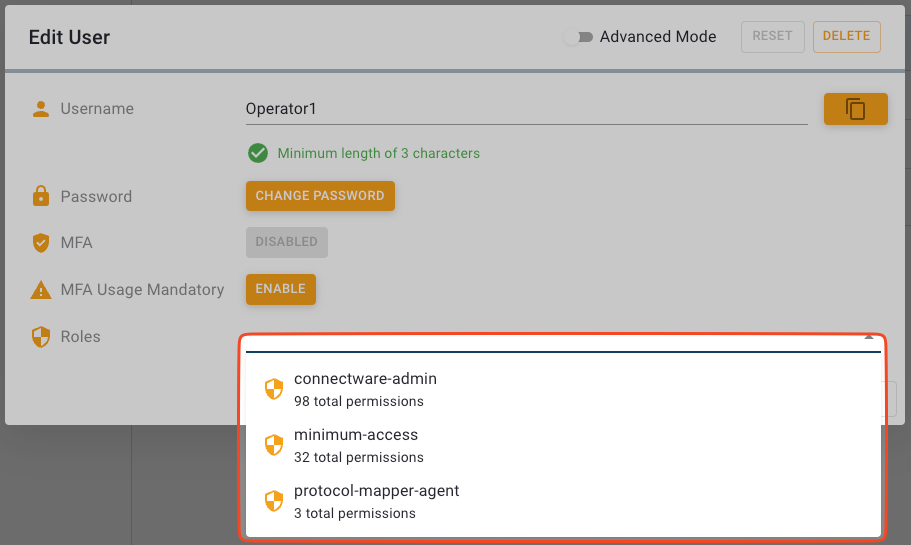
3. In the **Edit User** dialog, click the **Roles** field to open the list of available roles.

<figure><img src="https://639096190-files.gitbook.io/~/files/v0/b/gitbook-x-prod.appspot.com/o/spaces%2FfDpOJO2upcq5EpoSahvK%2Fuploads%2Fgit-blob-437dc879e71f49300d5c7f8091ce4d1f63984bf6%2Fusers_update_add_role_dropdown_options.png?alt=media" alt="Add Role dropdown options"><figcaption><p>Add Role dropdown options</p></figcaption></figure>

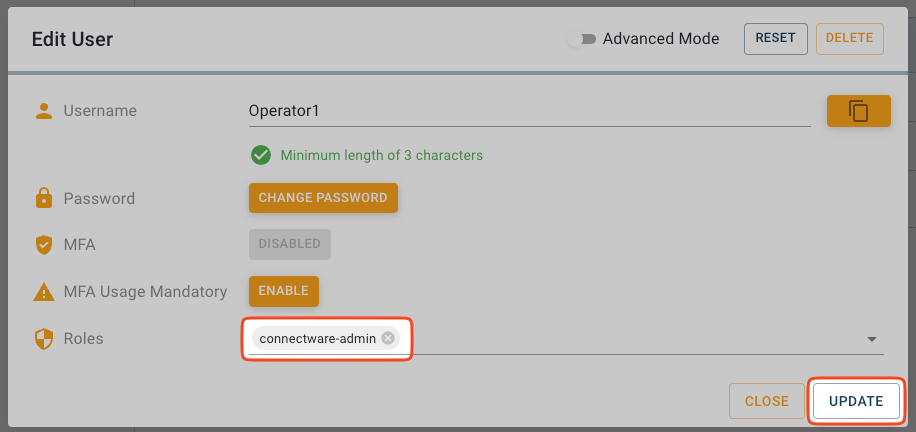
4. Click the **Roles** field and select a role. You can repeat this step to assign multiple roles.
5. Click **Update**. The dialog will close and the user will be updated with the selected roles.

<figure><img src="https://639096190-files.gitbook.io/~/files/v0/b/gitbook-x-prod.appspot.com/o/spaces%2FfDpOJO2upcq5EpoSahvK%2Fuploads%2Fgit-blob-114cc9761943a82697a7048312824a68c3c2e5fb%2Fusers_update_add_role_confirm.png?alt=media" alt=""><figcaption></figcaption></figure>

## Removing Roles from Users

When a user's responsibilities change, you may need to remove roles from them to adjust their access permissions.

{% hint style="warning" %}
Removing a role removes all associated permissions from the user.
{% endhint %}

1. In the navigation panel, click **User**.
2. In the **Users View**, click the user from whom you want to remove roles. This opens the **Edit User** dialog.
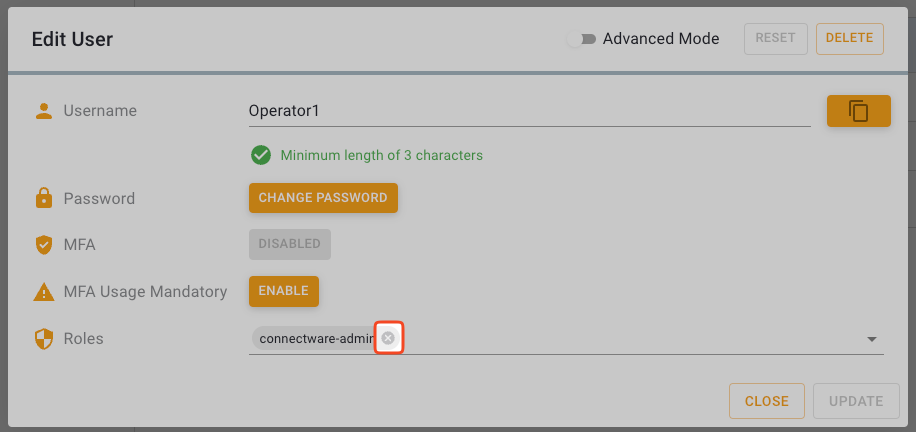
3. In the **Edit User** dialog, click the **x** next to the role name in the **Roles** field to remove the role.

<figure><img src="https://639096190-files.gitbook.io/~/files/v0/b/gitbook-x-prod.appspot.com/o/spaces%2FfDpOJO2upcq5EpoSahvK%2Fuploads%2Fgit-blob-cdaf8133f89bdd23afb5a3c9519a6e061154a3d9%2Fusers_update_remove_role.png?alt=media" alt="Remove role from user"><figcaption><p>Remove role from user</p></figcaption></figure>

4. Click **Update**. The dialog will close and the user will be updated.

<figure><img src="https://639096190-files.gitbook.io/~/files/v0/b/gitbook-x-prod.appspot.com/o/spaces%2FfDpOJO2upcq5EpoSahvK%2Fuploads%2Fgit-blob-82cd473c789239a4f8c6882c64566557553a4ffe%2Fusers_update_remove_role_confirm.png?alt=media" alt=""><figcaption></figcaption></figure>

## Assigning Permissions to Users

While roles are the recommended way to manage permissions, there may be cases where you need to grant specific permissions to individual users without creating a new role.

1. In the navigation panel, click **User**.
2. In the **Users View**, click the user to whom you want to assign individual permissions. This opens the **Edit User** dialog.
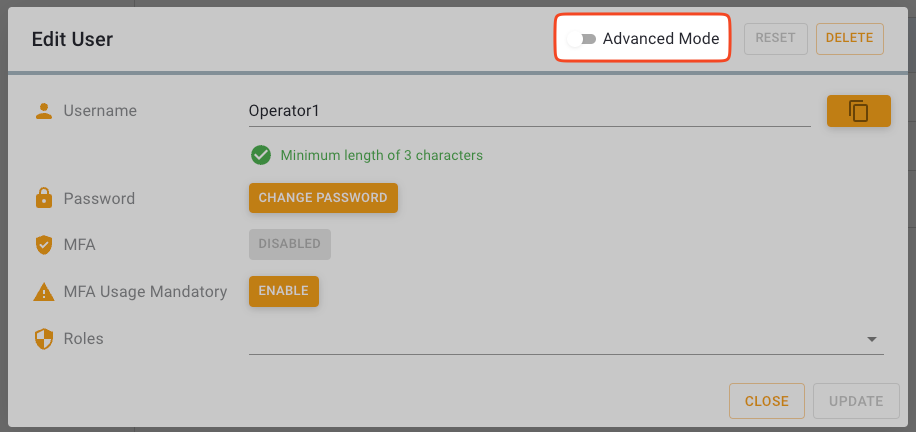
3. In the **Edit User** dialog, activate **Advanced Mode**.

<figure><img src="https://639096190-files.gitbook.io/~/files/v0/b/gitbook-x-prod.appspot.com/o/spaces%2FfDpOJO2upcq5EpoSahvK%2Fuploads%2Fgit-blob-ef1686bc38c461e73eb7f4a5832c82d7031172f2%2Fusers_update_advanced_mode.png?alt=media" alt="Activating Advanced Mode in Edit User dialog"><figcaption><p>Activating Advanced Mode in Edit User dialog</p></figcaption></figure>

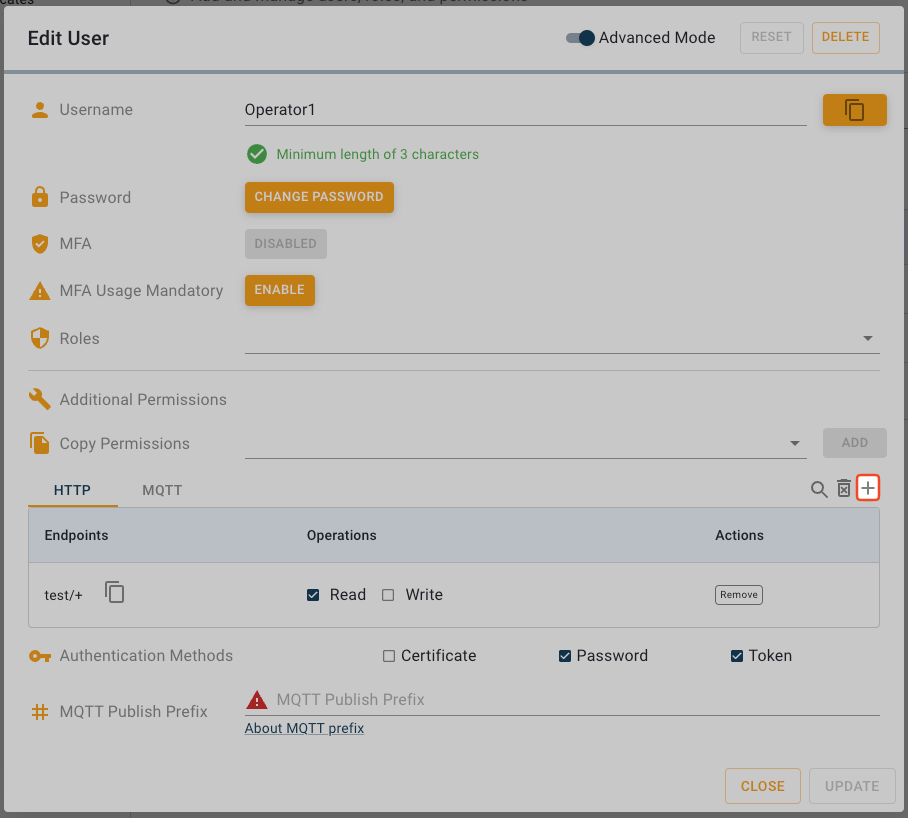
4. To assign individual permissions, click the **+** button to open the **Add Permission** dialog.
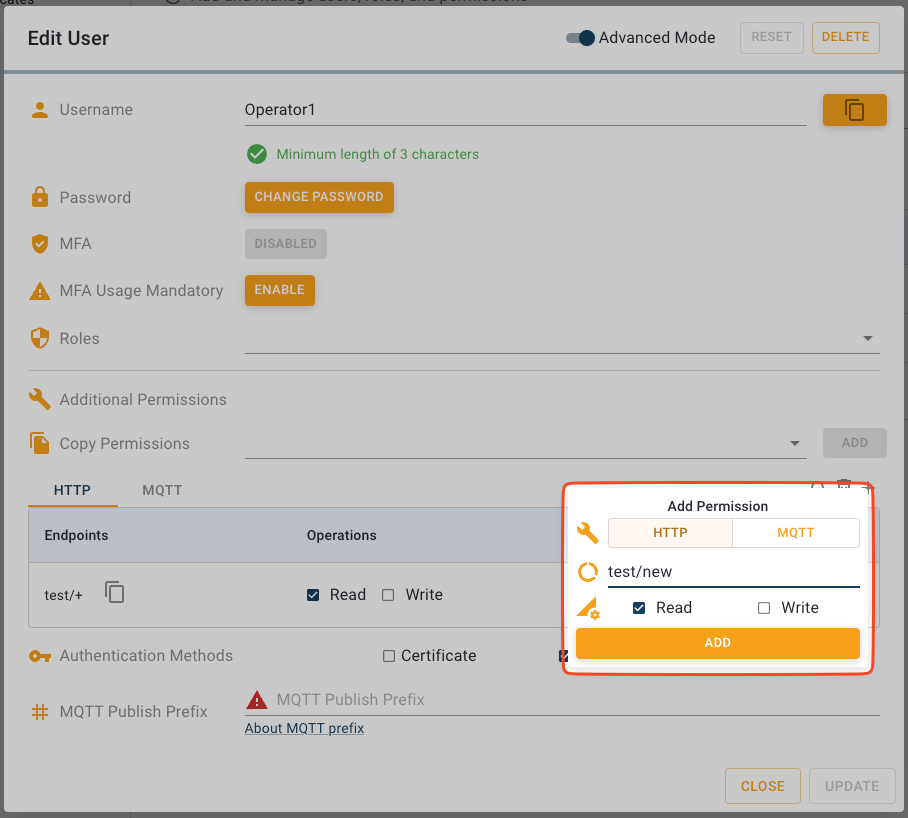
   * Select the permission type: **HTTP** for accessing the REST API using HTTP clients or **MQTT** for accessing MQTT topics on CybusMQ.
   * In the **Endpoint** field, enter the resource path, which follows MQTT topic conventions. The specified topic can be a single topic or a wildcard. HTTP permissions for the resource path follow an MQTT topic structure. This means that you can use wildcards (**#** and **+**) in valid expressions, and paths must start with a leading slash (**/**).
   * Select the access type: **read**, **write**, or **both**.
   * Click **Add** to add the permission.

<figure><img src="https://639096190-files.gitbook.io/~/files/v0/b/gitbook-x-prod.appspot.com/o/spaces%2FfDpOJO2upcq5EpoSahvK%2Fuploads%2Fgit-blob-2aac54e862bdac7ca57861d822b877538bfcaf8a%2Fusers_update_advanced_add_permission.png?alt=media" alt="Add Permission dialog"><figcaption><p>Add Permission dialog</p></figcaption></figure>

<figure><img src="https://639096190-files.gitbook.io/~/files/v0/b/gitbook-x-prod.appspot.com/o/spaces%2FfDpOJO2upcq5EpoSahvK%2Fuploads%2Fgit-blob-f8536ee21738e38ed60fb4d7d939ce2091ab00f1%2Fusers_update_advanced_add_permission_modal.png?alt=media" alt="Add Permission modal"><figcaption><p>Add Permission modal</p></figcaption></figure>

5. Click **Update**. The dialog will close, and the user will be updated with the new permissions.

## Removing Permissions from Users

When specific permissions are no longer needed, you can remove them while keeping other permissions intact.

{% hint style="warning" %}
Removing individual permissions does not affect permissions granted through roles. To completely remove access to a resource, ensure the user doesn't have access through any assigned roles.
{% endhint %}

1. In the navigation panel, click **User**.
2. In the **Users View**, click the user to whom you want to assign individual permissions. This opens the **Edit User** dialog.
3. In the **Edit User** dialog, activate **Advanced Mode**.

<figure><img src="https://639096190-files.gitbook.io/~/files/v0/b/gitbook-x-prod.appspot.com/o/spaces%2FfDpOJO2upcq5EpoSahvK%2Fuploads%2Fgit-blob-ef1686bc38c461e73eb7f4a5832c82d7031172f2%2Fusers_update_advanced_mode.png?alt=media" alt="Activating Advanced Mode in Edit User dialog"><figcaption><p>Activating Advanced Mode in Edit User dialog</p></figcaption></figure>

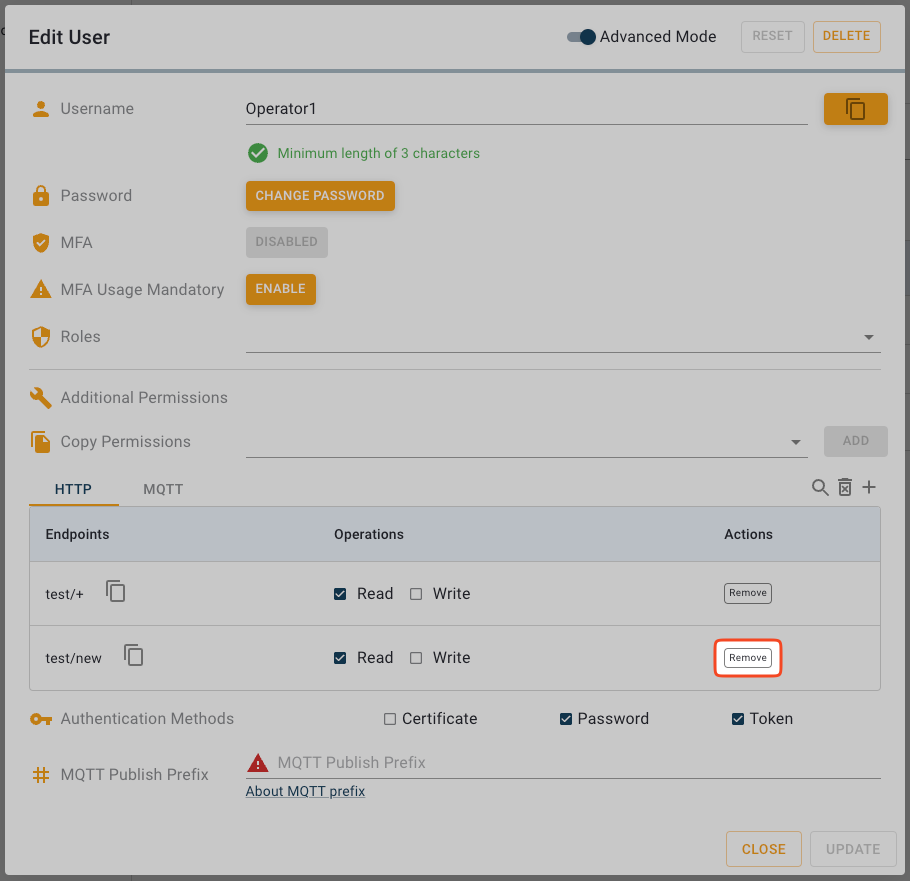
4. To remove a permission, click its **Remove** button in the **Action** column of the permissions list.

<figure><img src="https://639096190-files.gitbook.io/~/files/v0/b/gitbook-x-prod.appspot.com/o/spaces%2FfDpOJO2upcq5EpoSahvK%2Fuploads%2Fgit-blob-5248a9bd6f303e8d17c6cbbc2c755e2f9a3a4973%2Fusers_update_advanced_remove_permission.png?alt=media" alt="Remove permission from user"><figcaption><p>Remove permission from user</p></figcaption></figure>

5. Click **Update**. The dialog will close, and the user will be updated.

## Changing User Passwords

Regularly updating passwords is an important security practice.

1. In the navigation panel, click **User**.
2. In the **Users View**, click the user for whom you want to change the password. This opens the **Edit User** dialog.
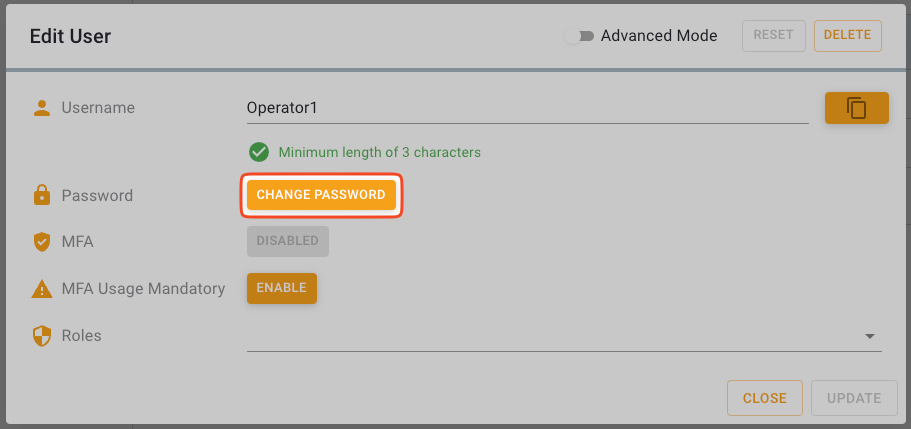
3. In the **Edit User** dialog, click **Change Password**.

<figure><img src="https://639096190-files.gitbook.io/~/files/v0/b/gitbook-x-prod.appspot.com/o/spaces%2FfDpOJO2upcq5EpoSahvK%2Fuploads%2Fgit-blob-728af46d8b8bdab09bca45aa2d3d78b722a9562a%2Fusers_change_password_button.png?alt=media" alt="Change Password button"><figcaption><p>Change Password button</p></figcaption></figure>

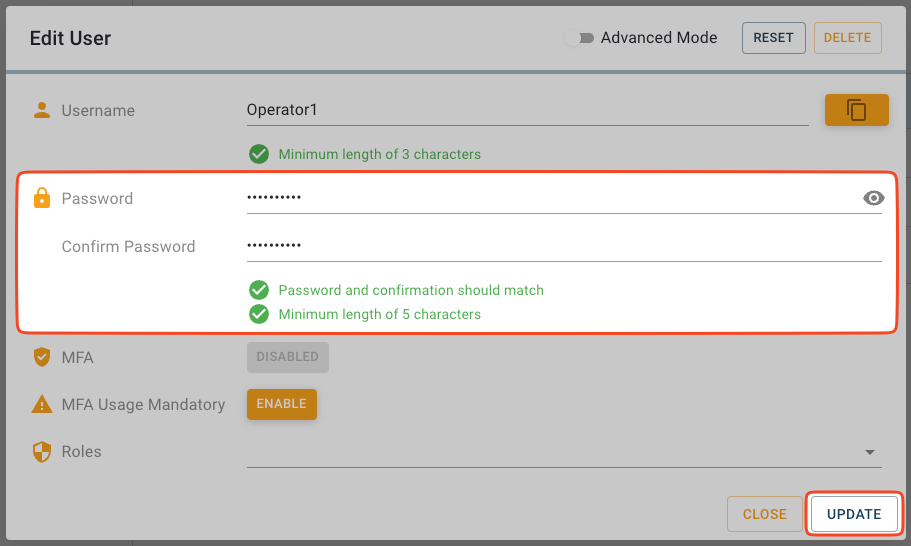
4. In the **Password** field, enter the new password and confirm it in the **Confirm Password** field.
5. To apply the changes, click **Update**. The dialog will close and the user will be updated with changes.

<figure><img src="https://639096190-files.gitbook.io/~/files/v0/b/gitbook-x-prod.appspot.com/o/spaces%2FfDpOJO2upcq5EpoSahvK%2Fuploads%2Fgit-blob-142339f8d7b2672865e397fc0d499752af0e04df%2Fusers_update_password_dialog.png?alt=media" alt="Change Password dialog"><figcaption><p>Change Password dialog</p></figcaption></figure>