# Automated Connectware Deployment using GitLab CI/CD & Ansible
In this guide, we will set up a CI/CD pipeline for Connectware using Ansible and GitLab. Our Connectware infrastructure will be composed of:
* 10 Siemens S7 connection services
* 10 Modbus connection services
* 1 data aggregation and transformation service
* 1 SAP Cloud connection service
GitLab CI/CD is a tool for software development that uses the concepts of Continuous Integration (CI) and Continuous Deployment/Delivery (CD), both fundamental parts of modern DevOps.
Continuous Integration is the practice where developers frequently collaborate and merge code changes into a central repository where automated builds, tasks, and tests run. The build process helps ensure that the application is not broken whenever there are new changes in the commits. Continuous Deployment is an extension of CI that deploys the latest changes to a test or production environment.
CI/CD helps deliver applications faster, with higher quality and fewer integration problems. It also removes development pressure on decisions for small changes and promotes faster iterations.
## Prerequisites
To follow this guide, you will need the following:
* A running instance of Cybus Connectware.
* A valid [Connectware license](https://docs.cybus.io/2-0-6/documentation/installation-and-upgrades/licensing).
* A Git environment (cloud-hosted or on-premises). In this guide, we will use GitLab.
* [Docker](https://docs.docker.com/get-docker/) and [Docker Compose](https://docs.docker.com/compose/) installed on your system.
* Access to the [Admin UI](https://docs.cybus.io/2-0-6/getting-started/admin-ui) with sufficient [user permissions](https://docs.cybus.io/2-0-6/documentation/user-management).
* Basic knowledge of MQTT, Docker, and Ansible. If you want to refresh your knowledge, we recommend reading [ansible.com - Getting started with Ansible](https://docs.ansible.com/ansible/latest/getting_started/index.html).
## Project Structure
To deploy Connectware using Ansible and the CI/CD pipeline, we will set up a GitLab project with the following structure:
```
├── README.md
├── .gitlab-ci.yml
├── ansible
│ ├── ansible.cfg
│ ├── hosts.yaml
│ └── playbook.yaml
└── services
├── data-aggregation.yml
├── modbus.yml
├── s7.yml
└── sap.yml
```
Under `services`, we place the service commissioning files. Under `ansible`, we place our playbook and host configuration (more on this later). Finally, `.gitlab-ci.yml` is our pipeline configuration file.
## Pipeline Configuration
To provide GitLab with all the information required to run the CI/CD pipeline, we need to write a configuration file `.gitlab-ci.yml`.
Here we describe:
* The structure and order of jobs that we want to be executed (e.g., tasks, tests)
* The decisions the pipeline should make when specific conditions are encountered
{% hint style="info" %}
You need to ensure that you have runners available. If you're using gitlab.com, you can skip this step as gitlab.com provides shared runners for you.
{% endhint %}
For self-hosted runners, see [Registering runners | GitLab](https://docs.gitlab.com/runner/register/).
{% code lineNumbers="true" %}
```yaml
variables:
CONNECTWARE_VERSION: '1.1.3'
stages:
- deploy
deploy-connectware:
rules:
- if: '$CI_PIPELINE_SOURCE == "web"' # Trigger from Web UI
when: always # Always run
- when: never # Else never run
image:
name: registry.cybus.io/cybus/cybus-connectware-ansible:latest
entrypoint: ['']
stage: deploy
script:
- 'chmod o-w ansible'
- 'chmod 600 $SSH_KEY'
- 'cd ansible && ansible-playbook playbook.yaml'
```
{% endcode %}
The file uses the YAML text format and follows the GitLab keyword reference. Inside `.gitlab-ci.yml`, we define variables, stages (i.e., tasks), and the pipeline's trigger.
* **Variables:** Connectware version to install
* **Stages:** `deploy` is the only stage in our pipeline. In this stage, we run the `deploy-connectware` job
* **Jobs:** `deploy-connectware` consists of rules, an image, and a script
* **Rules:** When the pipeline is triggered
* **Script:** Makes Ansible executable and executes the `ansible/playbook.yml` (which deploys Connectware and its services, see "Using Ansible for Connectware orchestration")
* **Image:** Latest Ansible image from Cybus' registry
* **Pipeline trigger:** In this case, through the GitLab Web UI (Run Pipeline button). This can also be configured to be triggered by a new commit or merge event
## Ansible Playbook and Host Configuration
To deploy Connectware and its services, we need to write a short playbook, in principle with the same structure as seen in [Orchestrating Connectware with Ansible](https://docs.cybus.io/2-0-6/guides/ansible/orchestrating-connectware-with-ansible). One key difference might be the host. For on-premises, self-hosted Git environments, the host name should be the IP address where you want Connectware to run. For example, `localhost`.
However, if you are using a cloud solution such as gitlab.com, the host needs to point to a defined resource, such as a cloud environment. In our example, we will use an AWS EC2 instance to deploy Connectware.
* Create an `ansible/playbook.yml` with the following content:
{% code lineNumbers="true" %}
```yaml
- name: Connectware Infrastructure Playbook
hosts: AWS
vars:
connectwareVersion: "{{ lookup('env','CONNECTWARE_VERSION') }}"
adminPassword: "{{ lookup('env','CONNECTWARE_ADMIN_PASSWORD') }}"
license: "{{ lookup('env','CYBUS_CONNECTWARE_LICENSE') }}"
tasks:
- name: 'Deploy Connectware'
become: yes
cybus.connectware.instance:
version: '{{ connectwareVersion }}'
license: '{{ license }}'
admin_password: '{{ adminPassword }}'
- name: Install Services (S7)
loop:
- host: dev01
- host: dev02
- host: dev03
- host: dev04
- host: dev05
- host: dev06
- host: dev07
- host: dev08
- host: dev09
- host: dev10
loop_control:
loop_var: s7
cybus.connectware.service:
admin_password: '{{ adminPassword }}'
id: '{{ s7.host }}_S7'
commissioning_file: ../services/s7.yml
parameters:
ipAddress: '{{ s7.host }}'
- name: Install Services (Modbus)
loop:
- host: dev11
- host: dev12
- host: dev13
- host: dev14
- host: dev15
- host: dev16
- host: dev17
- host: dev18
- host: dev19
- host: dev20
loop_control:
loop_var: modbus
cybus.connectware.service:
admin_password: '{{ adminPassword }}'
id: '{{ modbus.host }}_Modbus'
commissioning_file: ../services/modbus.yml
parameters:
ipAddress: '{{ modbus.host }}'
- name: Install SAP Connector Service
cybus.connectware.service:
admin_password: '{{ adminPassword }}'
id: 'demo_sapconnector'
commissioning_file: ../services/sap.yml
- name: Install Data Mapping Service
cybus.connectware.service:
admin_password: '{{ adminPassword }}'
id: 'demo_datamapping'
commissioning_file: ../services/data-aggregation.yml
```
{% endcode %}
Notice that our host points to `AWS`.
In our `playbook.yml`, we are using environment variables such as:
{% code lineNumbers="true" %}
```bash
"{{ lookup('env','CYBUS_CONNECTWARE_LICENSE') }}"
```
{% endcode %}
* To set up the values of these variables, go to GitLab and select **Settings > CI/CD > Variables**.
It is best practice to place sensitive information as environment variables and NOT in the codebase.
* Create another file called `hosts.yaml` with the following content:
{% code lineNumbers="true" %}
```yaml
---
all:
hosts:
AWS:
ansible_connection: ssh
ansible_host: demo-devops.cybus.io
ansible_port: 22
ansible_user: ubuntu
ansible_ssh_private_key_file: "{{ lookup('env','SSH_KEY') }}"
```
{% endcode %}
**Result**: This will help Ansible deploy the Connectware infrastructure to our cloud endpoint (`demo-devops.cybus.io`).
## Running the Pipeline
Make sure your project has:
* Ansible playbook and host configuration under `/ansible`
* Connectware service commissioning files under `/services`
* CI/CD configuration file `.gitlab-ci.yml`
* Necessary environment variables
* Valid deployment endpoint (host)
* Available runners (either cloud-based or self-hosted)
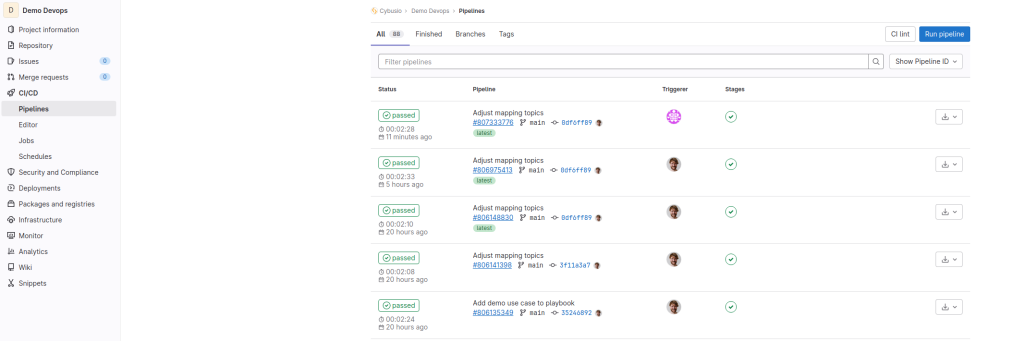
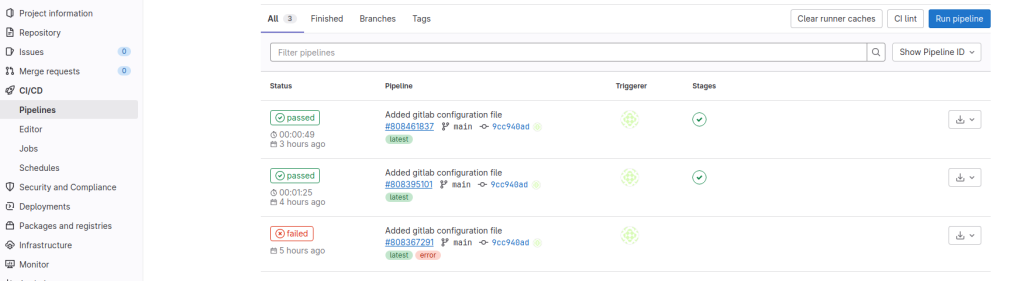
Then on the left panel, select **CI/CD** > **Pipelines** > **Run Pipeline**.
**Result**: Your pipeline should be running soon.
After a few minutes, the build will finish and GitLab will update the status to **Passed**. You should be able to open your host endpoint and log in to Connectware.
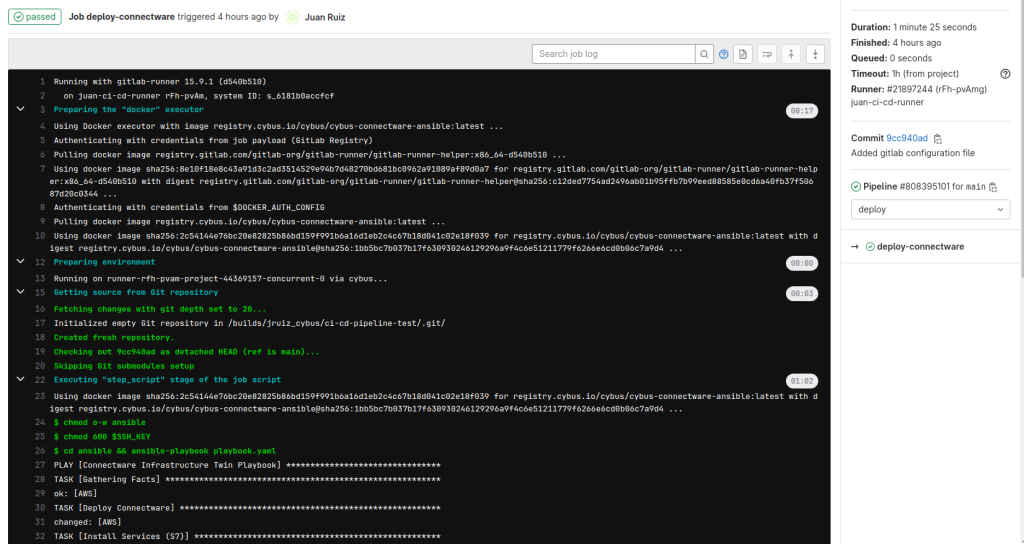
In case the pipeline fails, the status will be updated to **Failed**.
* To see more information, click the status button. This will display the logs from the execution.