# Using Connectware as an OPC UA Client
In this guide, you will learn to connect to an OPC UA server using Connectware and its [Cybus::Endpoint](https://docs.cybus.io/2-0-6/documentation/services/service-commissioning-files/resources/cybus-endpoint) and [Cybus::Connection](https://docs.cybus.io/2-0-6/documentation/services/service-commissioning-files/resources/cybus-connection) resources. Everything you need to get started will be covered in the following topics:
* Browsing the OPC UA address space
* Identifying OPC UA datapoints
* Mapping OPC UA data to MQTT
* Verifying data in the Connectware Explorer
Service YAMLs used in this guide are available on [GitHub](https://github.com/cybusio/example-how-to-connect-an-opcua-server).
## Prerequisites
To follow this guide, you will need the following:
* A running instance of Cybus Connectware.
* Access to the [Admin UI](https://docs.cybus.io/2-0-6/getting-started/admin-ui) with sufficient [user permissions](https://docs.cybus.io/2-0-6/documentation/user-management).
* Basic knowledge of MQTT and the Connectware [services](https://docs.cybus.io/2-0-6/documentation/services) concept (e.g. [service commissioning files](https://docs.cybus.io/2-0-6/documentation/services/service-commissioning-files), [connections](https://docs.cybus.io/2-0-6/documentation/services/service-commissioning-files/resources/cybus-connection), and [endpoints](https://docs.cybus.io/2-0-6/documentation/services/service-commissioning-files/resources/cybus-endpoint)).
* It helps to be familiar with [Connecting an MQTT Client to Publish and Subscribe Data](https://docs.cybus.io/2-0-6/guides/machine-connectivity/connecting-an-mqtt-client-to-publish-and-subscribe-data).
## Selecting the Tools
### OPC UA Server
Our example utilizes the OPC UA server at [opcuaserver.com](http://opcuaserver.com/), because it is publicly available. You can of course bring your own device instead.
### OPC UA Browser
This guide recommends using FreeOpcUa's [Simple OPC UA GUI client](https://github.com/FreeOpcUa/opcua-client-gui) for exploration. It is open source and offers convenient installation on Windows, Linux and Mac. If you prefer working on the terminal, go for Etienne Rossignon's [opcua-commander](https://github.com/node-opcua/opcua-commander). If you have another option available, you may as well stick to it.
## Exploring the OPC UA Address Space
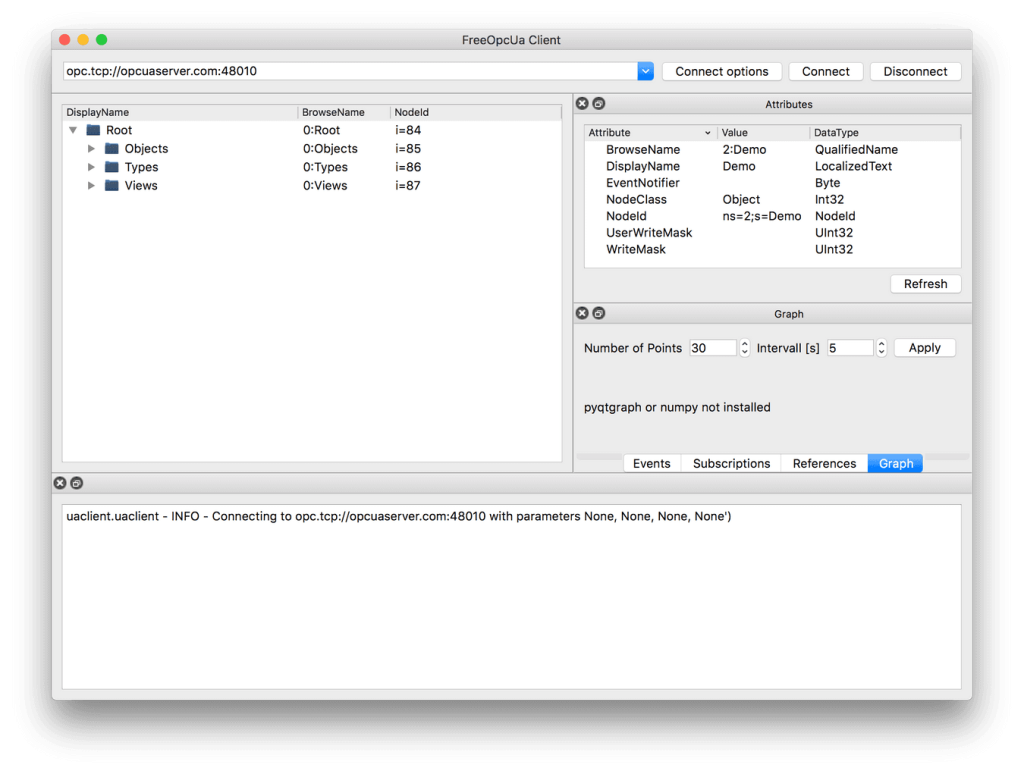
Let's get started! Launch your OPC UA browser and connect to the endpoint `opc.tcp://opcuaserver.com:48010` (or whatever endpoint applies to the device you brought). Tada! – the three root nodes **Objects**, **Types**, and **Views** should show up.
### Selecting Datasource Nodes
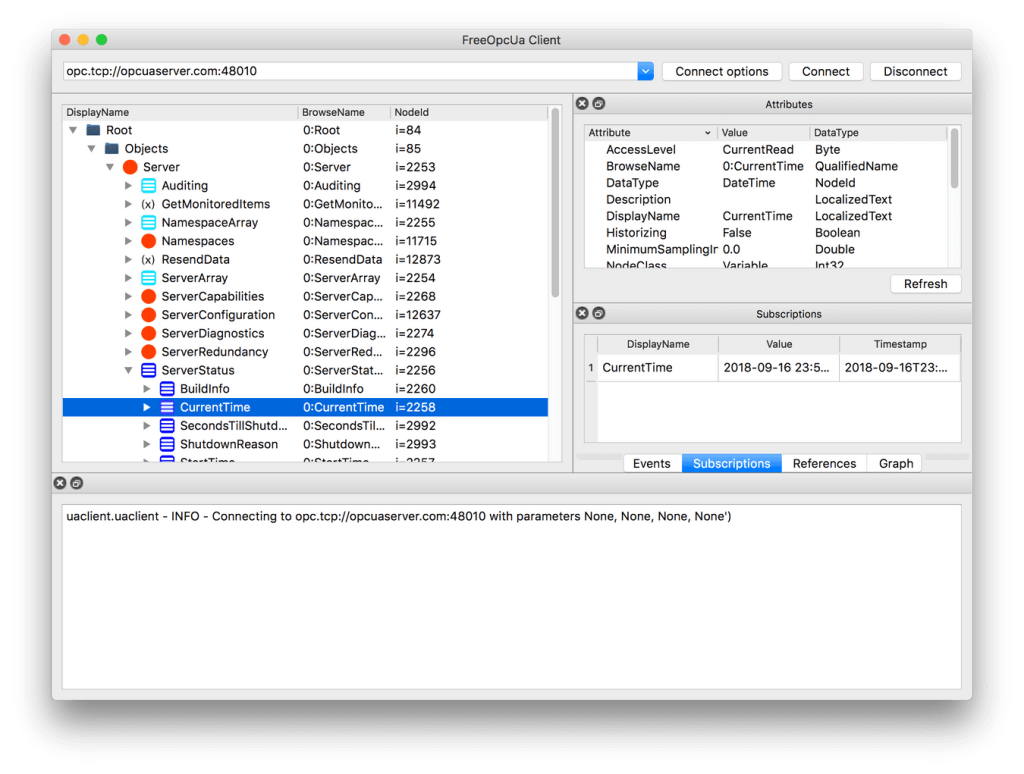
Explore and find the node which is displayed as **CurrentTime**. Select it and take a look at the **Attributes** pane – according to the **NodeClass** attribute we are dealing with a **Variable** which, by specification, contains a **Value** attribute. Variable nodes allow us to read and write data, depending on the **AccessLevel** attribute.
Right click on **CurrentTime** and select **subscribe to data change**. The **Subscriptions** pane then shows the actual value and it is updating at a fast rate.
Now we know that Variable nodes in the OPC UA address space are the datasources, but how to make use of them with Connectware? There are two ways to reference them:
1. **By NodeId**, which is a node's unique identifier. For example, the CurrentTime variable's NodeId is `i=2258`.
2. **By BrowsePath**, which is the path of BrowseName when you navigate the treeview. For example, the CurrentTime variable's BrowsePath assembles to `/0:Objects/0:Server/0:ServerStatus/0:CurrentTime`.
Both approaches have their pros and cons. In general, the NodeId is less clumsy, but less descriptive. In this example, we prefer the NodeId and recreate the tree structure semantics with the help of MQTT mappings.
Below, there is a table of variables to use in the example. Most variables are read-only, except for the Temperature Setpoint, which allows us to control something.
| Variable | NodeId | BrowsePath | AccessLevel |
| -------------------- | --------------------------------------------- | -------------------------------------------------------------------------- | ------------------------- |
| CurrentTime | `i=2258` | `/0:Objects/0:Server/0:ServerStatus/0:CurrentTime` | CurrentRead |
| Humidity | `ns=3;s=AirConditioner_1.Humidity` | `/0:Objects/3:BuildingAutomation/3:AirConditioner_1/3:Humidity` | CurrentRead |
| Power Consumption | `ns=3;s=AirConditioner_1.PowerConsumption` | `/0:Objects/3:BuildingAutomation/3:AirConditioner_1/3:PowerConsumption` | CurrentRead |
| Temperature | `ns=3;s=AirConditioner_1.Temperature` | `/0:Objects/3:BuildingAutomation/3:AirConditioner_1/3:Temperature` | CurrentRead |
| Temperature Setpoint | `ns=3;s=AirConditioner_1.TemperatureSetPoint` | `/0:Objects/3:BuildingAutomation/3:AirConditioner_1/3:TemperatureSetPoint` | CurrentRead, CurrentWrite |
## Writing the Service YAML
The Service YAML is used to specify connections, endpoints and mappings for Connectware to handle. Create a new file in a text editor, e.g. `opcua-example-service.yml`. This example adds minimal content, to not distract the eye. For a complete reference of properties you can check out the **Structure of the commissioning file**.
### Description and Metadata
These contain some general information. You can give a short description and add a stack of metadata. Regarding the metadata, only the name is required while the rest is optional. We will just use the following set of information for this guide:
```yaml
description: >
OPC UA Example Service
Cybus Knowledge Base - How to connect an OPC UA server
metadata:
name: OPC UA Example Service
```
### Parameters
Parameters can be adjusted in the Connectware Web UI. We are defining the address details of our OPC UA server as parameters, so they are used as default, but can be customized in case we want to connect to a different server.
{% code lineNumbers="true" %}
```yaml
parameters:
opcuaHost:
type: string
description: OPC UA Host Address
default: opcuaserver.com
opcuaPort:
type: integer
description: OPC UA Host Port
default: 48010
```
{% endcode %}
### Resources
The first resource we need is a connection to the OPC UA server.
#### Cybus::Connection
{% code lineNumbers="true" %}
```yaml
opcuaConnection:
type: Cybus::Connection
properties:
protocol: Opcua
connection:
host: !ref opcuaHost
port: !ref opcuaPort
#username: myUsername
#password: myPassword
```
{% endcode %}
If you are using a username and password, you could also create parameters, to make them configurable. In our case the server does not require credentials.
#### Cybus::Endpoint
{% code lineNumbers="true" %}
```yaml
currentTime:
type: Cybus::Endpoint
properties:
protocol: Opcua
connection: !ref opcuaConnection
topic: server/status/currenttime
subscribe:
nodeId: i=2258
Humidity:
type: Cybus::Endpoint
properties:
protocol: Opcua
connection: !ref opcuaConnection
topic: building-automation/airconditioner/1/humidity
subscribe:
nodeId: ns=3;s=AirConditioner_1.Humidity
#browsePath: /0:Objects/3:BuildingAutomation/3:AirConditioner_1/3:Humidity
PowerConsumption:
type: Cybus::Endpoint
properties:
protocol: Opcua
connection: !ref opcuaConnection
topic: building-automation/airconditioner/1/power-consumption
subscribe:
nodeId: ns=3;s=AirConditioner_1.PowerConsumption
Temperature:
type: Cybus::Endpoint
properties:
protocol: Opcua
connection: !ref opcuaConnection
topic: building-automation/airconditioner/1/temperature
subscribe:
nodeId: ns=3;s=AirConditioner_1.Temperature
TemperatureSetpointSub:
type: Cybus::Endpoint
properties:
protocol: Opcua
connection: !ref opcuaConnection
topic: building-automation/airconditioner/1/temperature-setpoint
subscribe:
nodeId: ns=3;s=AirConditioner_1.TemperatureSetPoint
TemperatureSetpointWrite:
type: Cybus::Endpoint
properties:
protocol: Opcua
connection: !ref opcuaConnection
topic: building-automation/airconditioner/1/temperature-setpoint
write:
nodeId: ns=3;s=AirConditioner_1.TemperatureSetPoint
#browsePath: /0:Objects/3:BuildingAutomation/3:AirConditioner_1/3:TemperatureSetPoint
```
{% endcode %}
## Installing and Enabling the Service
You can now install and enable the service.
1. Install the service commissioning file. See [Installing Services](https://docs.cybus.io/2-0-6/documentation/services/setting-up-and-configuring-services/installing-services).
2. Enable the service. See [Enabling Services](https://docs.cybus.io/2-0-6/documentation/services/setting-up-and-configuring-services/enabling-services).
After enabling this service, you can verify that everything works correctly.
## Verifying the Data
To see the incoming data, go to the [Data Explorer](https://docs.cybus.io/2-0-6/documentation/monitoring/data-explorer). In the **Data Explorer**, you can see the MQTT topic we specified in the service commissioning file.
## Summary
First, we used an OPC UA client application to browse the address space. This allowed us to pick the variables of our interest and to reference them by their NodeId, or by BrowsePath. Given that information, we created a Service YAML and installed the Service on Connectware. In the Explorer we finally saw the live data on corresponding MQTT topics and are now ready to go further with our OPC UA integration.
Now, why not store the OPC UA data in a time series database and display it on a dashboard for instance?