> For the complete documentation index, see [llms.txt](https://docs.cybus.io/llms.txt). Markdown versions of documentation pages are available by appending `.md` to page URLs; this page is available as [Markdown](https://docs.cybus.io/2-1-2/documentation/services/service-resources-view/connections-view.md).
# Connections View
Connections are resources that allow you to connect to devices over [protocols](/2-1-2/connectors/shop-floor-connectors.md). The **Connections View** shows an overview of all active and inactive protocol connections.
See also: [Cybus::Connection resource](/2-1-2/documentation/services/service-commissioning-files/resources/cybus-connection.md)
In Connectware, you can monitor the connections of all services in the [Connections View](#connections-view) and connections of individual services in the [Connection Details View](#connection-details-view).
## Overview
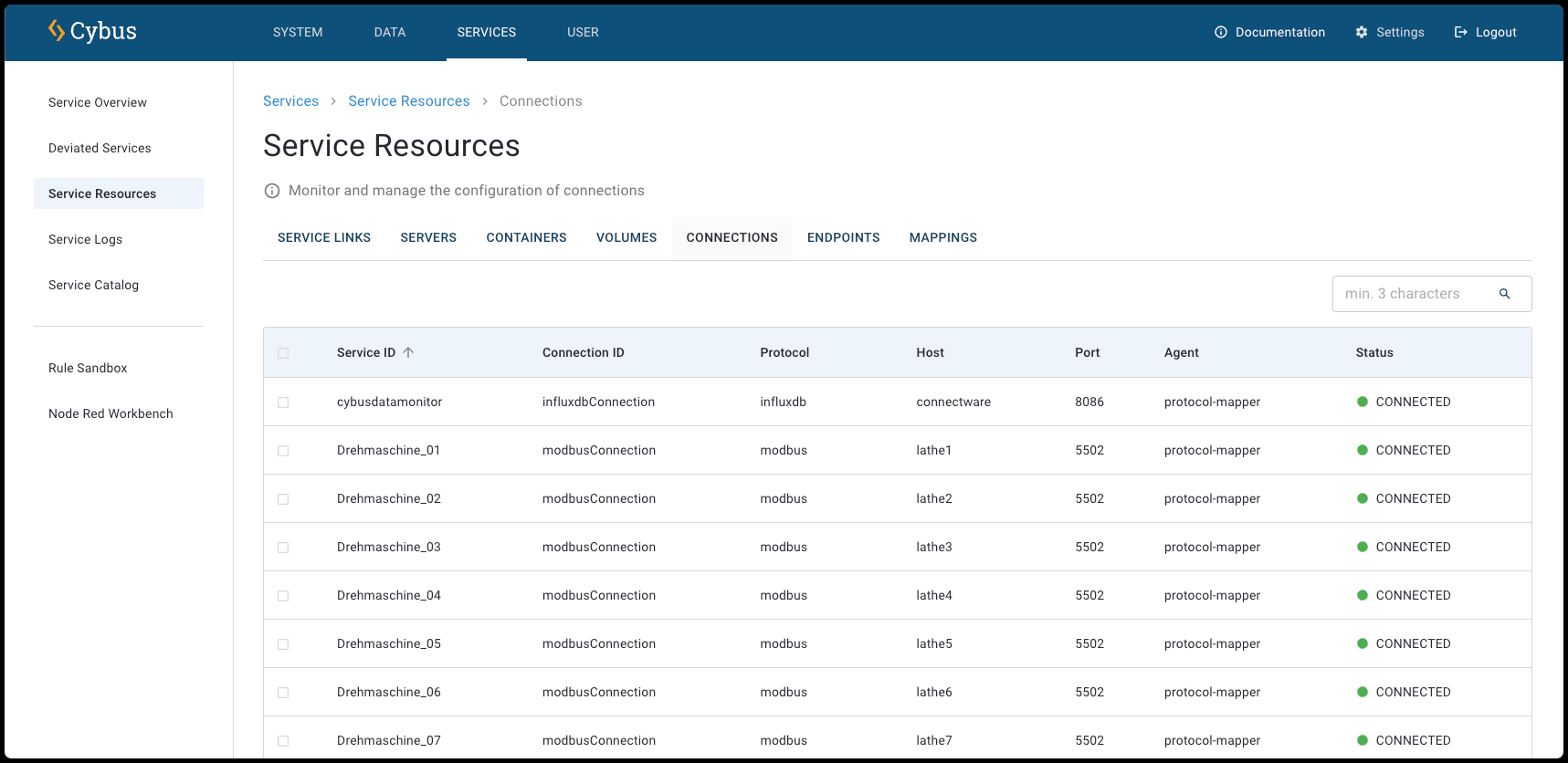
The **Connections View** displays all available protocol connections, including their service ID, connection ID, host, and port. You can click a connection for more information about its configuration. For more information, see [Connection Details View](#connection-details-view).
* To open the **Connections View** for all connections, click **Services** > **Service Resources** and click the **Connections** tab.
Connections View
In the list, all connections are displayed with the following information:
**Service ID**
* The unique identifier of the service that contains this connection.
**Connection ID**
* The unique identifier assigned to this specific connection within the service.
**Protocol**
* The communication protocol used for the connection (e.g., Modbus, HTTPS, OPC UA).
**Host**
* The hostname or IP address of the target system or device.
**Port**
* The network port number used for the connection.
**Agent**
* The agent to which this connection is assigned.
**Status**
* The current state of the connection (e.g., connected or not connected).
## Connection Details View
* To open the **Connection View** for a specific service, click **Services** > **Service Overview** and select a service. In the **Service Details View** of the selected service, click the **Connections** tab.
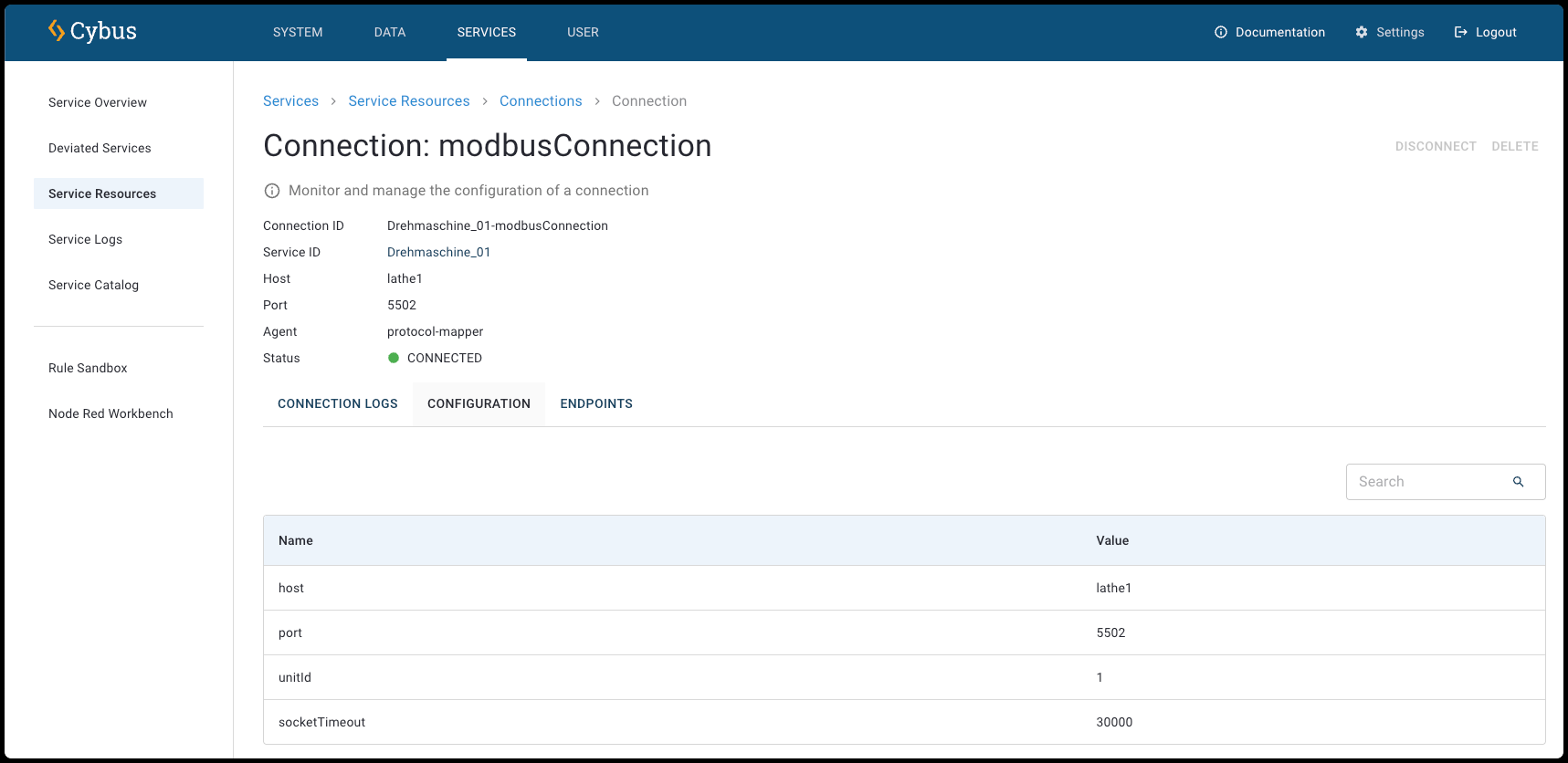
Connections Details View
At the top of the **Connection Details View**, the following information is displayed:
**Connection ID**
* The unique identifier assigned to this specific connection within the service.
**Service ID**
* The unique identifier of the service that contains this connection.
**Host**
* The hostname or IP address of the target system or device.
**Port**
* The network port number used for the connection.
**Agent**
* The agent to which this connection is assigned.
**Status**
* The current state of the connection (e.g., connected or not connected).
## Resources of Connections
Each connection has resources itself.
* To open the resources of connections, click a connection in the **Connections View**.
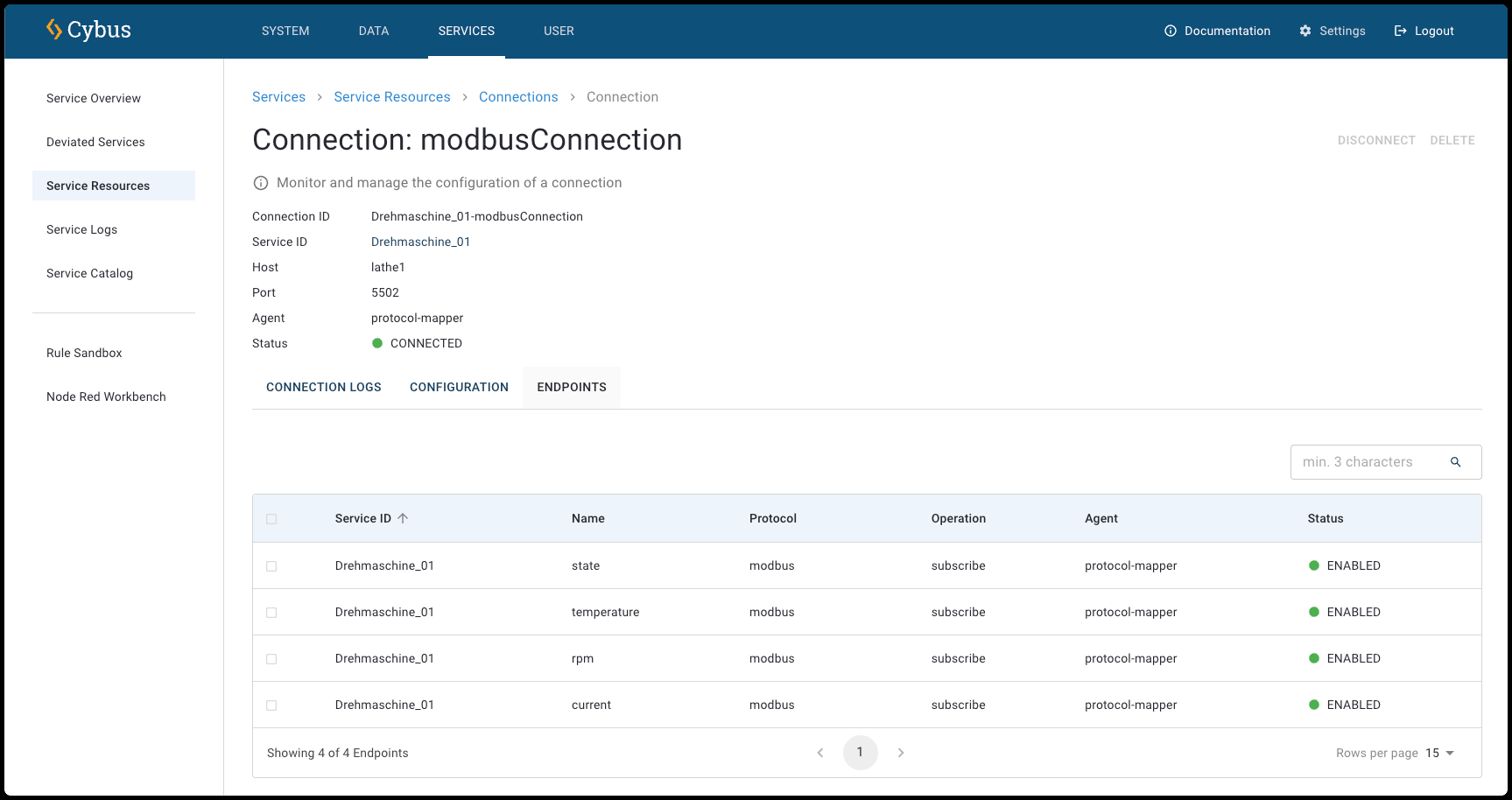
Connections Details View with open resources
### Connection Logs
You can view detailed log messages for the connections of the selected service in the **Connection Logs** tab of the **Connection Details View**.
**Download CSV**
* Export the visible log entries as a CSV file.
{% hint style="info" %}
The log entries in the CSV file are limited to the most recent 500 lines in the current view. To download the raw logs that contain the full logs, see [Logs of All Services](/2-1-2/documentation/services/service-logs/service-logs-of-all-services.md).
{% endhint %}
**Refresh Logs**
* Refresh the log messages to show the most recent entries.
**Filter**
* Use these filters to focus on specific service log message types based on your troubleshooting or monitoring needs. You can filter for **Debug**, **Error**, **Fatal**, **Info**, **Trace**, and **Warn** messages.
**Start Time/End Time**
* Select a specific start date/time and end date/time to define the period for which you want to view log messages.
**Search**
The search allows you to filter the list.
* Minimum search length is 3 characters.
* Search services by service ID or name.
* Search resources by name, ID, protocol, parent resource ID, agent name, or service ID.
* Search is case-insensitive.
**Level**
* The type of message. For example, info or warning.
**Time**
* Shows the exact date and time when each log message was generated.
**Message**
* Displays the message of the log (e.g., **lathe\_01: Enabled InfluxdbConnection**).
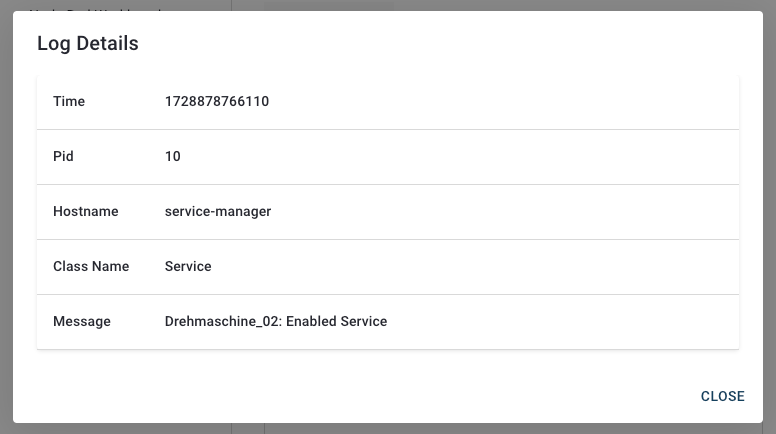
#### Log Details Dialog
The **Log Details dialog** provides in-depth information about specific log entries in the service logs.
* To open the **Log Details dialog**, click a log entry of a service.
When you select a log entry, this dialog displays the following fields:
**Time**
* The timestamp of the log entry in Unix milliseconds format (.e.g., **1728878765733**).
**Pid**
* The Process ID associated with the log entry.
**Hostname**
* The name of the host or service that generated the log (e.g., **protocol-mapper**).
**Class Name**
* The class or category of the log entry (e.g., **InfluxdbConnection**).
**Message**
* A detailed description of the logged event (e.g., **lathe\_01: Enabled ModbusConnection**).
### Configuration
**Name**
* The name of the configuration (e.g., **maxRetryDelay**).
**Value**
* The value of the configuration.
### Endpoints
Lists the endpoints that are associated with the connection.
**Service ID**
* The unique identifier of the service that contains this endpoint (e.g., **lathe\_01**).
**Name**
* The name of the endpoint (e.g., **temperature**).
**Protocol**
* The communication protocol used for the endpoint (e.g., Modbus, HTTPS, OPC UA).
**Agent**
* The agent to which this connection is assigned.
**Status**
* The current state of the endpoint (e.g., enabled or enabling).
---
# Agent Instructions
This documentation is published with GitBook. GitBook is the documentation platform designed so that both humans and AI agents can read, navigate, and reason over technical content effectively. Learn more at gitbook.com.
## Querying This Documentation
If you need additional information that is not directly available in this page, you can query the documentation by asking a question.
Perform an HTTP GET request on the following URL with the `ask` and `goal` query parameters:
```
GET https://docs.cybus.io/2-1-2/documentation/services/service-resources-view/connections-view.md?ask=&goal=
```
`ask` is the immediate question: it should be specific, self-contained, and written in natural language.
`goal` is what the user is ultimately trying to achieve, the reason they need the answer. Sharing it helps GitBook give you a better, more relevant answer. A goal is most helpful when it describes the outcome the user wants rather than restating the question. For example, with `ask=how do I create an API token`, a goal like `automate deployments from our CI pipeline` lets GitBook tailor the answer to that use case.
The response will contain a direct answer to the question and relevant excerpts and sources from the documentation.
Use this mechanism when the answer is not explicitly present in the current page, you need clarification or additional context, or you want to retrieve related documentation sections.