> For the complete documentation index, see [llms.txt](https://docs.cybus.io/llms.txt). Markdown versions of documentation pages are available by appending `.md` to page URLs; this page is available as [Markdown](https://docs.cybus.io/2-6-0/access/user-management/permissions.md).
# Permissions
The access rights that control which resources a user can read from or write to.
Permissions are assigned through roles: you add permissions to a role, then assign that role to users. Each permission targets a single resource — an MQTT topic or an HTTP endpoint — and grants read, write, or read/write access.
To create or modify permissions, see [Roles](/2-6-0/access/user-management/roles.md).
## Permission Types
Connectware supports the following permission types:
| Type | Controls access to | Example resource path |
| -------- | ---------------------- | -------------------------------- |
| **MQTT** | MQTT topics on CybusMQ | `services/myservice/temperature` |
| **HTTP** | REST API endpoints | `/api/services` |
## MQTT Permission Syntax
MQTT permissions follow standard MQTT topic syntax. A resource path identifies the topic or topic pattern the permission applies to.
The rules are:
* Paths are case-sensitive.
* Wildcards are supported: `+` matches a single level, `#` matches all remaining levels.
* The `#` wildcard must always be the last character in a path.
For example:
| Path | Matches |
| -------------------------------- | --------------------------------------------------- |
| `services/myservice/temperature` | Exactly that topic |
| `services/myservice/+` | Any single-level topic under `services/myservice/` |
| `services/myservice/#` | All topics under `services/myservice/` at any depth |
| `#` | All topics (use with caution) |
## HTTP Permission Syntax
HTTP permissions follow the same MQTT topic syntax conventions, including wildcard support. Paths must start with a leading slash (`/`).
For example:
| Path | Matches |
| ----------------- | -------------------------------------------- |
| `/api/services` | Exactly that endpoint |
| `/api/services/+` | Any single-level path under `/api/services/` |
| `/api/#` | All API endpoints |
## Access Levels
Each permission has one of the following access levels:
| Access level | Read | Write |
| ------------ | ---- | ----- |
| `read` | Yes | No |
| `write` | No | Yes |
| `read/write` | Yes | Yes |
For MQTT topics, read means subscribe and write means publish.
## How Permissions Are Evaluated
Connectware uses an allow-only model: access is denied unless a matching permission explicitly grants it. There are no deny rules.
If a user has multiple roles, permissions from all roles are combined. A user with `read` access through one role and `write` access through another role ends up with effective `read/write` access on that resource.
Permissions assigned directly to a user are combined with their role permissions in the same way.
{% hint style="info" %}
Broad wildcard permissions, such as `#`, grant access to everything, including system topics. Use them only for administrative roles.
{% endhint %}
## Viewing All Permissions
The **Permissions View** gives you a system-wide overview of every permission configured in Connectware, which roles and users hold each permission, and what access level each grants. This is useful for auditing your access control structure.
* To open the **Permissions View**, click **User** in the navigation panel, then click the **Permissions** tab.
Permissions overview
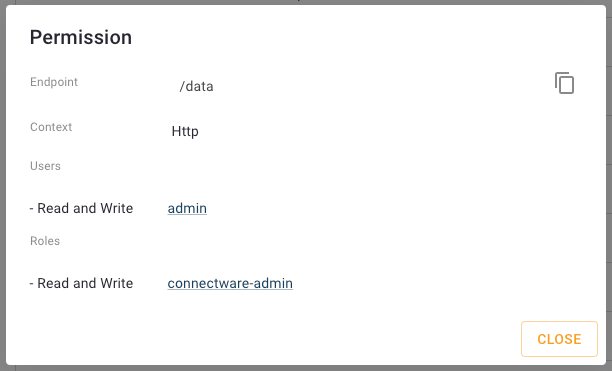
Clicking any permission in the list opens the **Permission Details** dialog, which shows:
* The complete resource path
* The permission type (MQTT or HTTP)
* The access level (read, write, or read/write)
* All users who have this permission assigned directly
* All roles that include this permission
Permission Details dialog
Permissions cannot be edited from this view. To create, modify, or delete permissions, open the relevant role in the [Roles View](/2-6-0/access/user-management/roles.md) or the relevant user in the [Users View](/2-6-0/access/user-management/users.md).
---
# Agent Instructions
This documentation is published with GitBook. GitBook is the documentation platform designed so that both humans and AI agents can read, navigate, and reason over technical content effectively. Learn more at gitbook.com.
## Querying This Documentation
If you need additional information that is not directly available in this page, you can query the documentation by asking a question.
Perform an HTTP GET request on the following URL with the `ask` and `goal` query parameters:
```
GET https://docs.cybus.io/2-6-0/access/user-management/permissions.md?ask=&goal=
```
`ask` is the immediate question: it should be specific, self-contained, and written in natural language.
`goal` is what the user is ultimately trying to achieve, the reason they need the answer. Sharing it helps GitBook give you a better, more relevant answer. A goal is most helpful when it describes the outcome the user wants rather than restating the question. For example, with `ask=how do I create an API token`, a goal like `automate deployments from our CI pipeline` lets GitBook tailor the answer to that use case.
The response will contain a direct answer to the question and relevant excerpts and sources from the documentation.
Use this mechanism when the answer is not explicitly present in the current page, you need clarification or additional context, or you want to retrieve related documentation sections.