> For the complete documentation index, see [llms.txt](https://docs.cybus.io/llms.txt). Markdown versions of documentation pages are available by appending `.md` to page URLs; this page is available as [Markdown](https://docs.cybus.io/2-6-1/monitoring/system-status/system-container-status.md).
# System Container Status
Monitor and manage active Connectware containers.
The System Container Status section provides a unified interface to monitor and manage all active Connectware containers. It shows container states, logs, configurations, and environment variables, and lets you start, stop, and restart containers.
## System Container View
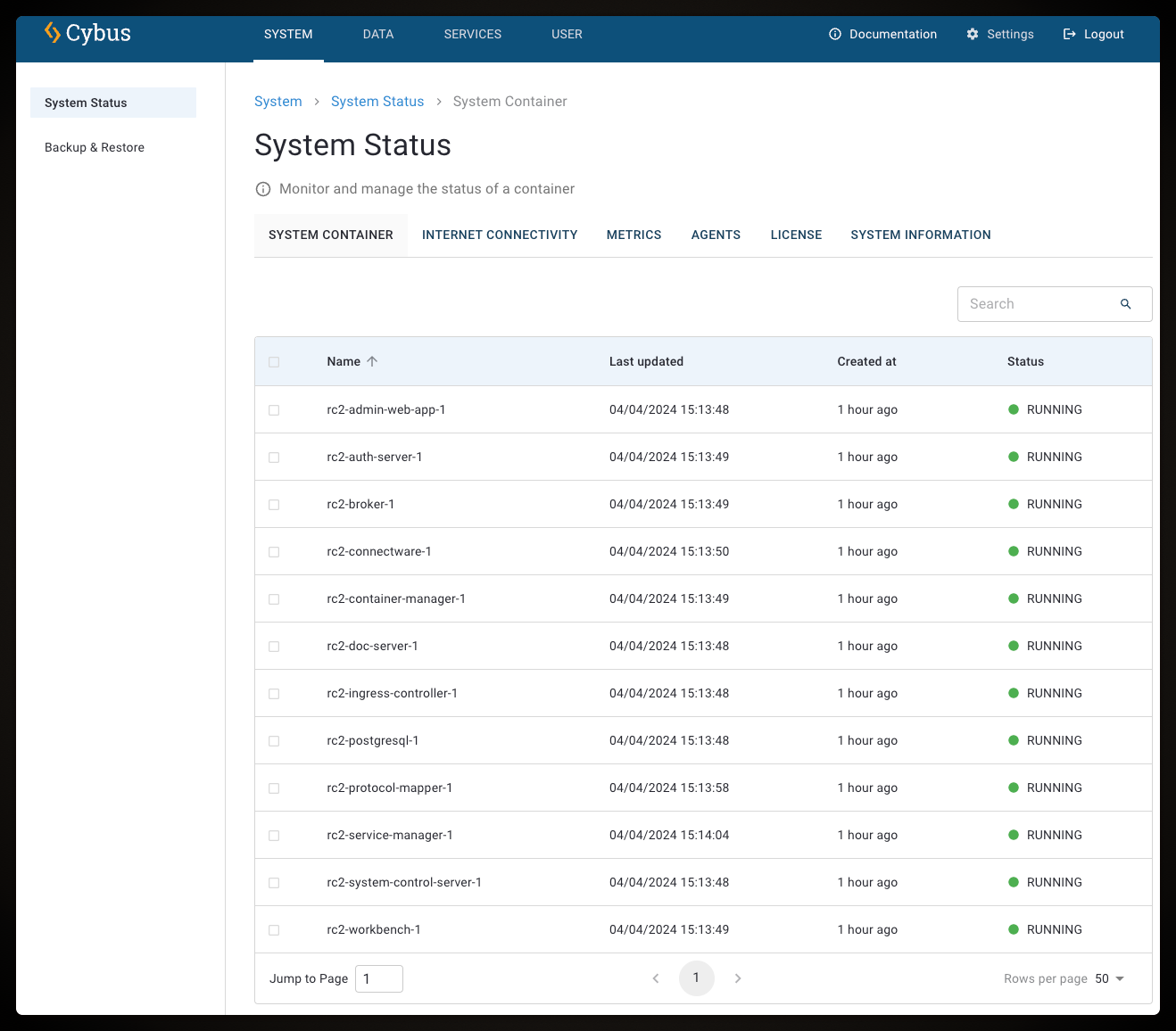
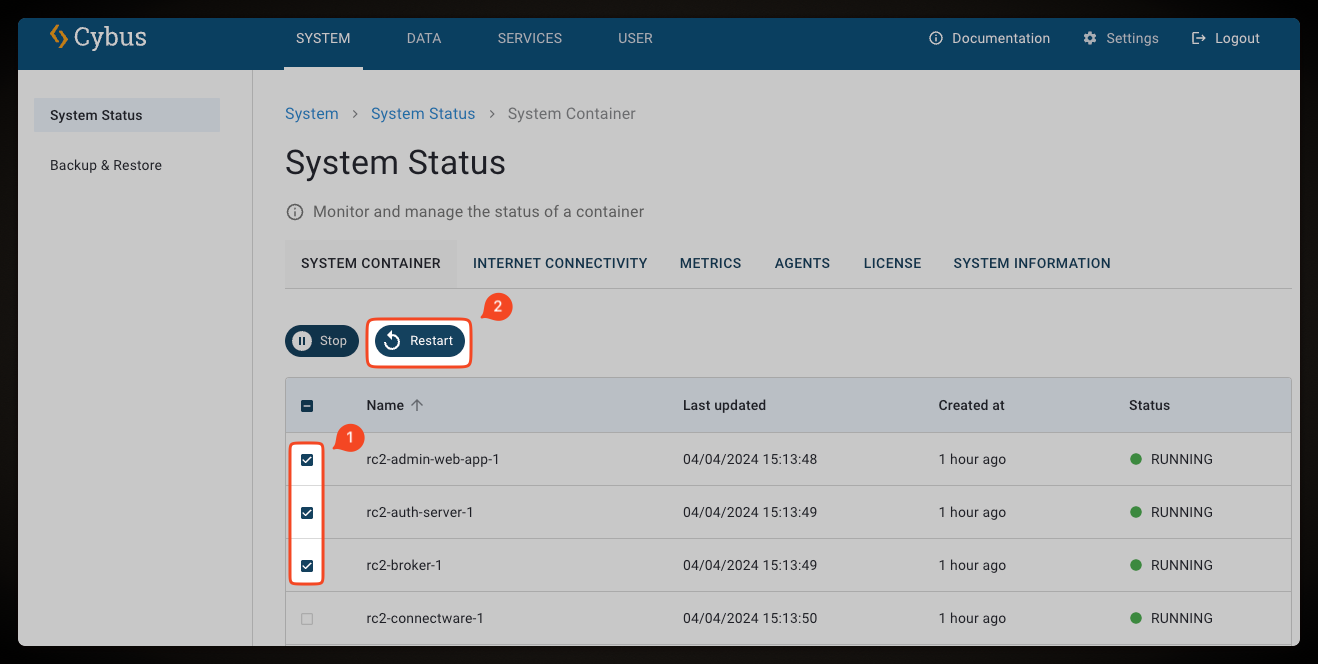
The **System Container View** allows you to monitor the status of all active Connectware containers. You can start, stop, and restart one container at a time. Click a container for more information about its configuration, logs, and environment variables.
* To open the **System Container View**, select **System** > **System Status**, and click the **System Container** tab.
The **System Container View** contains information about all running Connectware containers with the following information:
* **Name**: The name of the container
* **Last updated**: The timestamp of the last time that the container status was updated
* **Created at**: The time the container is already running
* **Status**: Connectware containers can enter one of the following states:
* **running**: The container is working as expected
* **starting**: The container is currently in the process of starting
* **stopping**: The container is currently stopping
* **restarting**: The container has triggered the restarting procedure
* **exited**: The container was shut down and won’t restart automatically
* **created**: The container was created but not yet started
## Container Details View
The **Container Details View** contains more information about a single container, such as container logs, configurations, and environment variables.
* To open the **Container Details View**, click a container in the container list of the **System Container View**.
The following tabs are available:
### Container Logs View
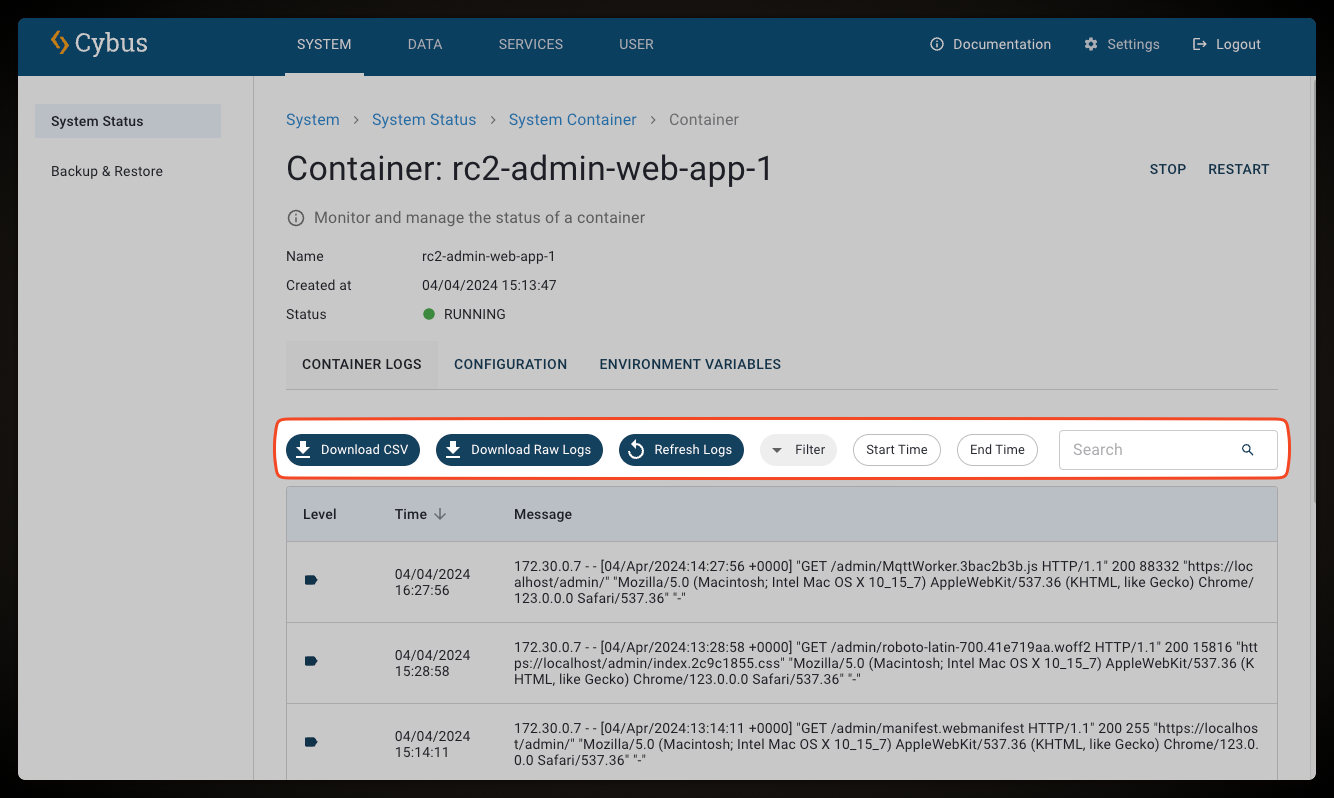
The **Container Logs View** shows the logging message of the selected container.
Available options in the toolbar:
* **Download CSV**: Save the log entries that are displayed in the list as comma-separated values as a CSV file (up to 500 lines). For a complete log, use the **Download Raw Logs** option.
* **Download Raw Logs**: Save the full log output (including control characters) for in-depth issue resolution. In the log file, each log line is prepended by some control characters. The exact stream format is described in the Docker API documentation ().
* Raw log formatting: Each line is prepended by an eight byte header and another two byte marker. For text file processing, the first 10 bytes of each line should be ignored.
* **Refresh Logs**: Reload the displayed log messages.
* **Filter**: Apply filters to narrow down displayed entries. Available options: **Debug**, **Error**, **Fatal**, **Info**, **Trace**, **Warn**.
* **Start Time**/**End Time**: Select a date and time to filter the logs by time range.
* **Search**: Filter logs by keyword.
### Configuration View
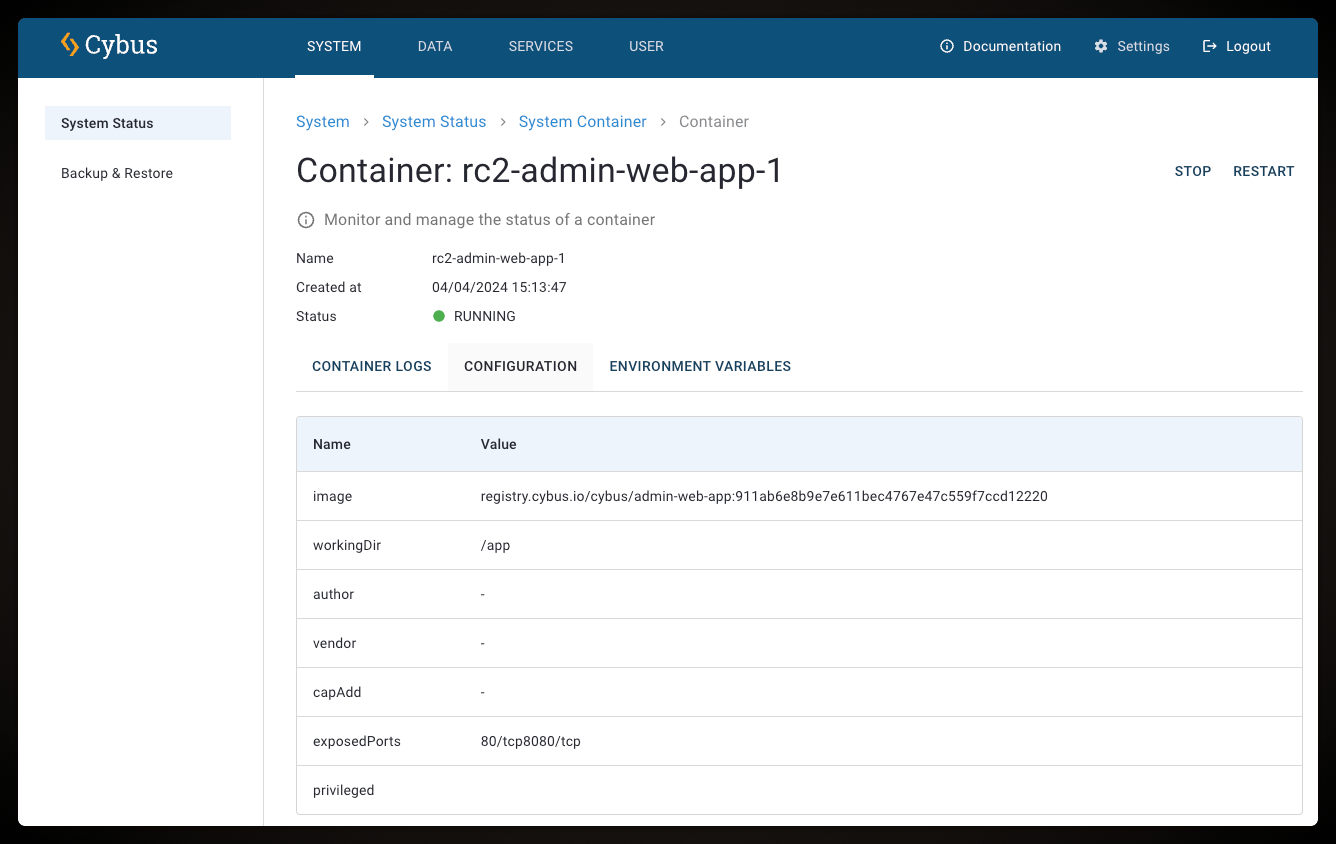
The **Configuration View** shows container configuration details.
Available container details:
* **image**: Docker image in use.
* **workingDir**: Working directory inside the container.
* **author**: Author of the container.
* **vendor**: Vendor of the container.
* **capAdd**: Additional Linux capabilities.
* **exposedPorts**: Ports exposed by the container.
* **privileged**: Whether the container is running in privileged mode.
### Environment Variables View
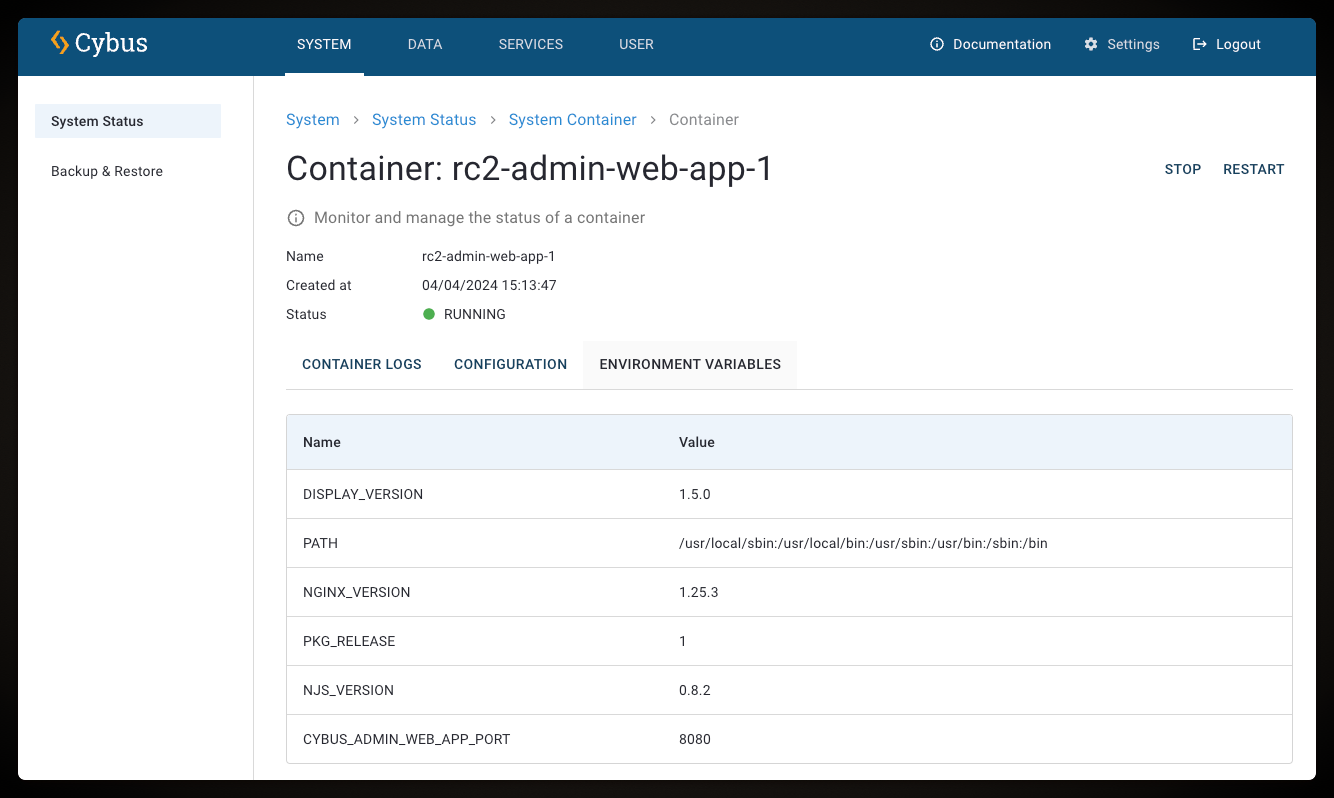
The **Configuration View** shows all environment variables available to the processes inside the container at runtime.
## Starting, Stopping, and Restarting Containers
You can start, stop, and restart containers in the **System Container View**, one container at a time. If you select more than one container, the toolbar shows no actions.
* To stop a running container, select it in the list and click **Stop** on the toolbar.
* To start an exited container, select it in the list and click **Start** on the toolbar.
* To restart a running container, select it in the list and click **Restart** on the toolbar.
The same actions are available at the top of the **Container Details View**.
## System Container Status via REST API
The system status API allows you to retrieve status information about your system container. For more information, see [System Status API](/2-6-1/reference/api-reference/system-status-api.md).
---
# Agent Instructions
This documentation is published with GitBook. GitBook is the documentation platform designed so that both humans and AI agents can read, navigate, and reason over technical content effectively. Learn more at gitbook.com.
## Querying This Documentation
If you need additional information that is not directly available in this page, you can query the documentation by asking a question.
Perform an HTTP GET request on the following URL with the `ask` and `goal` query parameters:
```
GET https://docs.cybus.io/2-6-1/monitoring/system-status/system-container-status.md?ask=&goal=
```
`ask` is the immediate question: it should be specific, self-contained, and written in natural language.
`goal` is what the user is ultimately trying to achieve, the reason they need the answer. Sharing it helps GitBook give you a better, more relevant answer. A goal is most helpful when it describes the outcome the user wants rather than restating the question. For example, with `ask=how do I create an API token`, a goal like `automate deployments from our CI pipeline` lets GitBook tailor the answer to that use case.
The response will contain a direct answer to the question and relevant excerpts and sources from the documentation.
Use this mechanism when the answer is not explicitly present in the current page, you need clarification or additional context, or you want to retrieve related documentation sections.