> For the complete documentation index, see [llms.txt](https://docs.cybus.io/llms.txt). Markdown versions of documentation pages are available by appending `.md` to page URLs; this page is available as [Markdown](https://docs.cybus.io/access/user-management/users.md).

# Users

Create and manage users, their roles, and permissions.

In Connectware, a user is a known identity — a person, or a software or hardware agent — that authenticates and is granted data permissions, administrative access, or both.

Each permission represents a specific access right to a resource, whether it is an MQTT topic or an HTTP endpoint, with clearly defined read and/or write capabilities.

{% hint style="info" %}
Before creating individual users, establish a clear role-based access control strategy by defining roles that correspond to job functions within your organization. This approach simplifies user management and ensures consistent application of security policies.
{% endhint %}

During installation, Connectware creates a default administrator user to ensure immediate system access. This user is named `admin` and has the `connectware-admin` role assigned to provide comprehensive permissions. For more information, see [Default Admin User](/access/user-management/users/default-admin-user.md).

## Users View

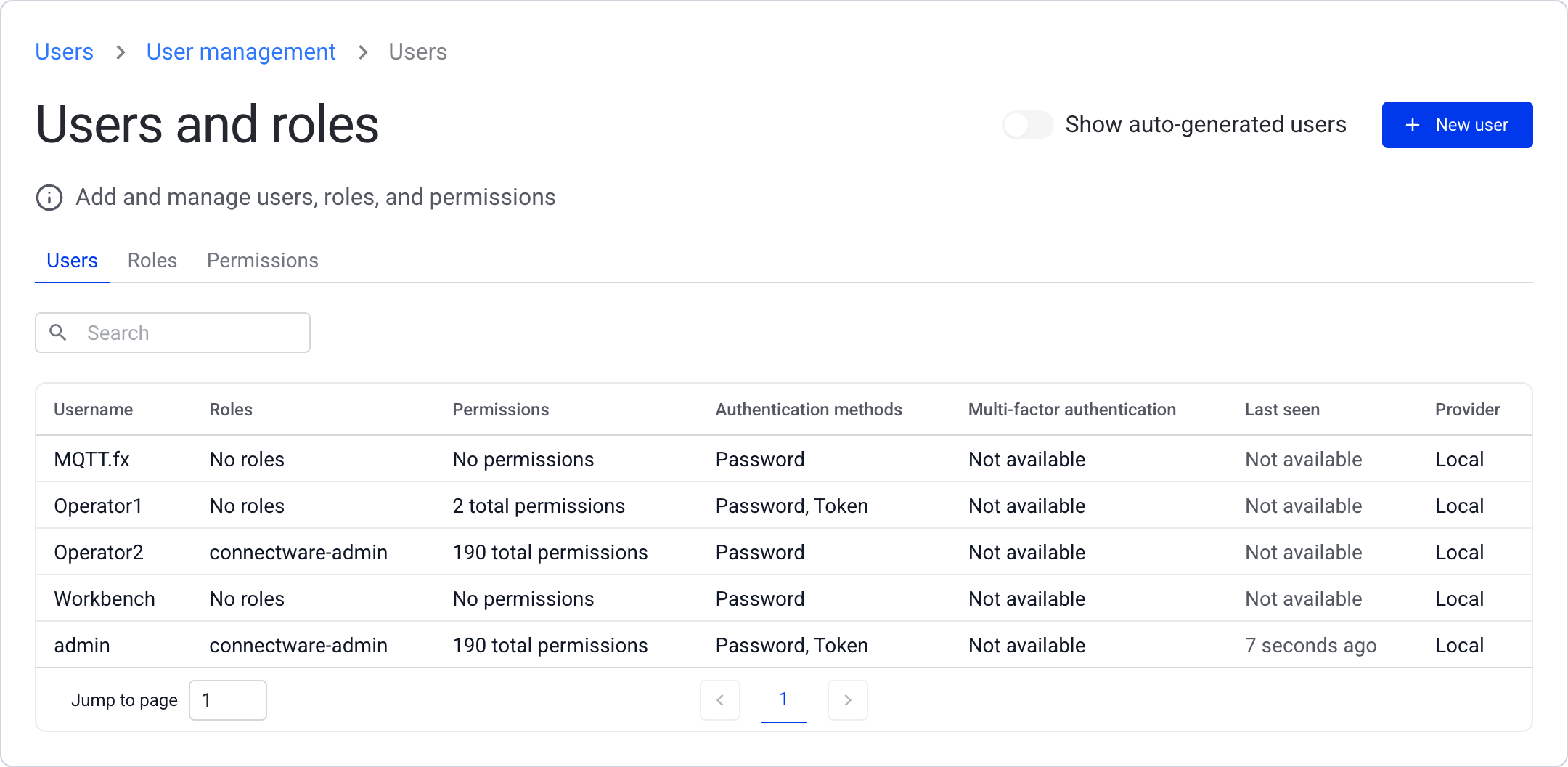
The **Users View** shows all users in Connectware, including their assigned roles and permissions.

* To open the **Users View**, click **Users** in the top bar.

<figure><img src="https://3389638840-files.gitbook.io/~/files/v0/b/gitbook-x-prod.appspot.com/o/spaces%2Ft8v6MM0xQKSAdf3lEt1u%2Fuploads%2Fgit-blob-6587626c736503c07660434a8c06f41d76458781%2Fusers-overview.png?alt=media" alt="Users and roles view with the Users tab open"><figcaption></figcaption></figure>

## Adding New Users

1. In the **Users View**, click **New user** to open the **Create user** dialog.

<figure><img src="https://3389638840-files.gitbook.io/~/files/v0/b/gitbook-x-prod.appspot.com/o/spaces%2Ft8v6MM0xQKSAdf3lEt1u%2Fuploads%2Fgit-blob-d1a915e4e38e4ade1bc99b9a911f27014fc93a81%2Fusers-overview-new-user-button.png?alt=media" alt="Users tab with the New user button highlighted"><figcaption></figcaption></figure>

2. Do one of the following:
   * To add users with pre-defined roles quickly, use the [default mode](#default-mode).
   * To define roles and permissions more granularly, use the [advanced mode](#advanced-mode).

### Default Mode

1. In the **Create user** dialog, enter the username, password, and password confirmation.
2. Optional: To assign a set of pre-defined roles to the user, click the **Roles** field and select a role. You can repeat this step to assign multiple roles.
3. Click **Create**. The dialog closes, and the new user appears in the overview table.

### Advanced Mode

In the advanced mode, you can assign a set of pre-defined roles to the user and/or individual permissions.

{% hint style="info" %}
We recommend managing permissions through roles rather than individual user permissions for easier maintenance. For more information, see [Roles](/access/user-management/roles.md).
{% endhint %}

1. In the **Create user** dialog, enter the username, password, and password confirmation.
2. Activate **Advanced mode**.

<figure><img src="https://3389638840-files.gitbook.io/~/files/v0/b/gitbook-x-prod.appspot.com/o/spaces%2Ft8v6MM0xQKSAdf3lEt1u%2Fuploads%2Fgit-blob-8d577f97957bb568c8efdd69d23b3b38f1bf9c5d%2Fusers-create-dialog-advanced-mode.png?alt=media" alt="Create user dialog with the Advanced mode switch highlighted"><figcaption><p><strong>Advanced mode</strong> in the <strong>Create user</strong> dialog</p></figcaption></figure>

3. Optional: To assign a set of pre-defined roles to the user, click the **Roles** field and select one or more roles.
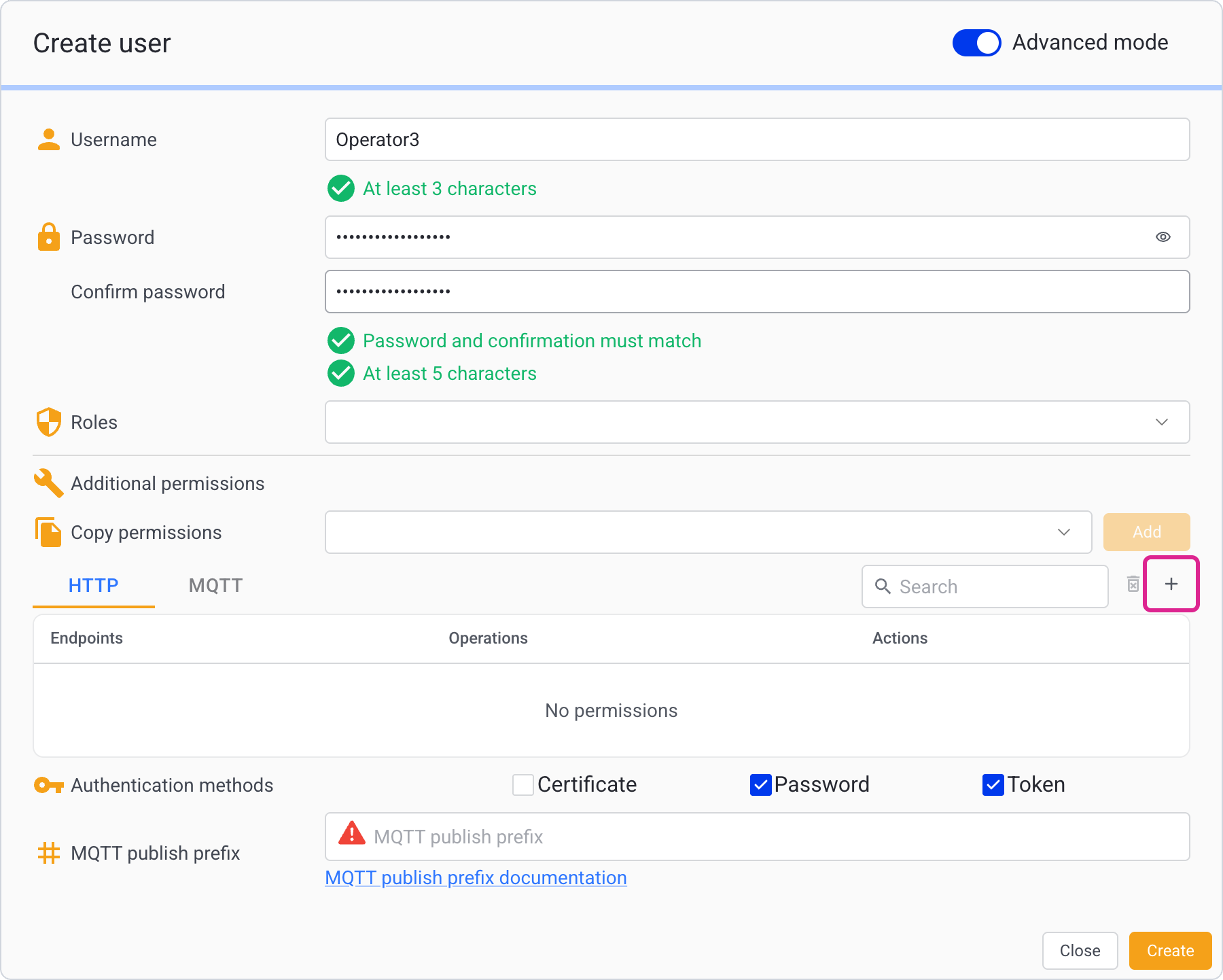
4. Optional: To assign individual permissions, click the **+** button to open the **Add permission** dialog.
   * Select the permission type: **HTTP** for accessing the REST API using HTTP clients or **MQTT** for accessing MQTT topics on CybusMQ.
   * In the **Endpoint** field, enter the resource path. Wildcards (`+` and `#`) are supported. For syntax details, see [Permissions](/access/user-management/permissions.md).
   * Select **Read**, **Write**, or both.
   * Click **Add** to add the permission.

<figure><img src="https://3389638840-files.gitbook.io/~/files/v0/b/gitbook-x-prod.appspot.com/o/spaces%2Ft8v6MM0xQKSAdf3lEt1u%2Fuploads%2Fgit-blob-d1a53ff94a5586180e537e45677752b5c71d7946%2Fusers-create-dialog-add-permission-button.png?alt=media" alt="Create user dialog with the add permission button highlighted"><figcaption><p><strong>Add permission</strong> button</p></figcaption></figure>

<figure><img src="https://3389638840-files.gitbook.io/~/files/v0/b/gitbook-x-prod.appspot.com/o/spaces%2Ft8v6MM0xQKSAdf3lEt1u%2Fuploads%2Fgit-blob-b9818d5f33466718a5e179cd72fe964139b1233c%2Fusers-create-dialog-add-permission-form.png?alt=media" alt="Create user dialog with the Add permission form highlighted"><figcaption><p><strong>Add permission</strong> form</p></figcaption></figure>

5. Optional: Under **Authentication methods**, select how the user can authenticate. **Password** and **Token** are selected by default. For more information, see [Authentication Methods](#authentication-methods).
6. Click **Create**. The dialog closes, and the new user appears in the overview table.

## Authentication Methods

Authentication methods control how a user proves their identity to Connectware. A user can have more than one. The following methods are available:

* **Password**: The user authenticates with their username and password, for example when calling `POST /api/login` or connecting an MQTT client.
* **Token**: The user authenticates with a JSON Web Token (JWT), for example a script that calls the API. For more information, see [JSON Web Tokens](/access/security/json-web-tokens.md).
* **Certificate**: The user authenticates with a client certificate whose Common Name (CN) matches the username. For more information, see [Client Certificates](/access/security/tls-certificates/client-certificates.md).

Users that you create in the Admin UI have **Password** and **Token** by default. The **Authentication methods** column in the **Users View** shows the methods of each user. A user without any method shows **Cannot authenticate** and cannot access Connectware.

Without **Token**, a user still receives a token from `POST /api/login`, but every request that uses the token fails with `401 Unauthorized`.

In the API, authentication methods are called grant types. You set them in the `grantTypes` property of a user, with the values `password`, `token`, and `certificate`.

## Changing Authentication Methods

1. In the top bar, click **Users**.
2. In the **Users View**, click the user whose authentication methods you want to change. This opens the **Edit user** dialog.
3. In the **Edit user** dialog, activate **Advanced mode**.
4. Under **Authentication methods**, select or clear the methods.
5. Click **Update**. The dialog closes, and the user is updated.

You cannot clear **Token** for the `admin` user.

## Deleting Users

You can delete users that are no longer needed.

{% hint style="warning" %}
Deleting a user is permanent and cannot be undone. Before proceeding, ensure that you have backed up any important user-specific configurations or transferred necessary permissions to other users.
{% endhint %}

1. In the top bar, click **Users**.
2. In the **Users View**, click the user that you want to delete. This opens the **Edit user** dialog.

<figure><img src="https://3389638840-files.gitbook.io/~/files/v0/b/gitbook-x-prod.appspot.com/o/spaces%2Ft8v6MM0xQKSAdf3lEt1u%2Fuploads%2Fgit-blob-c32e2e11915a56a16f6e40118d800dd0b51be10c%2Fusers-overview-select-user.png?alt=media" alt="Users tab with a user row highlighted"><figcaption></figcaption></figure>

3. Click the **Delete** button in the top right of the **Edit user** dialog.

<figure><img src="https://3389638840-files.gitbook.io/~/files/v0/b/gitbook-x-prod.appspot.com/o/spaces%2Ft8v6MM0xQKSAdf3lEt1u%2Fuploads%2Fgit-blob-5b984fe9acc4420361f06d11e07fd9941710f52a%2Fusers-edit-dialog-delete-button.png?alt=media" alt="Edit user dialog with the Delete button highlighted"><figcaption><p>Delete button</p></figcaption></figure>

4. Click **Delete** again to confirm. The user is deleted.

## Changing Usernames

1. In the **Users View**, click the user that you want to edit. This opens the **Edit user** dialog.
2. In the **Edit user** dialog, enter a new username in the **Username** field.
3. Click **Update** to apply the changes. The dialog closes, and the username is updated.

## Adding Roles to Users

Roles provide a convenient way to assign multiple permissions at once. By adding roles to users, you can quickly grant them access to specific system functions without configuring individual permissions.

{% hint style="info" %}
Assign roles based on job functions or responsibilities rather than individual users to maintain consistent access control across your organization.
{% endhint %}

1. In the top bar, click **Users**.
2. In the **Users View**, click the user to whom you want to add roles. This opens the **Edit user** dialog.
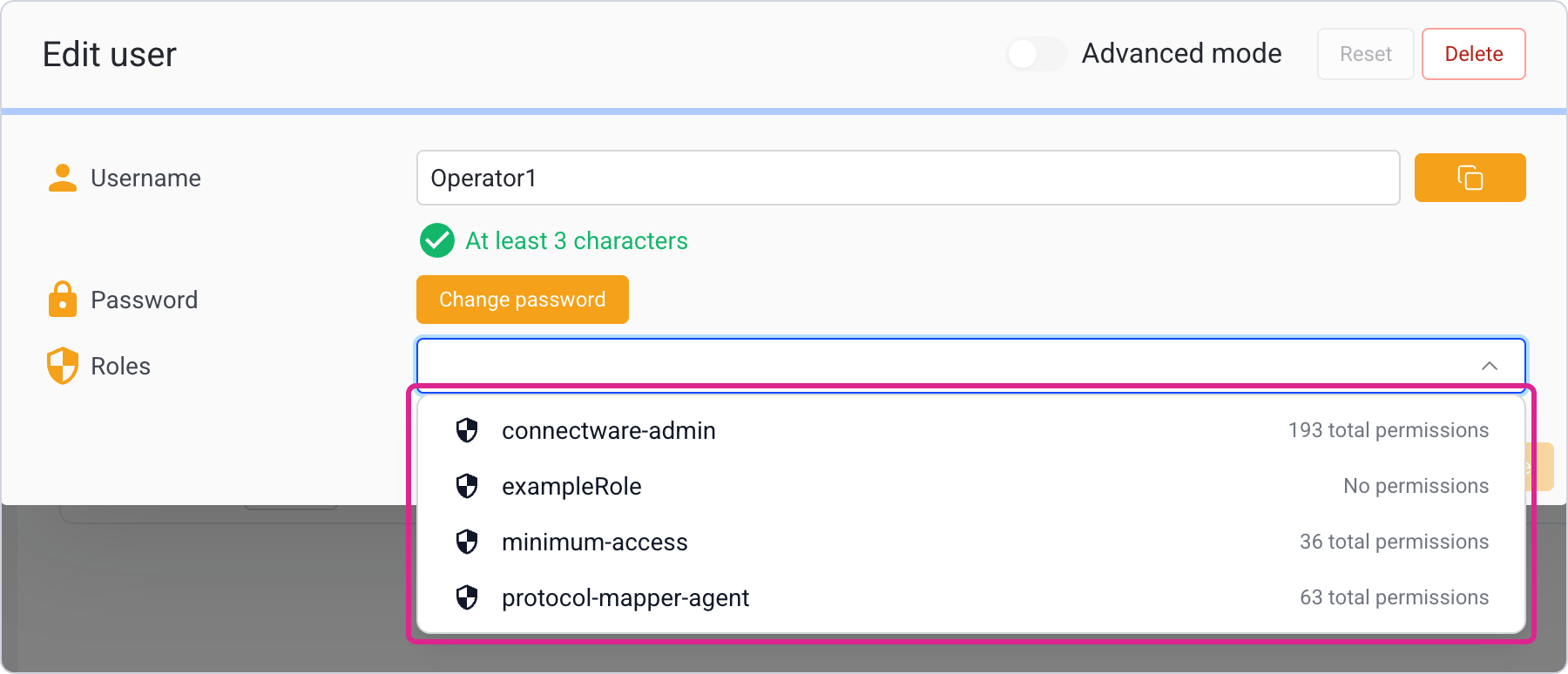
3. In the **Edit user** dialog, click the **Roles** field to open the list of available roles.

<figure><img src="https://3389638840-files.gitbook.io/~/files/v0/b/gitbook-x-prod.appspot.com/o/spaces%2Ft8v6MM0xQKSAdf3lEt1u%2Fuploads%2Fgit-blob-24d020c7e9bef03ad33281dfdc8238f9954bb02d%2Fusers-edit-dialog-roles-list.png?alt=media" alt="Edit user dialog with the Roles list open"><figcaption><p>Options of the <strong>Roles</strong> field</p></figcaption></figure>

4. Click the **Roles** field and select a role. You can repeat this step to assign multiple roles.
5. Click **Update**. The dialog closes, and the user is updated with the selected roles.

## Removing Roles from Users

When a user's responsibilities change, you may need to remove roles from them to adjust their access permissions.

{% hint style="warning" %}
Removing a role removes all associated permissions from the user.
{% endhint %}

1. In the top bar, click **Users**.
2. In the **Users View**, click the user from whom you want to remove roles. This opens the **Edit user** dialog.
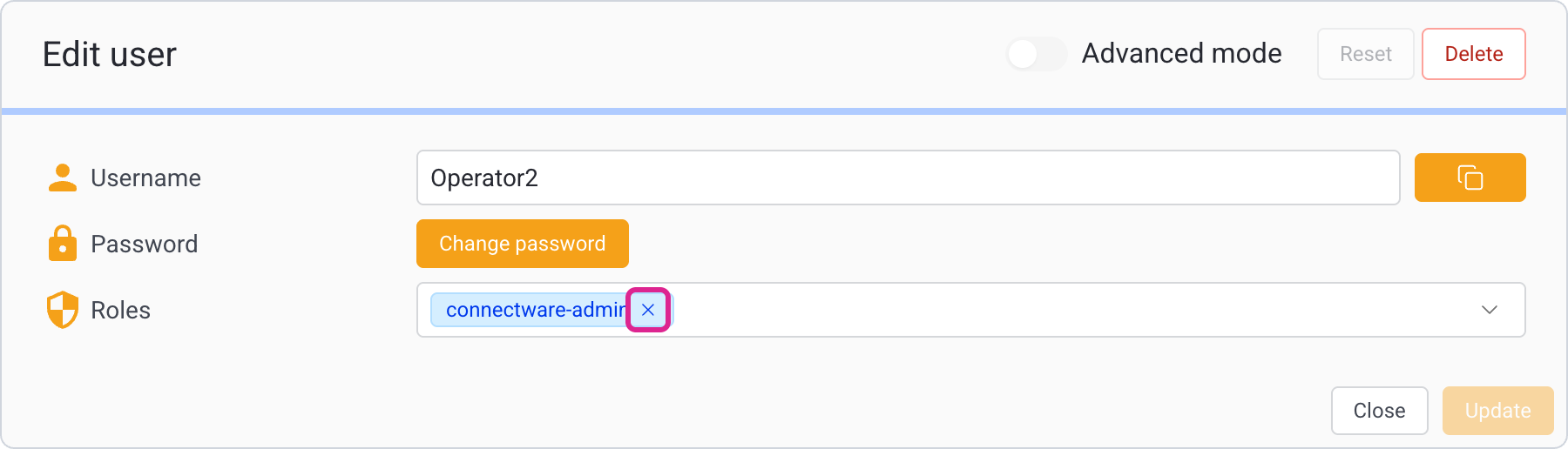
3. In the **Edit user** dialog, click the **x** next to the role name in the **Roles** field to remove the role.

<figure><img src="https://3389638840-files.gitbook.io/~/files/v0/b/gitbook-x-prod.appspot.com/o/spaces%2Ft8v6MM0xQKSAdf3lEt1u%2Fuploads%2Fgit-blob-7c7f4abf8eb38bb01137557ab4d1faef1cbc5529%2Fusers-edit-dialog-remove-role.png?alt=media" alt="Edit user dialog with the remove icon of a role highlighted"><figcaption><p>Remove role from user</p></figcaption></figure>

4. Click **Update**. The dialog closes, and the user is updated.

## Assigning Permissions to Users

While roles are the recommended way to manage permissions, there may be cases where you need to grant specific permissions to individual users without creating a new role.

1. In the top bar, click **Users**.
2. In the **Users View**, click the user to whom you want to assign individual permissions. This opens the **Edit user** dialog.
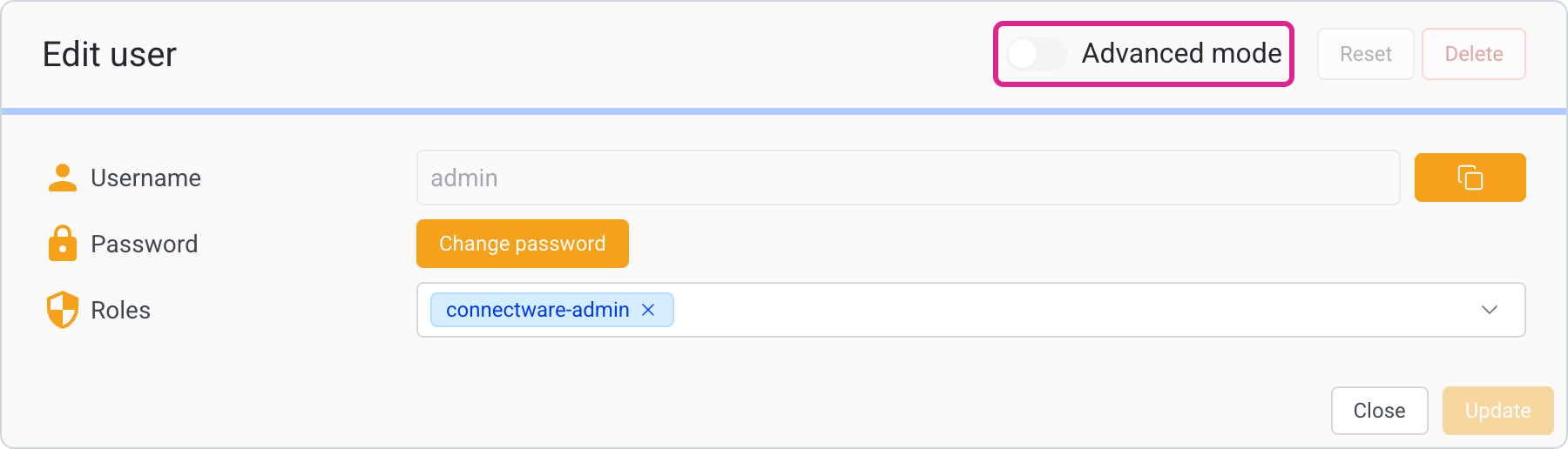
3. In the **Edit user** dialog, activate **Advanced mode**.

<figure><img src="https://3389638840-files.gitbook.io/~/files/v0/b/gitbook-x-prod.appspot.com/o/spaces%2Ft8v6MM0xQKSAdf3lEt1u%2Fuploads%2Fgit-blob-66bc871c341949e7546cde940345e87aba0767e9%2Fusers-edit-dialog-advanced-mode.png?alt=media" alt="Edit user dialog with the Advanced mode switch highlighted"><figcaption><p>Turning on <strong>Advanced mode</strong> in the <strong>Edit user</strong> dialog</p></figcaption></figure>

4. To assign individual permissions, click the **+** button to open the **Add permission** dialog.
   * Select the permission type: **HTTP** for accessing the REST API using HTTP clients or **MQTT** for accessing MQTT topics on CybusMQ.
   * In the **Endpoint** field, enter the resource path. Wildcards (`+` and `#`) are supported. For syntax details, see [Permissions](/access/user-management/permissions.md).
   * Select **Read**, **Write**, or both.
   * Click **Add** to add the permission.

<figure><img src="https://3389638840-files.gitbook.io/~/files/v0/b/gitbook-x-prod.appspot.com/o/spaces%2Ft8v6MM0xQKSAdf3lEt1u%2Fuploads%2Fgit-blob-e7b6308628631482fe6fbf374128475a6082d35c%2Fusers-edit-dialog-add-permission-button.png?alt=media" alt="Edit user dialog with the add permission button highlighted"><figcaption><p><strong>Add permission</strong> button</p></figcaption></figure>

<figure><img src="https://3389638840-files.gitbook.io/~/files/v0/b/gitbook-x-prod.appspot.com/o/spaces%2Ft8v6MM0xQKSAdf3lEt1u%2Fuploads%2Fgit-blob-c8e98c7051c7e39991e0234db573bf93e512dcb6%2Fusers-edit-dialog-add-permission-form.png?alt=media" alt="Edit user dialog with the Add permission form highlighted"><figcaption><p><strong>Add permission</strong> form</p></figcaption></figure>

5. Click **Update**. The dialog closes, and the user is updated with the new permissions.

## Removing Permissions from Users

When specific permissions are no longer needed, you can remove them while keeping other permissions intact.

{% hint style="warning" %}
Removing individual permissions does not affect permissions granted through roles. To completely remove access to a resource, ensure the user does not have access through any assigned roles.
{% endhint %}

1. In the top bar, click **Users**.
2. In the **Users View**, click the user from whom you want to remove individual permissions. This opens the **Edit user** dialog.
3. In the **Edit user** dialog, activate **Advanced mode**.

<figure><img src="https://3389638840-files.gitbook.io/~/files/v0/b/gitbook-x-prod.appspot.com/o/spaces%2Ft8v6MM0xQKSAdf3lEt1u%2Fuploads%2Fgit-blob-66bc871c341949e7546cde940345e87aba0767e9%2Fusers-edit-dialog-advanced-mode.png?alt=media" alt="Edit user dialog with the Advanced mode switch highlighted"><figcaption><p>Turning on <strong>Advanced mode</strong> in the <strong>Edit user</strong> dialog</p></figcaption></figure>

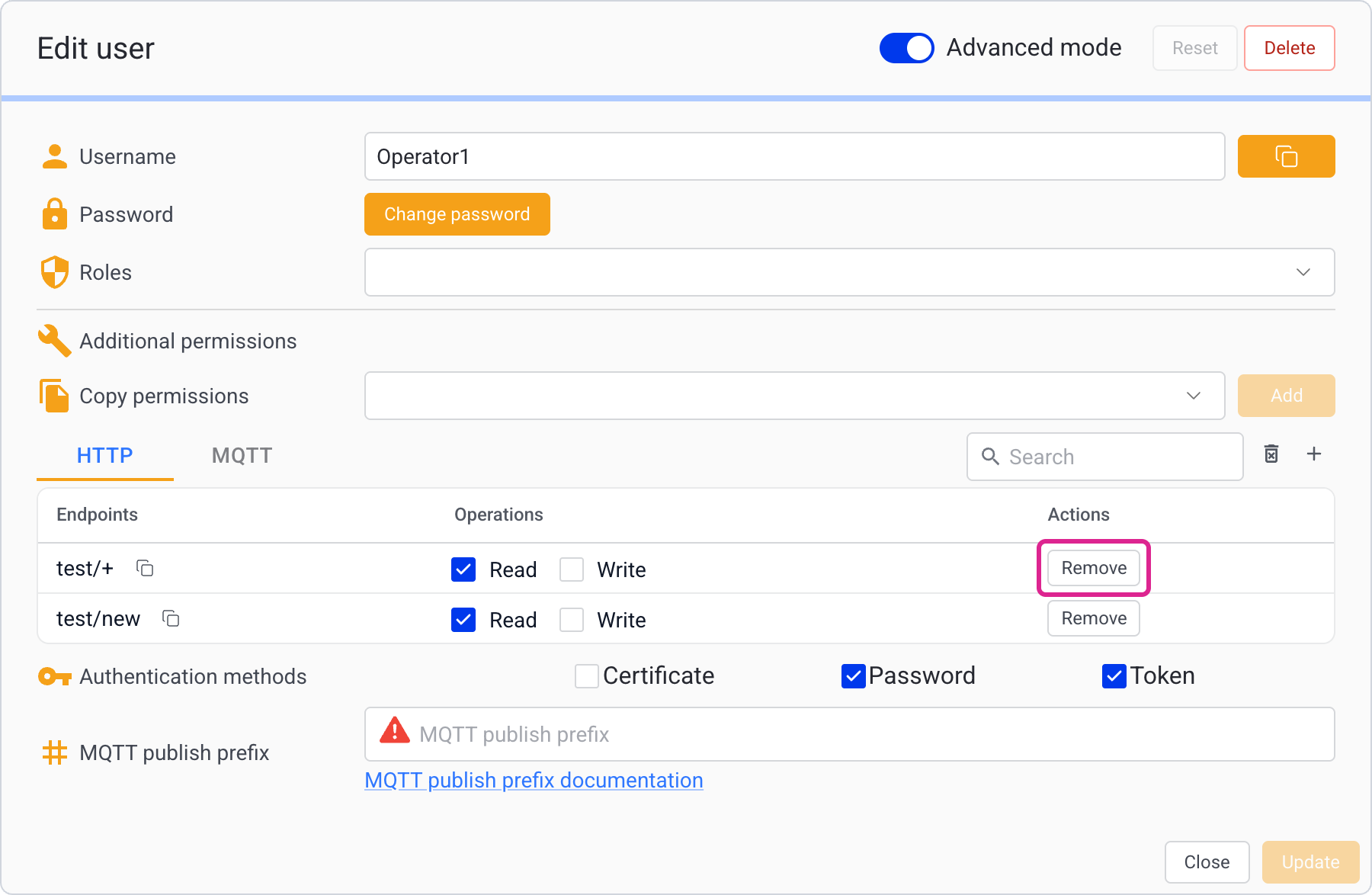
4. To remove a permission, click its **Remove** button in the **Actions** column of the permissions list.

<figure><img src="https://3389638840-files.gitbook.io/~/files/v0/b/gitbook-x-prod.appspot.com/o/spaces%2Ft8v6MM0xQKSAdf3lEt1u%2Fuploads%2Fgit-blob-2c6cc7b83adf7c7c3ea21f18b98df284e713e062%2Fusers-edit-dialog-remove-permission.png?alt=media" alt="Edit user dialog with the Remove button of a permission highlighted"><figcaption><p>Remove permission from user</p></figcaption></figure>

5. Click **Update**. The dialog closes, and the user is updated.

## Changing User Passwords

Regularly updating passwords is an important security practice.

1. In the top bar, click **Users**.
2. In the **Users View**, click the user for whom you want to change the password. This opens the **Edit user** dialog.
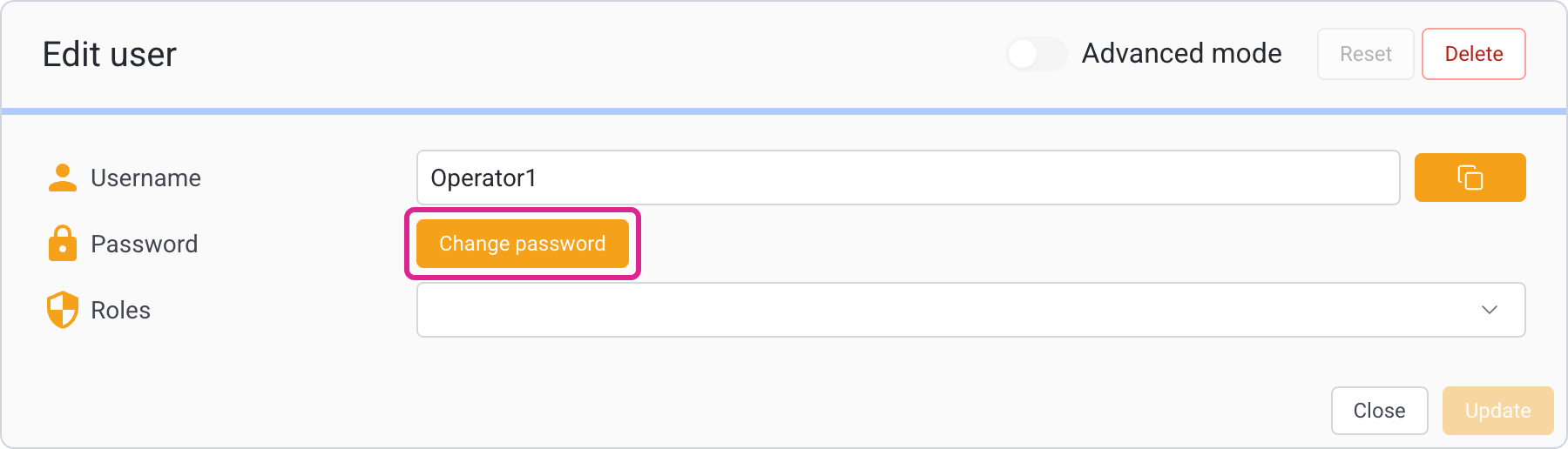
3. In the **Edit user** dialog, click **Change password**.

<figure><img src="https://3389638840-files.gitbook.io/~/files/v0/b/gitbook-x-prod.appspot.com/o/spaces%2Ft8v6MM0xQKSAdf3lEt1u%2Fuploads%2Fgit-blob-5acb6097244b4ea580c357158bba7db970ce0127%2Fusers-edit-dialog-change-password-button.png?alt=media" alt="Edit user dialog with the Change password button highlighted"><figcaption><p><strong>Change password</strong> button</p></figcaption></figure>

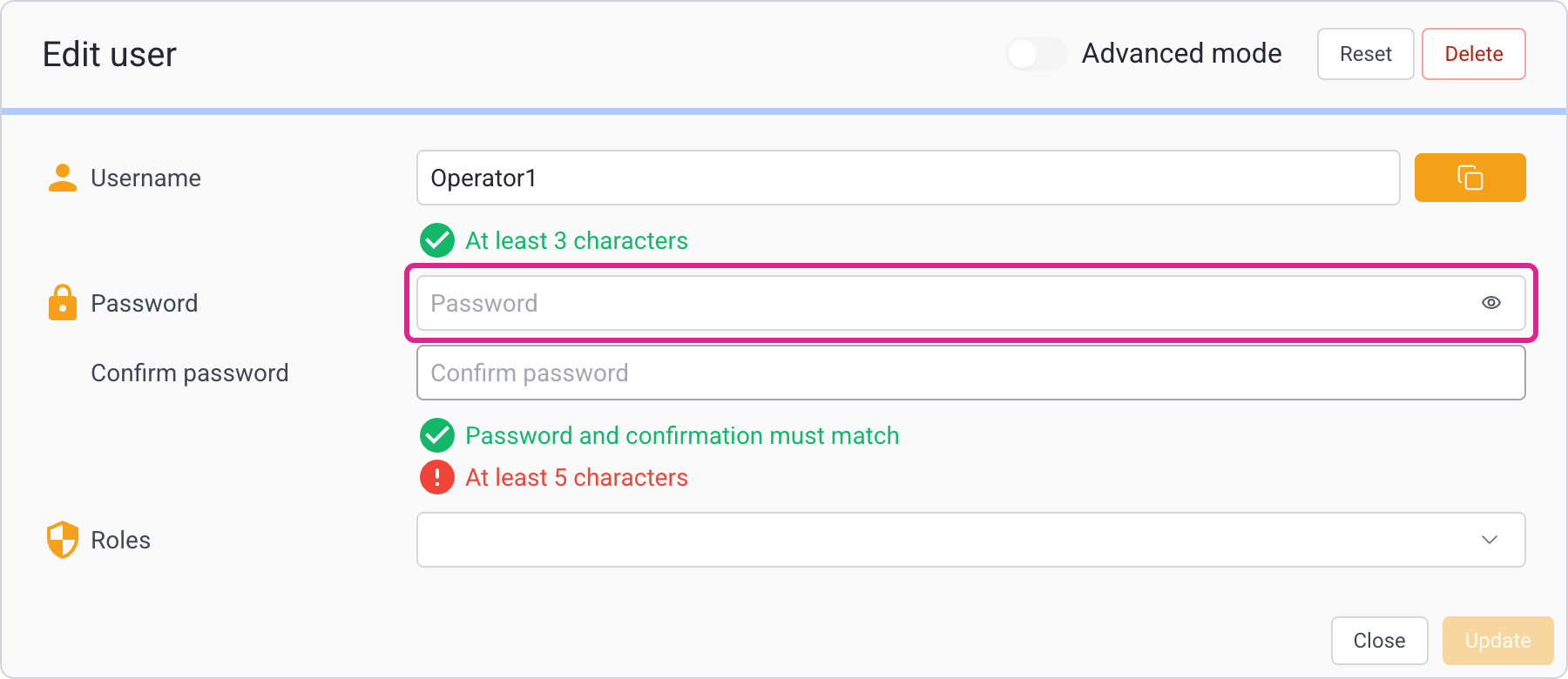
4. In the **Password** field, enter the new password and confirm it in the **Confirm password** field.
5. To apply the changes, click **Update**. The dialog closes, and the password is updated.

<figure><img src="https://3389638840-files.gitbook.io/~/files/v0/b/gitbook-x-prod.appspot.com/o/spaces%2Ft8v6MM0xQKSAdf3lEt1u%2Fuploads%2Fgit-blob-a8c0e72fa9cd093aaf44ba4a06888d1b7f0a6d42%2Fusers-edit-dialog-password.png?alt=media" alt="Edit user dialog with the Password field highlighted"><figcaption><p><strong>Password</strong> field in the <strong>Edit user</strong> dialog</p></figcaption></figure>


---

# Agent Instructions
This documentation is published with GitBook. GitBook is the documentation platform designed so that both humans and AI agents can read, navigate, and reason over technical content effectively. Learn more at gitbook.com.

## Querying This Documentation
If you need additional information that is not directly available in this page, you can query the documentation by asking a question.

Perform an HTTP GET request on the following URL with the `ask` and `goal` query parameters:

```
GET https://docs.cybus.io/access/user-management/users.md?ask=<question>&goal=<user_goal>
```

`ask` is the immediate question: it should be specific, self-contained, and written in natural language.
`goal` is what the user is ultimately trying to achieve, the reason they need the answer. Sharing it helps GitBook give you a better, more relevant answer. A goal is most helpful when it describes the outcome the user wants rather than restating the question. For example, with `ask=how do I create an API token`, a goal like `automate deployments from our CI pipeline` lets GitBook tailor the answer to that use case.

The response will contain a direct answer to the question and relevant excerpts and sources from the documentation.

Use this mechanism when the answer is not explicitly present in the current page, you need clarification or additional context, or you want to retrieve related documentation sections.