> For the complete documentation index, see [llms.txt](https://docs.cybus.io/llms.txt). Markdown versions of documentation pages are available by appending `.md` to page URLs; this page is available as [Markdown](https://docs.cybus.io/data-flows/services/service-resources-view/containers-view.md).
# Containers View
Monitor the containers that run third-party applications for your services in the Containers View of Connectware.
Containers allow you to extend the basic functionality of Connectware.
A container represents any (third-party) application made available using the docker ([https://www.docker.com](https://www.docker.com/)) technology. There are no limits on the range of possible applications in Docker containers.
Connectware imposes no constraints on the actual containers, but will ensure security by running the containers in encapsulated networks. This way the containerized applications can neither compromise the host system nor access any other data except those explicitly granted access to within the service commissioning file (see [Services](/data-flows/services.md)).
{% hint style="info" %}
This feature is available only in Docker Compose deployments, but not in Kubernetes deployments of Connectware. Using this in a Kubernetes deployment will be refused with a suitable error message.
{% endhint %}
See also: [Cybus::Container resource](/data-flows/service-commissioning-files/resources/cybus-container.md)
Containers can be added by [installing a Service](/data-flows/services/managing/installing.md).
## Overview
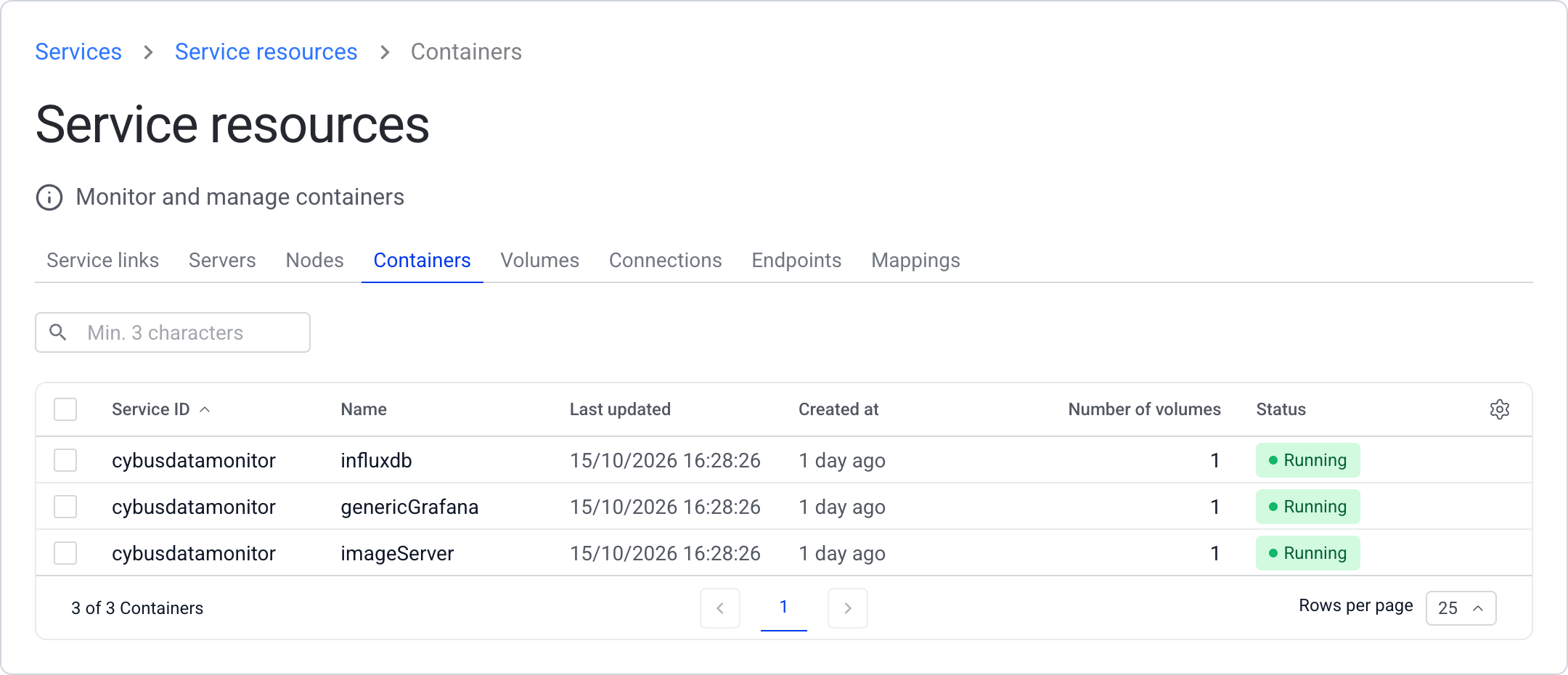
Once a service using one or more containers is enabled, respective rows representing each container will be visible in the overview table.
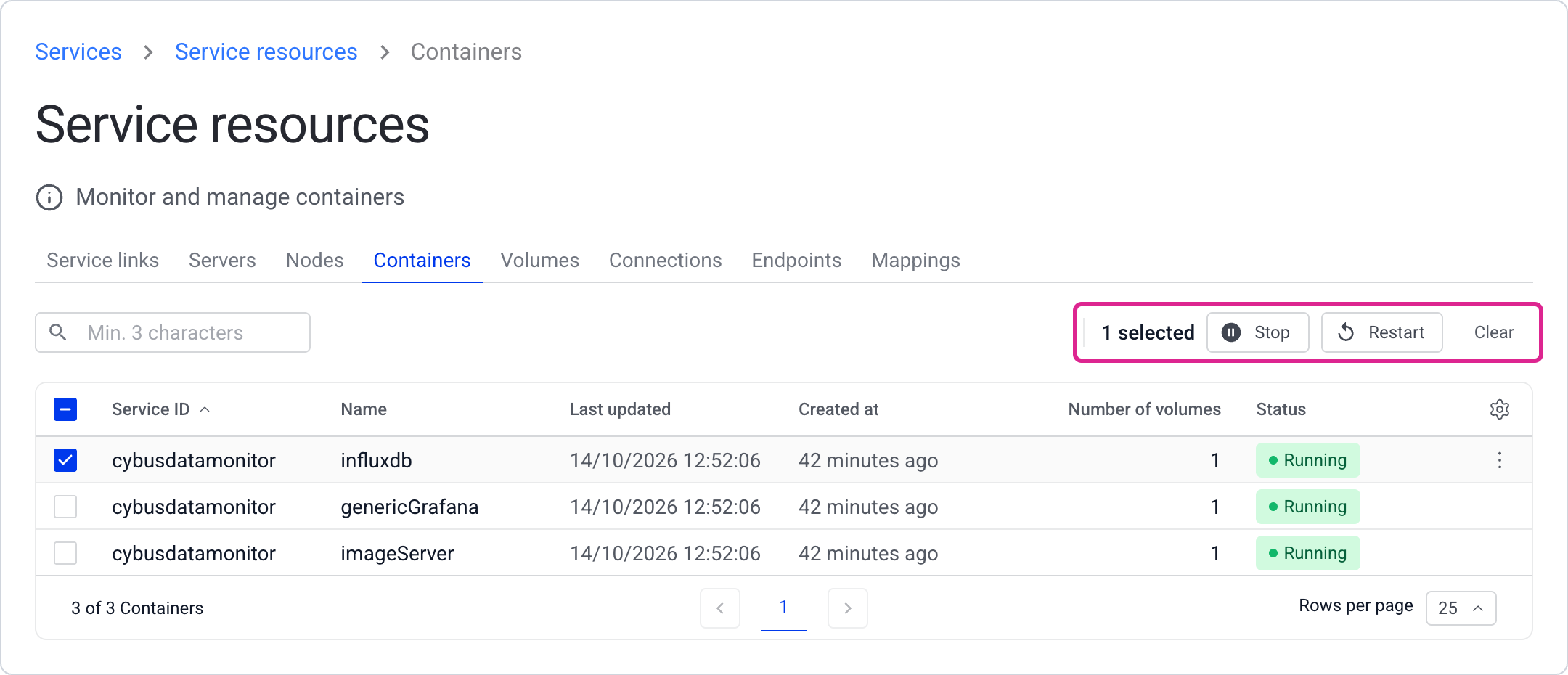
Once the service is in the *enabled* state, you can stop, start, and restart its containers. Select the checkboxes of the containers in the overview table, then click the action in the toolbar. To act on a single container, you can also use the three-dot menu (⋮) at the end of its row.
Once stopped, containers can also be removed with **Delete**.
{% hint style="warning" %}
Manual stopping or deletion of containers will render the corresponding service to be [deviated](/data-flows/services/deviations.md) (i.e. only partially functional). The service then appears under the [deviations icon](/data-flows/services/deviations.md#where-to-see-deviations-in-the-admin-ui) in the side bar. To restore the initial settings it is always possible to [disable](/data-flows/services/managing/disabling.md) and then again [enable the service](/data-flows/services/managing/enabling.md).
{% endhint %}
To show, hide, reorder, or pin the columns of the list, click the gear icon (**Configure columns**) in the last column header. The Admin UI stores your column settings in your browser until you sign out.
Click a container to open its [Containers Details View](#containers-details-view).
## Containers Details View
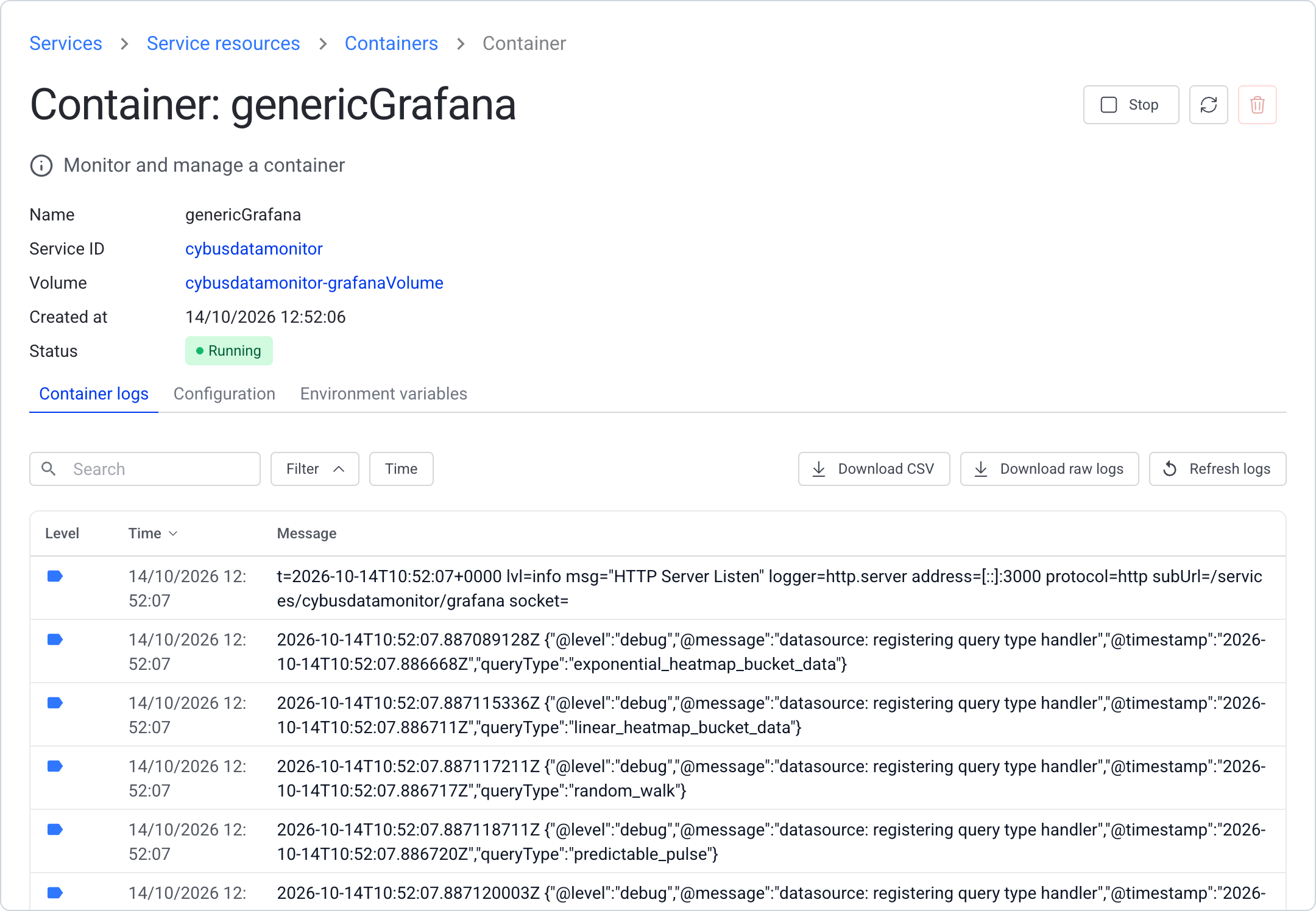
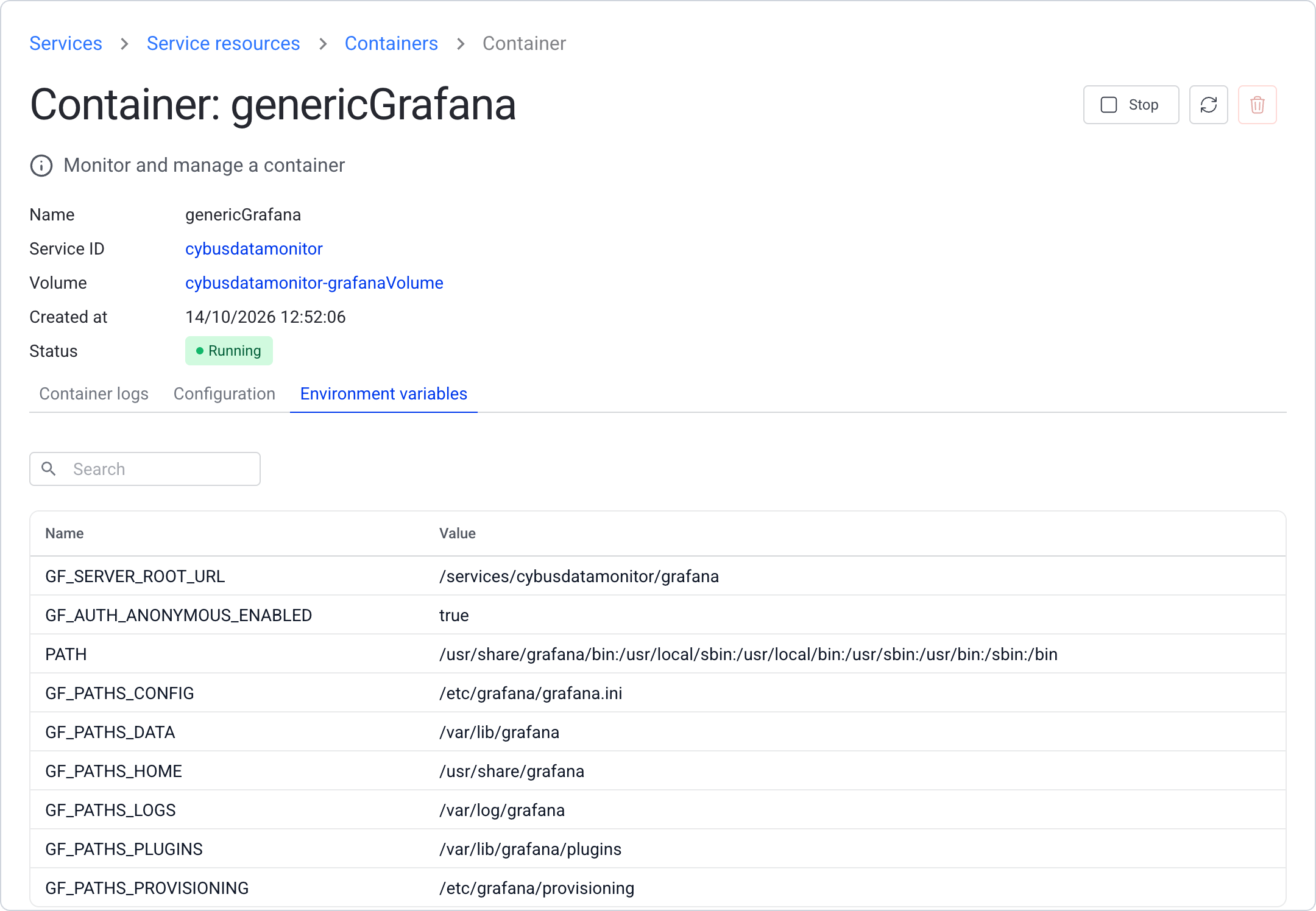
Containers have multiple resources itself. These are grouped in [Configuration Tab](#configuration-tab) and [Environment Variables Tab](#environment-variables-tab). Additionally, you can see the container logs in the **Container logs** tab.
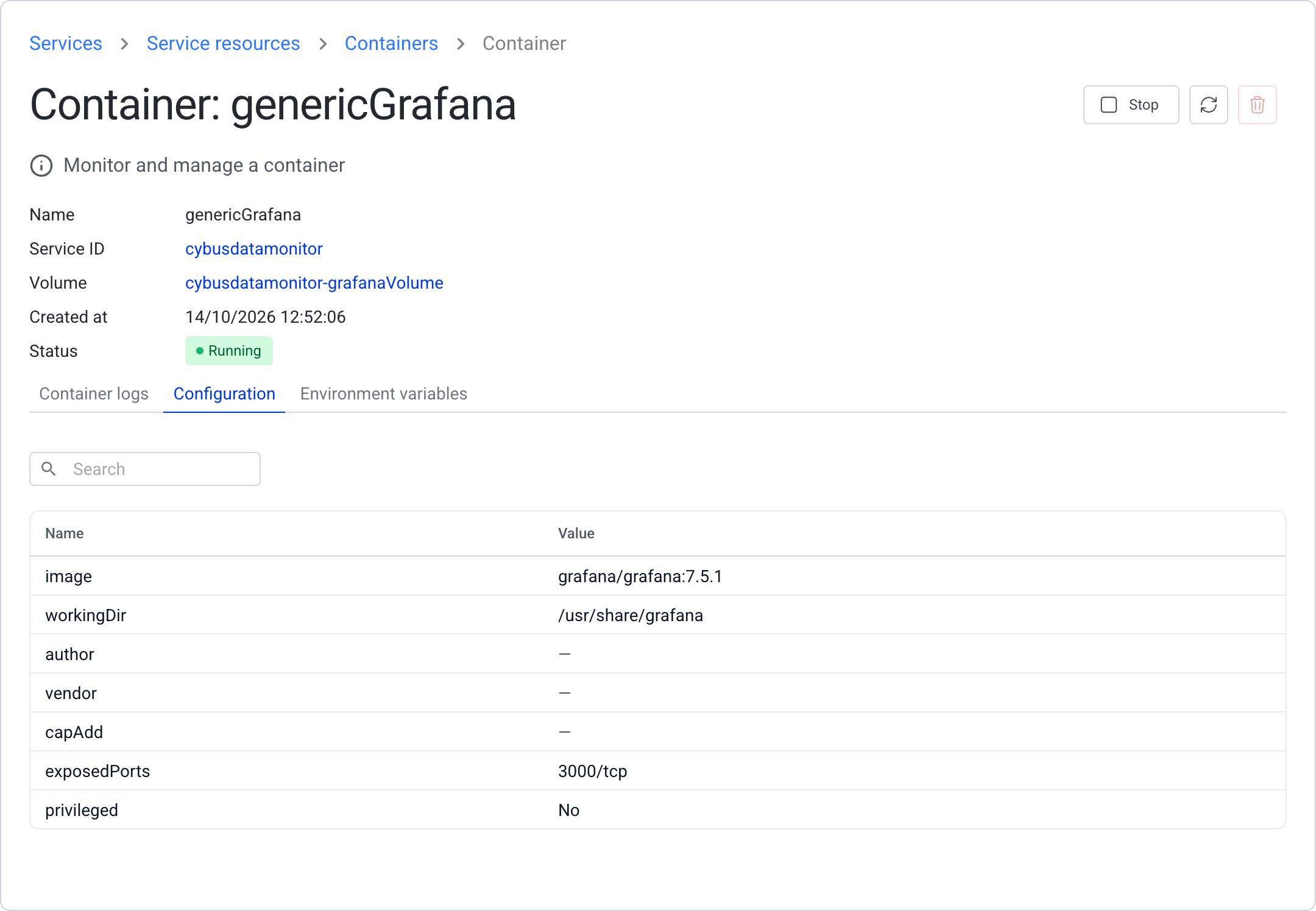
### Configuration Tab
This tab shows the configuration properties of the selected container.
### Environment Variables Tab
This tab shows the specified environment variables that are specified for the selected container.
---
# Agent Instructions
This documentation is published with GitBook. GitBook is the documentation platform designed so that both humans and AI agents can read, navigate, and reason over technical content effectively. Learn more at gitbook.com.
## Querying This Documentation
If you need additional information that is not directly available in this page, you can query the documentation by asking a question.
Perform an HTTP GET request on the following URL with the `ask` and `goal` query parameters:
```
GET https://docs.cybus.io/data-flows/services/service-resources-view/containers-view.md?ask=&goal=
```
`ask` is the immediate question: it should be specific, self-contained, and written in natural language.
`goal` is what the user is ultimately trying to achieve, the reason they need the answer. Sharing it helps GitBook give you a better, more relevant answer. A goal is most helpful when it describes the outcome the user wants rather than restating the question. For example, with `ask=how do I create an API token`, a goal like `automate deployments from our CI pipeline` lets GitBook tailor the answer to that use case.
The response will contain a direct answer to the question and relevant excerpts and sources from the documentation.
Use this mechanism when the answer is not explicitly present in the current page, you need clarification or additional context, or you want to retrieve related documentation sections.